AI NDA Generator Tutorial: How to Create and Sign NDAs in Under 60 Seconds with QuickSign
AI NDA generator tutorial: Learn to draft, customize, and sign secure NDAs in under 60 seconds with QuickSign’s smart automation.
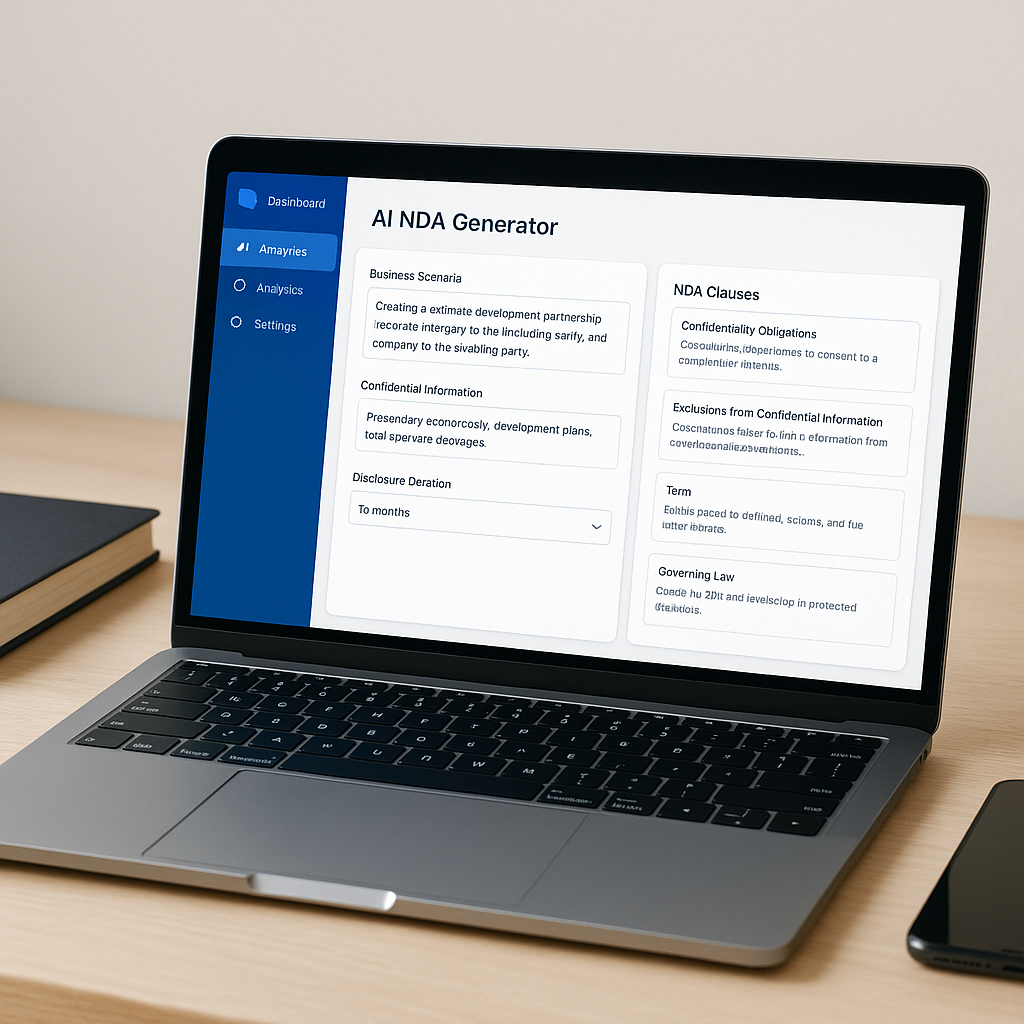
AI NDA Generator Tutorial: How to Create and Sign NDAs in Under 60 Seconds with QuickSign
Why AI-Generated NDAs Are Changing How Businesses Protect Confidentiality
Non-disclosure agreements (NDAs) are now standard in sales conversations, partnership talks, product development, and hiring. They protect sensitive information and set clear expectations between parties. But manually drafting NDAs—or constantly recycling old templates—slows teams down and can introduce risk if key clauses are missing.
AI NDA generators have emerged to solve this: you describe your scenario and get a tailored NDA in minutes instead of hours. Many tools now offer AI-powered NDA creation and e-signing, reflecting a broader shift toward automated contract workflows across industries.(luminpdf.com)
This tutorial shows you, step by step, how to use QuickSign.it as your AI NDA generator and e-signature platform—so you can go from idea to legally signed NDA in under 60 seconds.
Key idea: With QuickSign, you don’t just sign documents—you generate NDAs from scratch with AI, place fields with drag-and-drop, send to unlimited recipients, and track signatures in real time, all in one affordable tool.
What You’ll Learn in This Tutorial
In this guide you’ll learn how to:
- Generate a tailored NDA using QuickSign’s AI document generation
- Customize clauses for mutual, unilateral, or employee NDAs
- Add signature, date, and initial fiel
ds via drag-and-drop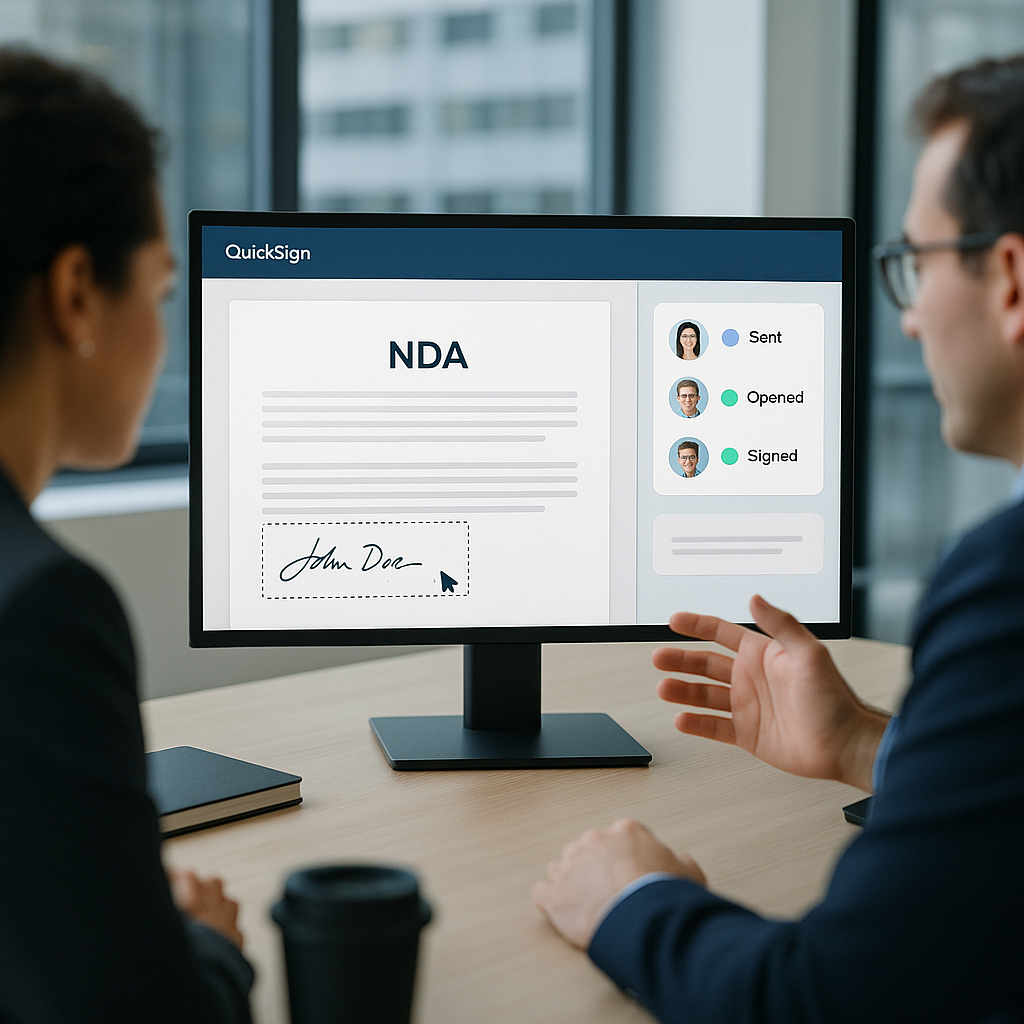
- Send your NDA for e-signature (to unlimited recipients)
- Track opens, views, and completed signatures in real time
Estimated time: Under 60 seconds per NDA once you’ve followed this tutorial once.
What You’ll Need
- A free QuickSign account
- Basic details about your NDA:
- Names of the parties (your company and the other party)
- Purpose of disclosure (e.g., “discussing potential software partnership”)
- Whether the NDA is mutual or one-way
- How long confidentiality obligations should last (e.g., 2–5 years)
- Email addresses of the people who need to sign
You can get started on the generous free tier: generate 2 documents and send 1 document to unlimited recipients at no cost.
Understanding AI NDA Generators (and Why QuickSign Is Different)
Most AI NDA tools follow a similar pattern: you describe your use case, the AI drafts the agreement, then you export the document and use a separate e-signature platform to collect signatures.(rivereditor.com)
QuickSign.it streamlines this into a single workflow:
- AI Document Generation – Type a simple prompt and generate a full NDA from scratch.
- Built-in E-Signature – No exporting and re-uploading. You send for e-signature directly from the same interface.
- Drag-and-Drop Fields – Place signatures, dates, and initials exactly where you need them.
- Real-Time Tracking – See when each recipient opens, views, and signs.
- Flat-Rate Pricing – Starts at $15/month for the whole team with no per-seat fees.
Pro tip: Unlike traditional per-seat solutions, QuickSign offers flat-rate pricing at $15/month—ideal if you have many internal users who need to generate and send NDAs regularly.
Step 1: Create Your QuickSign Account (1–2 Minutes)
First, you’ll set up your workspace in QuickSign.
- Go to https://quicksign.it in your browser.
- Click the “Get Started Free” or “Sign Up” button on the homepage.
- Enter your work email, name, and a secure password.
- Confirm your email if prompted (check your inbox and click the verification link).
- Log in to your new QuickSign dashboard.
On the free tier, you can immediately:
- Use the AI Document Generation feature for up to 2 NDA drafts
- Send 1 NDA to unlimited recipients for e-signature
Step 2: Open the AI Document Generator
Once you’re on the dashboard, you’ll start your NDA with AI instead of a blank page.
- From the main dashboard, look for the button labeled “Generate Document” or “New AI Document” in the top navigation or main panel.
- Click it to open the AI document generation panel.
- In the document type or template dropdown (if available), select “NDA / Non-Disclosure Agreement”.
You’ll now see a large text box where you can describe what you need. This is where QuickSign’s AI does the heavy lifting.
Step 3: Describe the NDA You Need in Plain English
AI NDA generators work best when your initial description is clear and specific. Industry tools commonly recommend giving details such as parties, purpose, NDA type, and duration for stronger drafts.(luminpdf.com)
In QuickSign’s “Describe your document” or prompt box, type something like:
Example Prompt 1 – Mutual NDA for Partnership Discussions
“Create a mutual non-disclosure agreement between ACME Software Inc., a Delaware corporation, and BrightPath Ventures LLC, a California LLC. Purpose: exploring a potential SaaS reseller partnership and sharing product roadmaps, pricing, and customer lists. The NDA should be governed by California law, have a 3-year term for confidentiality obligations, include standard exclusions (public information, independently developed info, etc.), allow injunctive relief, and limit use of confidential information strictly to evaluating the partnership.”
Example Prompt 2 – One-Way NDA for Interview Candidate
“Create a one-way NDA where ACME Software Inc. is the Disclosing Party and Jane Doe is the Receiving Party. Purpose: job interviews for a senior product manager role, including discussion of internal product metrics, strategic roadmap, and unreleased feature concepts. Use New York law, a 2-year confidentiality period, and ensure the NDA covers technical, financial, and business information shared verbally or in writing.”
- Paste or type your prompt in the AI prompt area.
- Click the “Generate” or “Create Document” button.
Within a few seconds, QuickSign’s AI will produce a full NDA draft with headers, definitions, confidentiality obligations, exclusions, term, remedies, and signatures section.
Pro tip: The more context you give QuickSign’s AI (industry, purpose, parties, term, governing law), the less editing you’ll need to do later.
Step 4: Review and Customize Key NDA Clauses
AI-generated NDAs are a starting point, not a substitute for legal judgment. Best-practice guidance for NDAs emphasizes careful review of core clauses such as scope, exclusions, term, and remedies.(makeform.ai)
In the QuickSign editor, you can scroll through the draft and edit any section directly before sending it.
4.1 Check the Parties and Definitions
- Verify the legal names of each party (including entity type and jurisdiction).
- Confirm the definition of “Confidential Information” covers the kinds of data you expect to share (technical, financial, business, customer data, etc.).
- If necessary, narrow or expand the definition to match your risk appetite.
4.2 Confirm Mutual vs One-Way Structure
- If both sides will share sensitive information, ensure obligations apply symmetrically to each party (mutual NDA).
- If only one side is disclosing, verify that the agreement clearly identifies Disclosing Party and Receiving Party and applies duties only to the receiving side.
4.3 Review Exclusions and Term
- Check that standard exclusions are present: information already public, independently developed, received lawfully from a third party, or required by law to be disclosed.
- Set a realistic confidentiality duration (often 2–5 years, but depends on your industry and data).
4.4 Add Any Business-Specific Clauses
- Non-solicitation of employees or customers (if appropriate).
- Non-circumvention (for introductions and deal-making contexts).
- Return or destruction of materials at the end of the relationship.
You can edit any text block directly in the QuickSign editor—just click into the paragraph and type.
Important: For complex or high-value deals, always have your legal counsel review the AI-generated NDA to ensure it meets your jurisdiction’s requirements and your company’s policy.
Step 5: Prepare the NDA for E-Signature with Drag-and-Drop Fields
Once content is finalized, you’ll add signature fields so parties can sign electronically. Modern e-signature platforms, including QuickSign, use drag-and-drop placement for signature blocks, dates, and text fields to simplify setup.(luminpdf.com)
- In the QuickSign editor, click “Prepare for Signing” or “Add Fields”.
- You’ll see a preview of your NDA on the left and a field toolbox on the right (or top) with options like:
- Signature
- Initials
- Date
- Text / Name
- Email (if needed)
- Drag a Signature field to the signature line for the first party.
- Drag a Date field next to or under the signature line.
- Assign the fields to the correct signer (e.g., “Party 1 – ACME Software Inc.”).
- Repeat for each additional party (Party 2, Party 3, etc.).
QuickSign’s drag-and-drop interface makes it easy to match each field to a signer, helping reduce errors during signing and ensuring all required parties sign in the right place.
Step 6: Add Recipients and Configure Signing Order
Now it’s time to tell QuickSign who should sign the NDA.
- Click the “Recipients” or “Add Signers” section.
- For each signer, fill in:
- Name
- Email address
- Role (e.g., Disclosing Party, Receiving Party)
- If you want signatures to happen in a specific sequence (e.g., your company signs first, then the other party), enable “Signing Order” and drag recipients into the desired order.
- If sequence doesn’t matter, select “Send to all at once” (or similar option).
On the free QuickSign tier, you can send one NDA to unlimited recipients, which is especially useful for multi-party deals or when multiple internal approvers must sign.
Step 7: Send the NDA for E-Signature (in Seconds)
With fields placed and recipients added, you’re ready to send.
- Click the “Send for Signature” or “Send Document” button.
- Optionally customize the email subject line (e.g., “Non-Disclosure Agreement between ACME and BrightPath”).
- Add a brief message explaining the context and urgency.
- Click “Send”.
Your recipients will receive a secure email link inviting them to review and sign the NDA. E-signatures collected through reputable platforms are widely recognized as legally binding in the U.S., EU, and many other jurisdictions when used correctly.(quicksigner.com)
Pro tip: Because QuickSign is optimized for speed, this entire flow—generate NDA, add fields, send for signature—can be done in under 60 seconds for routine agreements.
Step 8: Track Views and Signatures in Real Time
After sending, you’ll want to know who has opened, viewed, or signed the NDA. QuickSign’s real-time tracking makes this transparent.
- Go back to your Dashboard or Documents tab.
- Find the NDA you just sent in your list of documents.
- Click into the document to open its status view.
Here you’ll typically see:
- Overall status: Sent, Viewed, Partially Signed, or Completed
- Per-recipient timeline: when each person opened, viewed, and signed
This level of visibility helps sales, HR, and partnerships teams follow up at the right time and keep deals moving without guesswork.
Real-World Use Cases for QuickSign’s AI NDA Generator
Sales Teams Sharing Pricing and Roadmaps
Before sharing detailed pricing breakdowns, discount structures, or roadmap slides with prospective customers, sales teams can:
- Use QuickSign’s AI to generate a tailored mutual NDA covering pricing, technical information, and strategy.
- Add signatures via drag-and-drop.
- Send to the prospect’s decision-maker and legal contact.
- Track when they open and sign, then confidently share sensitive materials.
Startups Pitching to Investors or Strategic Partners
Early-stage startups often need to disclose product architecture, IP details, or go-to-market plans. With QuickSign they can:
- Quickly generate one-way NDAs favoring the startup as disclosing party.
- Use flat-rate pricing (starting at $15/month) so the entire founding team can send NDAs without per-seat restrictions.
- Standardize their NDA templates with AI and minor legal review, then reuse the pattern across many investors.
HR and Recruiting for Senior Roles
For executive hires or roles with deep access to strategy and financials, HR can:
- Create a candidate NDA using QuickSign’s AI to cover confidential interview discussions.
- Send the NDA to candidates before sharing internal metrics or board decks.
- Maintain all signed NDAs in one secure QuickSign workspace for future reference.
Learn by Watching: AI NDA Generator in Action
Video content can make the workflow even clearer. To complement this tutorial, you can watch a general AI NDA generator demo and see how similar concepts map to QuickSign’s interface.
You can also explore broader AI tool overviews to understand how AI document generation fits into your overall tech stack:
Why Use QuickSign Instead of Juggling Multiple Tools?
Many teams currently use one tool for AI drafting, another for PDF editing, and a third for e-signatures. That creates friction, data fragmentation, and extra cost.
With QuickSign.it you can:
- Generate NDAs with AI from simple prompts—no separate AI writer needed.
- Prepare for signature with drag-and-drop fields—no manual form-building in a different app.
- Send and track all from the same dashboard.
- Scale usage across your entire team with flat-rate pricing starting at $15/month—no per-seat surprise costs.
Key takeaway: QuickSign unifies AI document generation and e-signatures, so your NDA process goes from multi-step and multi-tool to a single, streamlined workflow.
Quick Summary: AI NDA Generation with QuickSign
- Step 1: Create your free account at QuickSign.it.
- Step 2: Click “Generate Document” and select an NDA as your document type.
- Step 3: Describe your scenario (parties, purpose, mutual/one-way, term, governing law) and generate the NDA with AI.
- Step 4: Review and customize legal clauses directly in the editor.
- Step 5: Use drag-and-drop to place signature, date, and initials fields for each party.
- Step 6: Add recipients’ names and emails, and set signing order if needed.
- Step 7: Click “Send for Signature” to email a secure signing link to all parties.
- Step 8: Monitor real-time status in your QuickSign dashboard and download the fully executed NDA once completed.
Ready to simplify your document signing? Try QuickSign for free - generate 2 documents and send 1 document to unlimited recipients at no cost. No credit card required.