Automated Document Signing: How to Streamline Approvals, Reduce Errors, and Move Faster
Automated document signing streamlines approvals, reduces errors, and speeds workflows. Learn how to implement automated document signing for your team.

Automated Document Signing: How to Streamline Approvals, Reduce Errors, and Move Faster
Contracts that sit in inboxes for days. Team members chasing signatures over email. Version chaos and missed deadlines. If this sounds familiar, your organization is overdue for automated document signing.
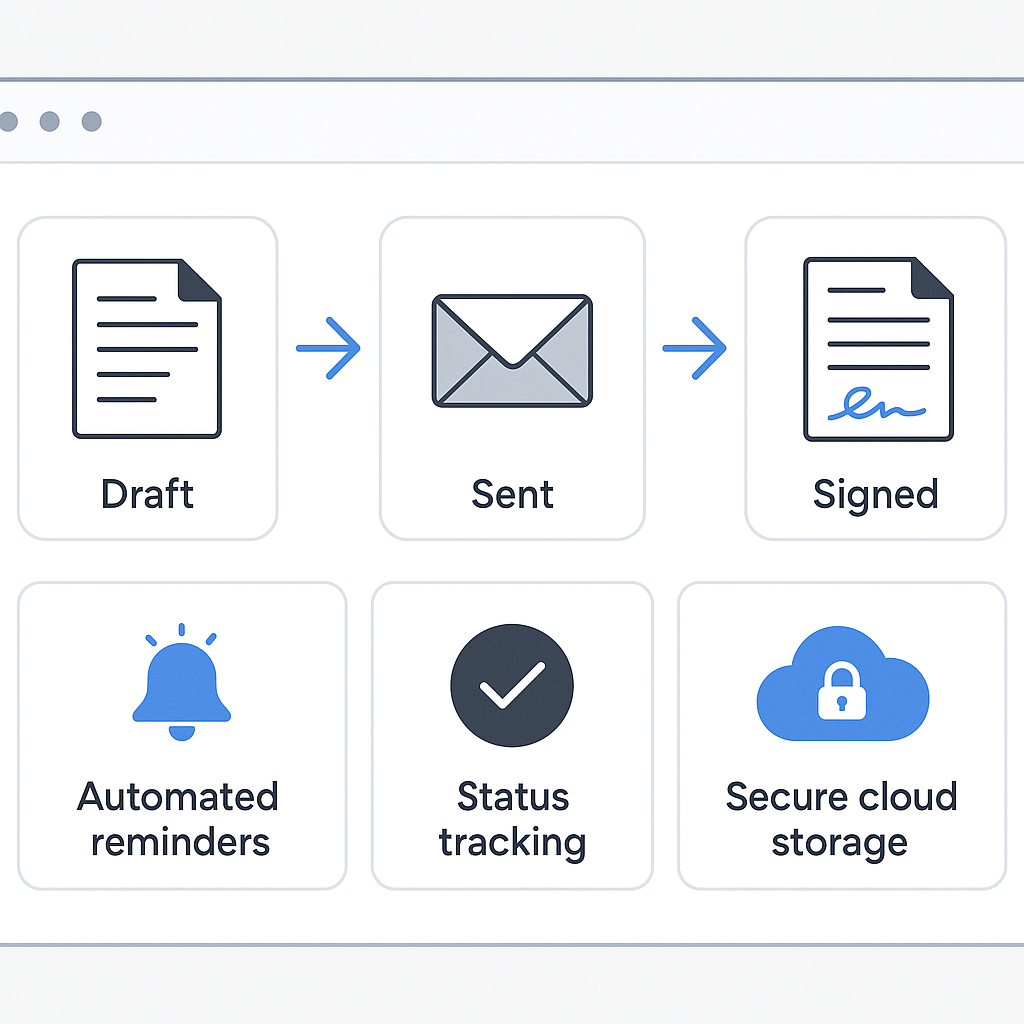
Modern e-signature platforms don’t just let you sign PDFs electronically. They automate the entire journey of a document—creation, sending, signing, and tracking—so agreements move from “draft” to “done” with minimal manual work.
In this guide, you’ll learn what automated document signing is, how it works, where it delivers the biggest impact, and how tools like QuickSign.it can help you modernize your workflows without enterprise-level costs.
What Is Automated Document Signing?
Automated document signing is the process of using software to route documents for e-signature based on pre-defined rules and workflows, rather than manually emailing files back and forth.
Instead of downloading a contract, attaching it to an email, asking the recipient to print, sign, scan, and send it back, an automated signing workflow lets you:
- Generate or upload a document
- Place signature and form fields exactly where needed
- Define who needs to sign and in what order
- Automatically send reminders and notifications
- Track status in real time and store completed agreements securely
Electronic signatures are legally recognized in most major jurisdictions. In the U.S., the ESIGN Act and state-level UETA laws confirm that a contract “may not be denied legal effect… solely because it is in electronic form.” (en.wikipedia.org) In the EU, eIDAS provides a similar legal framework.
Key takeaway: Automated document signing isn’t just about clicking “sign” on a PDF. It’s about creating repeatable, rules-driven workflows that move agreements forward with minimal human intervention—while staying legally compliant.
How Automated Document Signing Works (Step by Step)
1. Create or Import the Document
Most e-signature tools let you upload existing documents (PDF, DOCX, etc.). But some platforms, like QuickSign.it, go a step further with AI document generation.
With QuickSign’s AI Document Generation, you can describe the agreement you need—“a one-page NDA for a freelance designer,” “a simple month-to-month consulting contract,” or “a basic employment agreement for a remote worker”—and get a drafted document you can customize. This eliminates the need to hunt for templates or start from scratch.
2. Add Fields with Drag-and-Drop Tools
Once your document is ready, you add interactive fields where signers need to take action. Modern platforms make this incredibly intuitive.
- Signature fields for each signer
- Text fields for names, addresses, and other inputs
- Date fields to automatically capture the signing date
- Initial boxes for acknowledging specific clauses
With QuickSign.it, you can use a drag-and-drop field placement interface to place all these elements exactly where they belong, even on complex multi-page PDFs. For recurring documents, you can save layouts as templates and reuse them in seconds.
3. Configure Recipients and Workflow Logic
This is where the “automation” really kicks in. A typical automated signing workflow includes:
- Recipient roles (signer, approver, CC-only)
- Signing order (e.g., salesperson → client → internal legal)
- Conditional routing (e.g., if contract value > $50k, route to CFO)
- Automated reminders (send follow-up emails if no action after X days)
Common signing platforms like DocuSign and Adobe Acrobat Sign support multi-step routing and automated notifications, allowing businesses to reduce manual chasing and follow-ups. (thebusinessdive.com)
QuickSign adds an extra layer of efficiency with AI-powered document variables—dynamic fields that automatically insert recipient information (like name, company, email) across the document. Once you enter the recipient’s details once, they’re auto-filled everywhere they appear.
4. Send Documents for Signature
In a well-designed system, sending should take under a minute:
- Select your template or upload file
- Add recipients
- Review fields and workflow
- Click “Send”
With QuickSign.it, this is streamlined into a seamless sending flow. You can go from a blank screen to a document sent for signature in under 60 seconds—especially when using templates and AI-generated agreements.
5. Track Status and Store Completed Agreements
Instead of refreshing your email or asking “Did they sign yet?”, modern tools offer centralized dashboards and alerts:
- See who has opened, viewed, or signed a document
- Get notified when a signature is completed
- Filter by status (draft, sent, completed,
expired)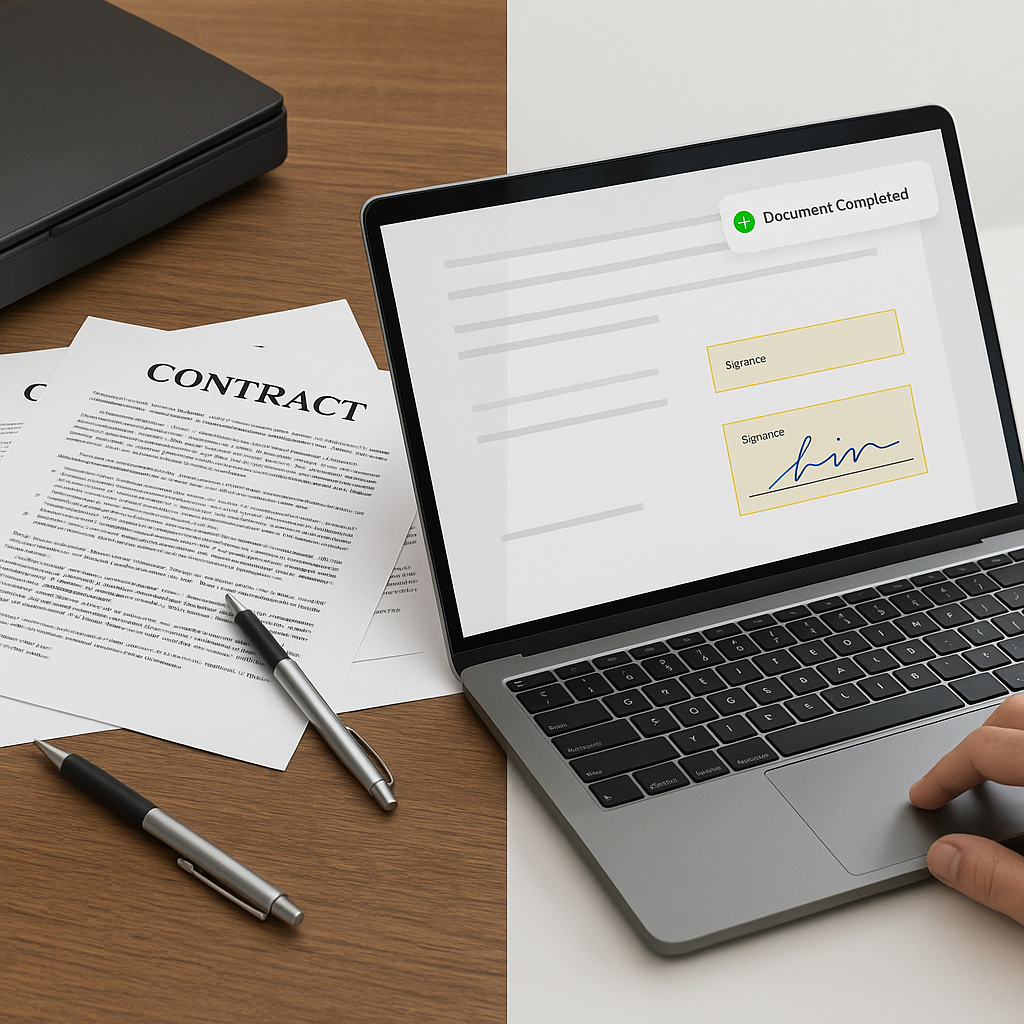
QuickSign.it includes real-time tracking, so you always know where each agreement stands. This is particularly valuable for sales, HR, and finance teams that manage dozens of documents at once.
Why Automate Document Signing? Key Business Benefits
1. Faster Turnaround Times
Studies consistently show that electronic signatures reduce contract turnaround from days to hours—or even minutes—by removing printing, scanning, and manual follow-up. Enterprises that adopt e-signatures report sales cycle reductions of 80% in some scenarios. (thebusinessdive.com)
When you add automation (templates, routing, reminders), you remove even more bottlenecks, making approvals almost self-driving.
2. Reduced Errors and Compliance Risk
Manual processes are prone to mistakes:
- Missing signatures on critical pages
- Outdated contract versions being signed
- Incorrect fields or missing initials
Automated workflows ensure that all required fields are completed before a document can be finalized, dramatically cutting down on incomplete or invalid agreements.
3. Better Visibility and Accountability
With traditional email-based signing, it’s hard to answer basic questions like “Who has seen this contract?” or “When did the client sign?”
Automated systems provide audit trails and status history, which are critical for compliance, dispute resolution, and internal reporting. Platforms like DocuSign use detailed logging for timestamps, IP addresses, and signer actions to support enforceability. (en.wikipedia.org)
4. Cost Savings vs. Legacy and Enterprise Tools
Big-name enterprise solutions are powerful—but expensive and complex. For example, DocuSign’s standard plans often charge per user, with small teams paying around $25–$45 per user per month and higher-tier plans reaching $65+ per user monthly. (cybernews.com) Costs can escalate quickly as you add seats and usage.
By contrast, QuickSign.it offers simple, flat-rate pricing starting at $15/month for the whole team—with no per-seat fees and no restrictive enterprise contracts. That means your organization can scale usage without worrying about surprise overages or hidden add-ons.
Pro tip: When evaluating document signing tools, model your expected number of users and documents. Seat-based pricing (like DocuSign or HelloSign) can get expensive quickly, while flat-rate options like QuickSign.it stay predictable as you grow.
Top Use Cases for Automated Document Signing
1. Sales & Revenue Operations
Sales teams live and die by how fast they can get deals signed. Automated signing helps by:
- Generating proposals and contracts from templates
- Automatically routing for internal approvals (discounts, custom terms)
- Sending contracts to prospects with one click from your CRM
- Triggering follow-up tasks when contracts are signed
Tools like DocuSign often integrate closely with CRM systems to automate these flows. (thebusinessdive.com) For smaller teams that don’t need complex CRM integrations, QuickSign.it provides a slimmer, modern interface designed to get documents out the door quickly—without the price tag and complexity of enterprise platforms.
2. HR & People Operations
HR teams deal with a high volume of repeatable documents, such as:
- Offer letters and employment contracts
- NDA and confidentiality agreements
- Onboarding paperwork and policy acknowledgments
- Contractor and freelancer agreements
Using AI document generation in QuickSign, HR can quickly generate standard agreements, then automate routing to candidates, managers, and finance. Automated reminders help ensure nothing slips through the cracks during busy hiring cycles.
3. Legal, Compliance & Procurement
Legal and procurement teams need consistent, trackable processes:
- Standardized contract templates with pre-approved clauses
- Controlled approval flows for non-standard terms
- Centralized storage and retrieval for executed agreements
E-signature tools that provide detailed audit trails and enforce required fields help legal teams maintain compliance while reducing manual review time.
4. Finance & Operations
Finance and operations teams can automate:
- Vendor onboarding forms
- Credit applications
- Subscription and service agreements
- Internal approvals for spend or budget changes
With automated workflows, approvals route to the right budget owner or executive based on thresholds, speeding up decisions while keeping controls intact.
5. Industry-Specific Workflows (Coworking, Real Estate, etc.)
Automated signing is especially valuable where you need repeatable, standardized agreements. For example, coworking operators can set up workflows where new members receive membership agreements, policies, and payment authorizations in a single automated packet.
To see this in action, check out this example of automating document signing in a coworking environment:
Practical Ways to Automate Your Document Signing Process
1. Start with Your Highest-Volume Documents
List the 5–10 documents you send most frequently: NDAs, proposals, SOWs, contracts, onboarding packs. These are your prime candidates for automation.
- Convert them into reusable templates
- Define a standard field layout (signatures, initials, dates)
- Set up default workflows (who signs, in what order)
- Use variables (like names and company) to auto-fill signer details
With QuickSign’s AI Document Generation, you can turn these high-volume documents into smart templates that adapt to each new recipient or scenario with minimal editing.
2. Use AI to Generate First Drafts
Instead of spending hours drafting legal language or Googling “free NDA template,” describe what you need and let AI propose a first draft. Then your legal or operations team can review and adjust.
This dramatically shortens the time from “need a contract” to “ready to send,” especially for startups and small businesses that don’t have in-house legal teams.
3. Embed Automation into Onboarding Flows
Whether it’s client onboarding, vendor onboarding, or new hires, create a standardized sequence:
- Trigger: New contact added to your system (CRM, HRIS, or spreadsheet)
- Action: Automatically generate relevant documents via AI
- Action: Send for signature using a pre-configured workflow
- Action: Notify internal stakeholders when documents are signed
Some businesses use integrations to trigger this from their existing systems; others run the process directly inside their e-signature platform using saved templates and workflows.
4. Use Automated Reminders and Expirations
Set up automatic reminder emails if a document hasn’t been opened or signed after a few days. This gentle nudge often recovers stalled deals or overdue HR paperwork without manual chasing.
You can also set expiration dates on offers or proposals to create urgency and keep your pipeline tidy.
5. Train Your Team with Short Video Guides
Adoption is easiest when users see exactly how automation works. Short, practical videos are especially effective. For example, here’s a concise guide showing how to auto-sign and automate document flows:
And for a more general overview of document signing automation best practices:
Comparing Automated Document Signing Solutions
There are many e-signature tools on the market. Here’s how they typically compare—especially when you factor in automation and cost.
Enterprise Platforms (e.g., DocuSign, Adobe Acrobat Sign)
Strengths:
- Extensive integrations and advanced automation
- Robust compliance features for large enterprises
- Scalable for complex, global workflows
Trade-offs:
- Per-user pricing (e.g., DocuSign commonly charges $25–$65+ per user per month), which scales costs linearly with headcount (cybernews.com)
- Potential add-ons and overage fees for advanced features and higher volumes (esignglobal.com)
- More complex setup and configuration, often requiring IT or admin support
Modern, SMB-Focused Alternatives (QuickSign.it)
QuickSign.it is designed for solo entrepreneurs, startups, and small businesses that want serious automation without enterprise complexity or cost.
Key advantages:
- Generous free tier: Generate 2 documents and send 1 document to unlimited recipients at no cost—ideal for testing your automated workflows before you commit.
- Flat-rate pricing: Plans start at just $15/month for the whole team, with no per-seat fees like DocuSign or HelloSign.
- AI Document Generation: Draft contracts, NDAs, and agreements from scratch by describing what you need.
- AI-powered document variables: Automatically fill in recipient information across your documents.
- Intuitive UI: Drag-and-drop fields, real-time tracking, and simple workflows built for speed—send documents in under 60 seconds.
- Transparent pricing: No hidden fees, no complex enterprise contracts.
For many small and mid-sized teams, this combination of automation, AI-powered drafting, and simple pricing makes QuickSign a compelling modern alternative to legacy tools.
How to Get Started with Automated Document Signing
If you’re ready to move away from manual, email-based signing, here’s a simple roadmap:
- Audit your current process. Identify which documents you send most often, who is involved, and where delays usually happen.
- Choose a right-sized platform. If you don’t need heavyweight enterprise features, avoid per-seat tools that lock you into expensive contracts. Consider a modern, flat-rate option like QuickSign.it.
- Create your first templates. Use AI document generation to draft your NDAs, contracts, or onboarding packets, then refine them with legal/operations.
- Define standard workflows. Decide who signs first, who approves, and who gets CC’d. Configure this once in your e-signature tool.
- Roll out to a pilot team. Start with a few power users (e.g., sales or HR) to validate and refine your workflows.
- Measure and expand. Track turnaround time, error rates, and user satisfaction. Then extend automation to more departments and document types.
Once your templates and workflows are in place, each new agreement becomes a few clicks instead of a manual project.
Ready to simplify your document signing? Try QuickSign for free - generate 2 documents and send 1 document to unlimited recipients at no cost. No credit card required.