How Freelancers Get Contracts Signed Fast (Without the Back-and-Forth Chaos)
Discover how freelancers get contracts signed fast with less chaos. Streamline approvals, cut email back-and-forth, and close more clients with ease.

How Freelancers Get Contracts Signed Fast (Without the Back-and-Forth Chaos)
If you’re a freelancer, you’ve probably felt at least one of these:
- Clients dragging their feet on signing, so projects (and payments) are delayed.
- Messy email threads with “final_final_contract_v7.pdf” attached.
- Uncertainty over whether your digital contract is actually legally binding.
This is exactly where a modern e-signature platform like QuickSign changes the game. Instead of cobbling together templates, PDFs, and manual signatures, freelancers can generate contracts, send them, and get them signed—in minutes—while staying compliant with electronic signature laws in the U.S. and beyond.
Key takeaway: Freelancers don’t just need “a way to sign documents.” They need a fast, legally sound, and repeatable workflow to get contracts signed—every time. QuickSign is built exactly for that.
Why Written Contracts (and Proper Signatures) Matter for Freelancers
Verbal “yes, let’s do it” agreements may feel convenient, but they’re risky. In many jurisdictions, including New York City under the Freelance Isn’t Free Act, companies are required to provide written contracts for freelance work once it exceeds a certain value (e.g., $800 in NYC). (en.wikipedia.org)
Beyond compliance, a signed contract protects you when:
- Clients try to change scope mid-project without paying more.
- Payments are late—or never arrive.
- There’s disagreement over deliverables, deadlines, or revisions.
With QuickSign, freelancers can quickly generate professional contracts using AI, send them for e-signature, and store proof of acceptance and signing—all in one place. That means you’re not trying to reconstruct what was agreed if there’s ever a dispute.
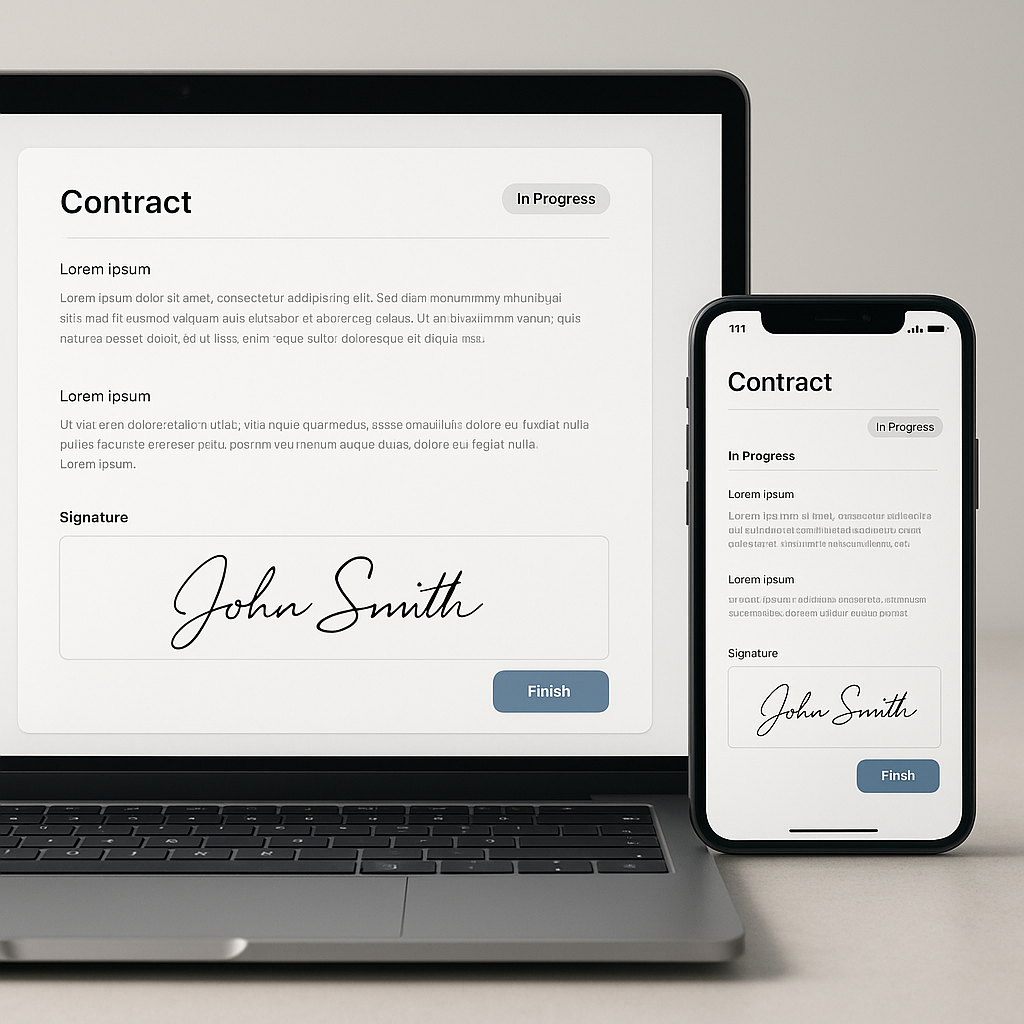
Are Electronic Signatures on Freelance Contracts Legal?
Many freelancers still wonder if having a client click a button or sign online “really counts.” In the United States, the answer is yes—when done properly.
The federal ESIGN Act and state-level UETA laws establish that:
- A contract or signature cannot be denied legal effect or enforceability solely because it is in electronic form. (en.wikipedia.org)
- If a law requires a signature, an electronic signature satisfies that requirement in most commercial contexts. (helpx.adobe.com)
For an e-signature to be legally effective, typical requirements include:
- Intent to sign – the signer must clearly intend to accept the contract.
- Consent to do business electronically – often via a clause inside the contract. (findlaw.com)
- Association with the document – the signature must be tied to a specific contract.
- Reliable record-keeping / audit trail – the system should store how, when, and by whom it was signed. (esignglobal.com)
QuickSign is designed with these principles in mind. Its workflow captures who signed, when, on what document, and from which email address or device—creating a clear, exportable record you can rely on.
Pro tip:> Add a short “We agree to use electronic signatures and records” clause in your freelance contracts. With QuickSign and AI Document Generation, you can have that language automatically appear in every contract you generate.
How Freelancers Traditionally Get Contracts Signed (and Why It’s Broken)
Before adopting modern tools like QuickSign, most freelancers use some version of this manual process:
- Download a generic contract template from the internet.
- Edit it in Word or Google Docs, hoping you didn’t break the formatting.
- Export a PDF and email it to the client asking them to “print, sign, scan, and send back.”
- Chase the client via email or chat for days or weeks.
- Manually save the final version somewhere (maybe).
This process has obvious problems:
- Time-consuming: You might spend 30–60 minutes per client just setting up the contract.
- Error-prone: Copy-paste mistakes, wrong client name, missing clause, or incorrect fee.
- Friction for clients: The more steps they have to take, the more likely they are to delay or drop off.
- No tracking: You have no idea whether they opened the file or saw your email.
A purpose-built e-signature workflow with QuickSign eliminates these bottlenecks, letting freelancers focus on billable work—rather than document admin.
How Freelancers Use QuickSign to Get Contracts Signed in Minutes
QuickSign is designed for exactly this use case: solo professionals and small teams who need a simple, reliable way to get documents drafted and signed quickly, without enterprise-like complexity or cost.
Step 1: Generate a Freelance Contract with AI (No Template Needed)
Instead of hunting for the “right” template, freelancers can use AI Document Generation inside QuickSign to create a contract from scratch. Just describe what you need:
- Type of work (e.g., SEO consulting, UI/UX design, copywriting).
- Payment terms and schedule.
- Timeline, milestones, and revision policy.
- Confidentiality, IP ownership, and cancellation terms.
The AI drafts a clear, structured agreement based on your description. You can quickly review, tweak wording, and save it as a reusable template for future clients.
Pro tip: Use one “Master Freelance Services Agreement” template inside QuickSign and customize only the project-specific schedule or scope per client. This alone can save hours every month.
Step 2: Add Signature and Client Fields with Drag-and-Drop
Once your contract is ready (or if you upload an existing PDF), QuickSign lets you place all necessary fields using intuitive drag-and-drop field placement:
- Signature fields for you and your client.
- Date fields.
- Initials on specific clauses (e.g., for scope, IP, or cancellation policies).
- Text fields if clients need to fill in details (e.g., billing contact, legal entity name).
This visual approach eliminates guesswork. You see exactly where each signer will interact with the document, reducing back-and-forth due to missing or misplaced fields.
Step 3: Send for Signature in Seconds
With seamless sending, freelancers can:
- Add one or multiple recipients (e.g., CEO + legal contact at a brand).
- Set signing order if necessary (e.g., manager first, finance second).
- Include a personalized message explaining the project and next steps.
Then you click send—and QuickSign delivers the contract with a secure, guided signing experience for your client. No account creation is required on their side; they just open the link and sign.
Step 4: Track Views, Opens, and Signatures in Real Time
One of the biggest freelancer pain points is not knowing whether a client has even read the contract. QuickSign solves this with real-time tracking:
- See when a client opens the contract.
- Know if they’ve started signing or abandoned midway.
- Get notified as soon as the document is fully signed.
This removes guesswork from your follow-up strategy. If a client hasn’t opened the contract after two days, you can send a polite nudge. If they’ve opened it multiple times, you might anticipate questions and proactively offer a quick call.
Example Workflow: Signing a New Freelance Brand Client with QuickSign
Imagine you’re a freelance marketer signing your first brand-scaling client—similar to the processes discussed in popular YouTube guides on landing and closing freelance clients:
Here’s how you could use QuickSign from handshake to signed deal:
- Discovery call complete: You’ve discussed goals, scope, and budget with the client. They’re verbally excited but want “something in writing.”
- Generate the contract: In QuickSign, you describe: “Monthly retainer marketing contract for an e-commerce brand, including paid ads management, weekly reporting, 3-month minimum commitment, 30-day cancellation notice, and clear IP ownership.” AI Document Generation creates a complete freelance contract with those terms.
- Customize and review: You tweak a few details (e.g., your specific reporting cadence, your late payment fees), then save.
- Place fields via drag-and-drop: You drag your signature field at the bottom, add a signature and date field for the brand’s representative, and an initials field on the scope of work page.
- Send for signature: You add the client’s email and send with a short note: “Here’s our agreement summarizing everything we discussed. Once signed, I’ll send over your onboarding questionnaire and first invoice.”
- Track in real time: Within an hour, you see they’ve opened the contract and scrolled through. The next morning, you receive a notification that it’s signed.
- Start work with confidence: Both you and your client receive signed copies. You store it automatically in QuickSign in case you ever need it for reference or proof.
This workflow aligns with best practices covered in educational videos about freelance contract essentials and fast contract creation:
Time and Cost Savings for Freelancers Using QuickSign
Every minute you spend wrangling documents is a minute you’re not billing, marketing, or delivering client work. Here’s how QuickSign translates into tangible savings for freelancers.
Saving Time on Each Contract
Let’s compare rough timelines for a single new client contract:
- Manual method: Finding a template (10–15 minutes), editing and formatting (20–30 minutes), exporting + emailing (5–10 minutes), correcting issues and resending (10–20 minutes). Total: 45–75 minutes per contract.
- With QuickSign: AI contract generation (2–5 minutes), quick review (5–10 minutes), drag-and-drop fields + sending (3–5 minutes). Total: 10–20 minutes per contract.
Even conservatively, that’s a 30–60 minute saving per client contract. If you sign 5 new clients a month, that’s 2.5–5 hours saved—time you can spend on billable work or lead generation.
Reducing Deal Friction and Closing Faster
Research on e-signature adoption shows that electronic signatures dramatically accelerate contract turnaround times, often cutting days or weeks off traditional “print, sign, scan” processes. (rallylegal.com)
For freelancers, that means:
- Less “ghosting” after a verbal yes—clients can sign from their phone in less than a minute.
- Projects start sooner, so payments start sooner.
- You look organized and professional, which supports higher rates.
Affordable, Predictable Pricing for Solo Pros and Small Teams
Unlike traditional per-seat solutions, QuickSign offers flat-rate pricing at $15/month for your whole team. That means:
- No surprise per-user or per-recipient fees as you grow.
- Simple budgeting for solo freelancers and micro-agencies.
- Your VA, project manager, or partner can all send contracts without triggering more licenses.
Plus, there’s a generous free tier—you can generate 2 documents and send 1 document to unlimited recipients at no cost. That’s plenty to close your first client or test whether QuickSign fits your workflow.
Practical Tips for Strong, Enforceable Freelance Contracts with QuickSign
Using QuickSign helps you get documents signed quickly, but what’s inside the contract matters too. While you should always consult a lawyer for specific legal advice, here are general best practices commonly recommended for freelancers:
Include These Core Clauses in Every Contract
- Scope of work: What exactly you will deliver, including format, number of revisions, and out-of-scope items.
- Timeline and deadlines: Start date, major milestones, and what happens if either party is late.
- Payment terms: Rates, invoicing schedule, late fees, and currency.
- Intellectual property and usage rights: Who owns the final deliverables and at what stage (often on full payment).
- Confidentiality: Especially important for NDAs and work with sensitive data.
- Termination and cancellation: Notice period, kill fees, and what happens to work in progress.
- Dispute resolution / jurisdiction: Where and how disputes will be handled.
With AI Document Generation inside QuickSign, you can specify these points in natural language and let the system propose clear wording that you can refine as needed.
Keep a Consistent Contract Workflow
Freelancers who scale successfully usually follow a consistent, professional process. With QuickSign, you can implement a repeatable flow like:
- Create a base contract template for your primary service using AI.
- For each new client, duplicate the template and adjust scope and fees.
- Drag-and-drop fields, then send within 10 minutes of a verbal “yes.”
- Use real-time tracking to follow up based on their engagement.
- Store all signed contracts in a dedicated folder or tagging system for easy reference.
Pro tip: In your onboarding email or proposal, let clients know, “You’ll receive a contract via QuickSign to review and sign electronically—no printing or scanning required.” This sets expectations and signals professionalism.
Why QuickSign Is a Natural Fit for Freelancers and Small Teams
For freelancers asking “How do I actually get my contracts signed quickly and reliably?”, QuickSign offers a focused, freelancer-friendly answer:
- Speed: Go from idea to signed contract in under 60 seconds with AI generation, drag-and-drop fields, and one-click sending.
- Simplicity: No bloated enterprise dashboard—just the tools you actually need to draft, send, sign, and track contracts.
- Affordability: Flat $15/month pricing for your whole team and a generous free tier to get started.
- Legal readiness: E-signature workflows aligned with U.S. e-signature standards (ESIGN, UETA) and clear audit trails. (helpx.adobe.com)
- Scalability: Works just as well if you’re a solo consultant, a creative duo, or a small agency with multiple senders.
Ultimately, freelancers who treat their business like a business—using proper contracts, consistent workflows, and professional tools—tend to close better clients, get paid faster, and face fewer disputes. A streamlined contract signing process with QuickSign is a simple but powerful step in that direction.
Ready to simplify your document signing? Try QuickSign for free - generate 2 documents and send 1 document to unlimited recipients at no cost. No credit card required.