How to Add Initials and Date Fields to Documents with QuickSign
Learn how to add initials and date fields to documents with QuickSign. Streamline approvals, reduce errors, and keep every signed document compliant.

How to Add Initials and Date Fields to Documents with QuickSign
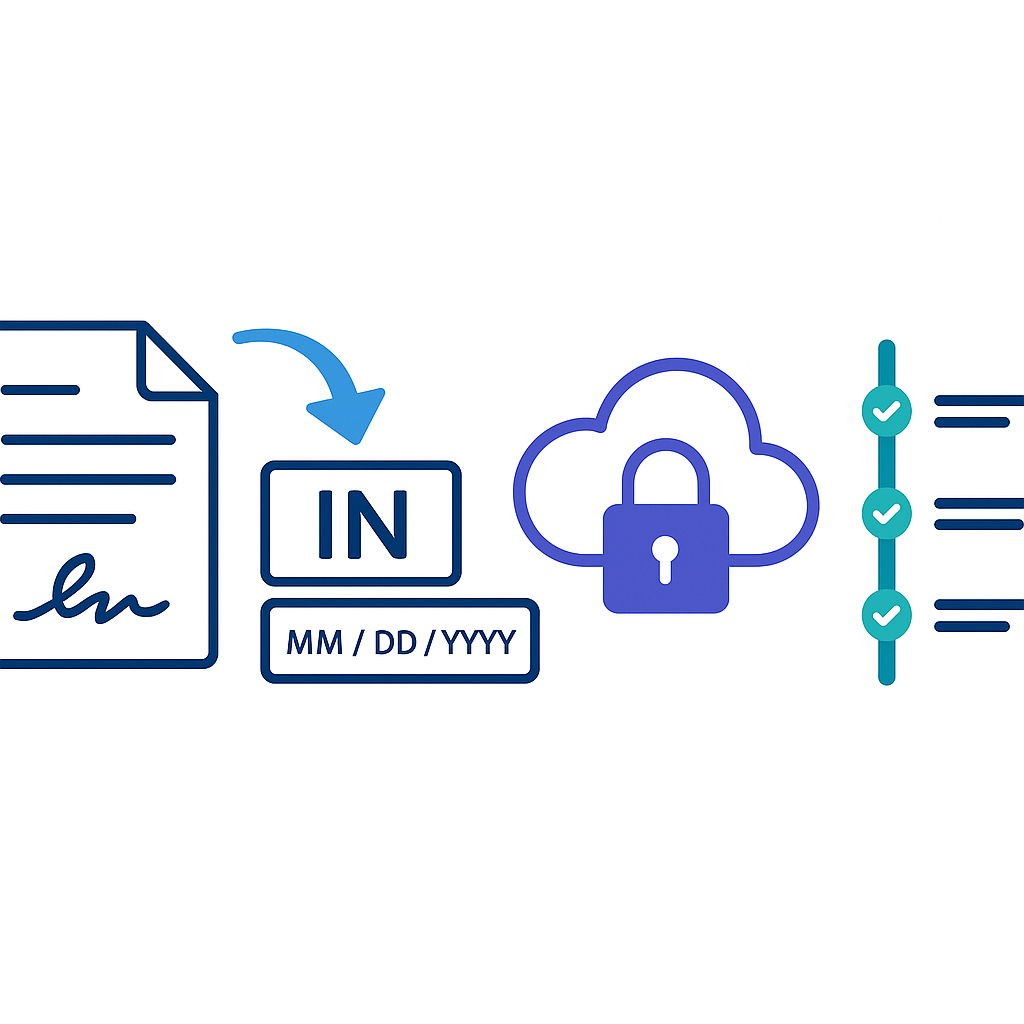
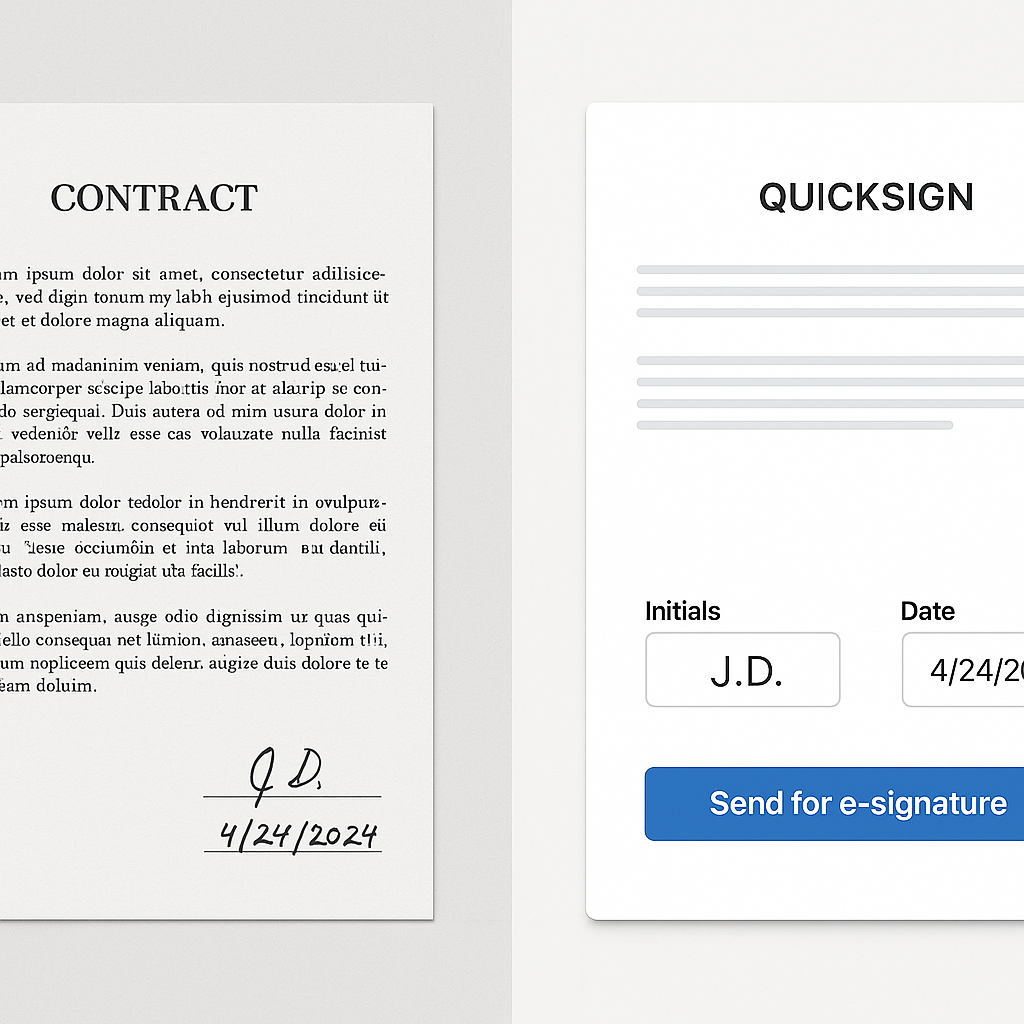
Initials and date fields might seem like tiny details, but they carry big legal and operational weight. They show that a signer has reviewed specific pages, agreed to particular clauses, and signed on a clearly recorded date. With QuickSign, you can add these fields to any document in seconds using a simple drag-and-drop interface, then send for e-signature with full tracking.
This tutorial walks you step-by-step through adding initials and date fields to contracts, NDAs, HR forms, and more—using QuickSign.it as your primary workflow.
Key idea: Well-placed initials and date fields reduce disputes, improve compliance, and give you a clean audit trail—all of which are easy to achieve with QuickSign’s drag-and-drop tools.
Why Initials and Date Fields Matter for E‑Signatures
Under frameworks like the ESIGN Act and UETA in the U.S., and eIDAS in the EU, properly implemented electronic signatures (including initials and dates linked to a signer) are legally enforceable as long as you can show who signed, what they signed, and when they signed it.(quicksigner.com)
Adding initials and date fields to your digital documents helps you:
- Highlight critical clauses (e.g., liability limitations, non-compete provisions) on a specific page
- Confirm page-level review so signers can’t claim they never saw a particular section
- Document the signing moment with a clear, tamper-evident date associated with each signer
- Create a strong audit trail when combined with QuickSign’s event logs and secure storage
QuickSign handles the technical side—linking initials and dates to the signer, locking the signed PDF, and keeping a full activity history—so your team can focus on business, not paperwork.(quicksign.it)
What You’ll Need
Before you start adding initials and date fields, make sure you have:
- A free or paid QuickSign account (no credit card needed to start)
- Your document ready:
- Either a PDF, Word document, image (PNG/JPEG), or
- No document at all—QuickSign’s AI can generate one for you
- The list of people who need to sign or initial (names and email addresses)
- A clear idea of:
- Which pages should be initialed
- Where the date should appear (e.g., near the signature block, on each page, or both)
Estimated time: Once your docum
Step 1: Generate or Upload Your Document in QuickSign
Option A: Generate a Contract with AI (No Template Needed)
If you don’t already have a document, you can create one from scratch using AI Document Generation in QuickSign.it.
- Log into your QuickSign dashboard.
- Click the “Generate with AI” or “Generate Document” button on the homepage.(quicksign.it)
- In the prompt box, describe what you need, for example:
- “One-page NDA for a marketing consultant, including confidentiality, non-disclosure, and IP ownership clauses. Include signature blocks and space for initials on each page.”
- Review the generated document:
- Edit any clauses directly in the built-in editor.
- Confirm page breaks where you’ll want initials.
- Click “Save & Continue to Fields” to move into field placement mode.
Pro tip: When using AI Document Generation, mention “initials on each page” and “date next to signature” in your prompt so the layout is optimized for field placement later.
Option B: Upload an Existing PDF or Word File
If you already have a document:
- From your QuickSign dashboard, click “Upload Document”.
- Drag and drop your file (PDF, Word, PNG, JPEG) into the upload area, or click “Browse Files” to select it.(quicksign.it)
- Wait a moment for QuickSign to process the document and open it in the field editor view.
Step 2: Open the Drag‑and‑Drop Field Editor
Once your document is uploaded or generated, QuickSign automatically opens the drag-and-drop field placement interface.
You’ll see:
- Page preview in the center (scroll to navigate pages)
- Field toolbar on the side, with:
- Signature fields
- Initials fields
- Date fields
- Text fields
- Checkboxes and other form elements (depending on your plan)
- Recipients panel where each signer is assigned a color for easy visual mapping
Key benefit: With QuickSign’s drag-and-drop field placement, you don’t need to know anything about PDFs or form design—you literally drag an “Initials” or “Date” block onto the page and QuickSign wires it to the right signer automatically.
Step 3: Add Initials Fields to the Right Pages
This is where you tell QuickSign exactly where each signer should initial.
Step 3.1 – Add Your Recipients
- In the right-side panel, click “Add Recipient”.
- Enter the signer’s:
- Name (e.g., “Sarah Johnson”)
- Email address
- Click “Save”. Repeat for each additional signer.
Each recipient gets a unique color, which helps you visually see who will initial where when placing fields.
Step 3.2 – Place Initials on Key Clauses or Every Page
- Navigate to the page where you want initials using the page thumbnails or scroll bar.
- In the field toolbar, click the “Initials” field type.
- Drag the “Initials” block onto the page and drop it:
- At the bottom-right corner of the page, next to “Initials: ______”, or
- Beside specific clauses you want acknowledged (e.g., a non-compete clause)
- In the field options (usually a small popover or sidebar after you drop the field):
- Set the Recipient (e.g., “Sarah Johnson”).
- Mark “Required” so the signer cannot finish without initialing.
- Optionally, rename the field label (e.g., “Client Initials” or “Employee Initials”).
- Repeat for:
- Each page you want initialed, or
- Each critical clause that needs extra confirmation
Best practice: For multi-page contracts, many businesses require initials on every page, plus one full legal signature at the end. This creates a clear record that each page was reviewed, not just the final signature page.
Step 3.3 – Speed Up with Copy/Paste or Duplicate
To avoid manually placing dozens of initials fields:
- Right-click (or use the field menu) on an initials field you’ve placed.
- Select “Duplicate” or “Copy to Other Pages” (if available in your plan).
- Choose which pages should get the same initials placement (e.g., pages 2–10).
This lets you set up page-level initials for long documents in a few clicks instead of one page at a time.
Step 4: Add Date Fields for Each Signer
Next, you’ll add date fields so QuickSign captures the signing date from each signer, automatically populated when they sign.
Step 4.1 – Place Date Fields Near Signature Blocks
- Scroll to your main signature page (usually the last page).
- In the field toolbar, click the “Date” field type.
- Drag the “Date” field next to the signature line, often under the label “Date:” or on the same line.
- Assign the Recipient (e.g., “Sarah Johnson”).
- Mark as “Required” to ensure the date is captured for each signer.
QuickSign can automatically populate the date when the signer completes their signature, ensuring consistency and preventing back-dating or accidental errors.
Step 4.2 – Use Additional Date Fields for Key Milestones
In more complex workflows, you might want multiple dates, such as:
- Offer date vs. acceptance date
- Effective date of an agreement vs. the date signed
- Employee acknowledgment date for HR policies
For these scenarios:
- Add another “Date” field where needed.
- Optionally turn off “auto-fill with signing date” (if available) and let the signer select the date manually.
- Use the field label to clarify the meaning, e.g., “Effective Date” or “Policy Acknowledged On.”
Compliance tip: Many regulators and auditors look closely at when documents were signed and whether that aligns with when obligations started. Clear, labeled date fields make this straightforward to prove if questions arise later.
Step 5: Add Signatures, Text, and Any Remaining Fields
Initials and dates usually sit alongside other field types. QuickSign makes it easy to add everything you need in one pass.
- From the field toolbar, drag “Signature” fields to the bottom of the document where the primary signature is required.
- Add text fields for titles, company names, or addresses as needed.
- Use checkboxes for consent or policy acknowledgment (e.g., “I have read and agree to the Privacy Policy”).
- Double-check that:
- Every required field is marked as Required.
- Each field is assigned to the correct recipient.
At this stage, your document should have:
- Initials fields on important pages or clauses
- Date fields next to each signature block
- Signature fields and any supporting text/checkbox fields
Step 6: Seamlessly Send the Document for Signature
When your fields are in place, you’re ready to send—this is where QuickSign’s seamless sending shines.
- Click the “Send for Signature” or “Send” button in the top-right corner of the editor.
- Review your recipient list:
- Ensure emails are correct.
- Set signing order if needed (e.g., Client signs first, then your internal approver).
- Customize the email subject and message if desired (e.g., “Please sign and initial each page of the attached agreement”).
- Click “Send”.
Unlike traditional per-seat solutions, QuickSign offers flat-rate pricing starting at an affordable monthly rate for your whole team, which means you can send as many documents as you need without worrying about per-user fees.(quicksign.it)
Step 7: Track Initials and Dates in Real Time
Once the document is out, QuickSign provides real-time tracking so you always know where things stand.
- From your dashboard, open the “Documents” or “Activity” tab.
- Locate the document you just sent:
- See its status at a glance: Sent, Viewed, Partially Signed, or Completed.(quicksign.it)
- Click the document to view a detailed timeline:
- When each recipient opened the document
- When they signed and initialed
- The completed, timestamped copy
- Download or share the final, signed PDF. All initials and dates are now locked into a secure, audit-ready file.
Remember: Real-time tracking means you don’t have to chase people blindly—QuickSign shows who has viewed, who has signed, and who might need a gentle reminder.
Embedding and Editing Documents Before QuickSign
Sometimes you may need to prepare your document layout (like putting “Initials: ____” or “Date: ____” text in specific positions) before uploading it into QuickSign. Basic editing can be done in tools like Word or PDF editors.
Example: Preparing Footers for Initials in Word
If you want a footer like “Employee Initials: ____” on each page before you upload to QuickSign, you can set that up directly in Word and then convert to PDF:
After adding the footer text in Word, save as PDF and upload to QuickSign, then place initials fields exactly where those footer blanks appear using the drag-and-drop editor.
Example: Typing on Any PDF Before Using QuickSign
If you need to annotate or type directly onto a PDF before uploading it to QuickSign (for example, to add labels or instructions):
Once your PDF is prepared, you can still rely on QuickSign to handle all initials, signature, and date fields, plus sending and tracking.
Real‑World Examples of Initials and Date Workflows with QuickSign
Example 1: Freelancer Services Agreement
A freelance designer uses QuickSign.it to send a 7-page services agreement:
- AI Document Generation creates the base contract.
- Initials fields are placed on every page where scope and payment terms are described.
- A date field is placed next to the client signature.
- The designer sends the contract in under 60 seconds and tracks when the client opens and signs.
Example 2: HR Policy Acknowledgment
An HR team wants employees to acknowledge a new handbook:
- They upload a PDF of the handbook to QuickSign.
- They add:
- Initials fields on pages containing key policies (e.g., harassment, confidentiality)
- A signature and date on the final acknowledgment page
- Using bulk sending (if enabled on their plan), they send the same document to multiple employees.
- Real-time tracking shows who has initialed each page and completed the acknowledgment.
Example 3: NDA with Multiple Parties
A startup sharing sensitive product information with multiple partners can:
- Generate an NDA using AI within QuickSign.it.
- Place initials beside the confidentiality and non-solicitation sections.
- Add date fields for each party’s signature block.
- Send to all parties at once and monitor completion with QuickSign’s tracking dashboard.
Learning from Other Tools While Staying QuickSign‑First
If you’ve previously used other e-sign tools to add initials and date fields, you’ll find the concepts are similar—pick a field type, place it, and assign it to a signer. For example, tutorials like this “How to Add Initials in DocuSign” video explain the general idea of assigning initials to a recipient and placing them on a page:
The difference is that QuickSign puts these capabilities into a modern, affordable, and AI-powered platform—with flat-rate pricing and a generous free tier—so you get the same core functionality plus faster document creation and simpler team-wide adoption.(quicksign.it)
Quick Summary
- Initials and dates are critical for confirming page-level review and capturing when agreements were signed, which supports legal enforceability and compliance.
- With QuickSign, you can:
- Generate documents from scratch using AI Document Generation or upload your own files.
- Use drag-and-drop field placement to add initials and date fields exactly where you need them.
- Assign each field to specific recipients and mark them as required.
- Send documents in seconds using seamless sending—no complex setup needed.
- Monitor progress with real-time tracking and download fully signed, audit-ready PDFs.
- Best practices include:
- Initials on each page of long contracts
- Dates next to every signature block
- Clear labeling of special dates like “Effective Date” or “Policy Acknowledged On”
Ready to simplify your document signing? Try QuickSign for free - generate 2 documents and send 1 document to unlimited recipients at no cost. No credit card required.