How to Add Signature Fields to a PDF (Step-by-Step with QuickSign)
Learn how to add signature fields to PDF in minutes with QuickSign. Follow our step-by-step guide to create fillable, legally binding PDFs easily.

How to Add Signature Fields to a PDF (Step-by-Step with QuickSign)
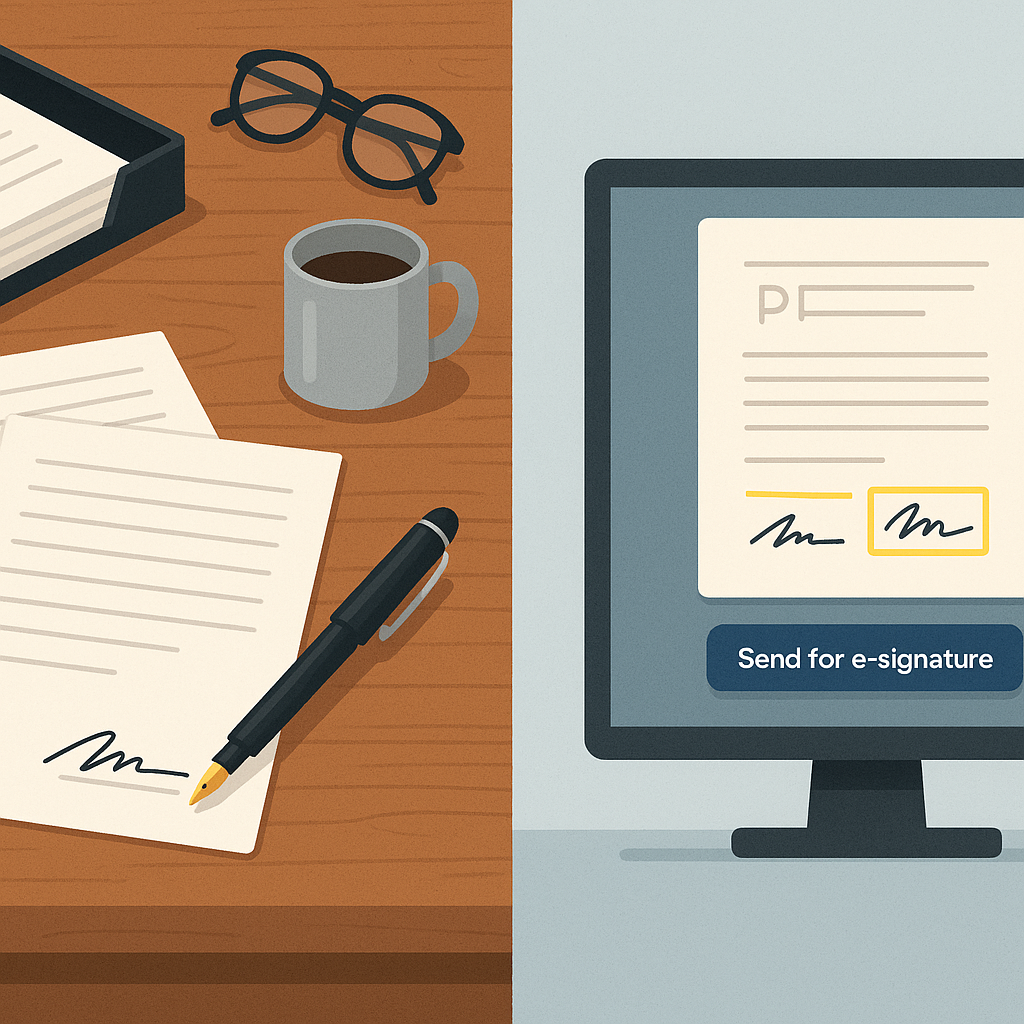
PDFs are the backbone of modern business workflows—but unless you can add clear, clickable signature fields, they still end up being printed, signed by hand, and scanned back. With QuickSign, you can turn any PDF into a ready-to-sign document in under a minute using simple drag-and-drop fields and seamless sending, without learning complicated form tools or legacy software interfaces.(helpx.adobe.com)
This guide walks you step-by-step through how to add signature fields to a PDF using QuickSign, plus a few best practices to keep your contracts, NDAs, and agreements professional, compliant, and easy to sign.
Key idea: You don’t need to be a PDF expert. With QuickSign, you simply upload your PDF, drag signature fields where you want them, assign them to signers, and send—often in under 60 seconds.
What You’ll Learn in This Guide
- How to quickly add signature fields to any PDF using QuickSign
- How to auto-generate the underlying contract with AI before you add fields
- Best practices for positioning signature, date, and initials fields
- How to send your PDF for e-signature and track it in real time

Why Signature Fields in PDFs Matter for Your Business
In many jurisdictions, including the United States, electronic signatures are legally valid and enforceable under laws such as the ESIGN Act, provided certain conditions (like consent and record retention) are met.(en.wikipedia.org) Well-placed signature fields ensure that:
- Signers know exactly where to sign, initial, and date
- You can require completion of critical fields before submission, reducing errors(experienceleague.adobe.com)
- Documents stay fully digital—no printing or scanning required(signnow.com)
Traditional tools often make this harder than it should be, with complex “Prepare Form” menus and confusing options.(techsupport.highpointnc.go
What You’ll Need
- A QuickSign account – You can start free with 2 AI document generations and 1 document send to unlimited recipients.
- Your PDF document – For example, a sales contract, NDA, employment offer, or service agreement.
- A clear list of signers – Names and email addresses for each person who needs to sign.
Estimated time: Adding signature fields and sending your PDF for signature typically takes under 60 seconds with QuickSign once your document is ready.
Before You Add Signature Fields: Generate or Upload Your PDF
Option A: Use QuickSign’s AI to Generate the PDF for You
Unlike most e-signature tools that only work with documents you already have, QuickSign includes AI Document Generation. That means you can describe the agreement you need, and QuickSign will draft it for you—ready for signature fields.
- Log in to your QuickSign dashboard
Open your browser and go to QuickSign, then log in or create a free account. - Click the “Generate Document” button
From the main dashboard, select “Generate Document” to open the AI drafting interface. - Describe the document you need
In the prompt box, enter something like:- “Mutual NDA between a US marketing agency and a client, 1-year term, California law.”
- “Sales agreement for software subscription, monthly billing, 30-day termination notice.”
- Review and refine
QuickSign’s AI will generate a full document. You can edit text directly in the editor to adjust clauses, names, or terms. - Click “Save & Prepare for Signing”
When you’re happy with the content, click the “Save & Prepare for Signing” button. QuickSign converts it into a sign-ready PDF and moves you into the field placement screen.
Pro tip: Use the free tier to generate up to 2 documents with AI so you can quickly test if the language and structure match your existing agreements before rolling it out to your team.
Option B: Upload an Existing PDF
If you already have a PDF (for example, exported from Word or another system), you can jump straight to field placement:
- Log in to QuickSign at https://quicksign.it.
- Click the “Upload PDF” button on the dashboard.
- Drag and drop your file into the upload area, or click “Browse” to select it from your computer.
- Once uploaded, click “Prepare for Signing” to move into the field placement view.
Step-by-Step: How to Add Signature Fields to a PDF in QuickSign
Step 1: Open the PDF in QuickSign’s Field Editor
- From your Documents list, locate the PDF you just generated or uploaded.
- Click the “Prepare Fields” or “Add Signature Fields” button next to that document.
- You’ll see a split view:
- On the left: a page thumbnail list for quick navigation.
- Center: a zoomable preview of your PDF pages.
- Right side: the Field Palette with elements like Signature, Initials, Date, Text, and Checkbox (similar to other drag-and-drop tools).(helpx.adobe.com)
Step 2: Add Signers and Assign Colors
Having clear signers helps you avoid mistakes like putting both parties’ signatures in the same place.
- At the top-right of the field editor, click “Add Recipient”.
- Enter each signer’s:
- Name (e.g., “Jane Smith”)
- Email (e.g., “jane@example.com”)
- Optional role, like “Client” or “Vendor”
- QuickSign assigns each signer a unique color. When you place fields, they’ll be color-coded to show who needs to sign where.
Pro tip: Add yourself as a signer when you also need to sign. This keeps the workflow fully digital and ensures your signature is captured and timestamped along with everyone else.
Step 3: Drag-and-Drop Signature Fields Exactly Where You Want Them
This is where QuickSign shines. You don’t need to learn complex “Prepare Form” menus like in legacy PDF editors. Instead, you simply drag fields from the palette.(experienceleague.adobe.com)
- Select the signer whose fields you’re placing using the recipient list at the top of the editor.
- From the right-hand Field Palette, drag a Signature field onto the PDF page.
- Drop it on the appropriate line (e.g., under “Client Signature”).
- Resize the field by dragging its corners so it aligns cleanly with your signature line.
- Repeat for each page and each signer:
- Signature fields for each party
- Date fields next to each signature line
- Initials fields in the footer of critical pages (like fee schedules)
Behind the scenes, QuickSign configures these as required signer fields, similar to how other e-signature engines treat drag-and-drop signature boxes and signer-info fields.(helpx.adobe.com)
Step 4: Add Supporting Fields (Name, Title, Date, Initials)
Well-designed PDFs go beyond just a signature box. Many organizations place separate fields for printed name, title, and signing date.(helpx.adobe.com)
- Drag a Text field from the palette and place it under “Printed Name” or “Full Name”.
- Drag another Text field for “Title” or “Position”.
- Use a Date field for “Date Signed” so the format is consistent.
- Where you need initials (e.g., “Initial each page”), drag Initials fields to the bottom corner of each page.
- For any field that must be filled, open its properties (e.g., by clicking the gear or “More” icon) and enable “Required”. This ensures the signer can’t complete the document without filling it out.
Pro tip: Use required fields for compliance-critical data like name, signature, and date. Optional fields are fine for things like “Company Website” or “Referred By.”
Step 5: Review Your Layout and Test the Flow
Before sending, you’ll want to verify that all your fields appear where they should and that each is assigned to the correct signer.
- Use the page thumbnails on the left to quickly scan each page.
- Toggle between recipients using the recipient selector to confirm each signer has:
- At least one signature field
- A date field next to their signature (if needed)
- Any required initials or text fields
- Click “Preview as Signer” (if available) to simulate the experience for each recipient.
This “walk-through” is similar to best practices recommended by other e-signature providers: always preview to avoid sending documents with missing signature fields or misassigned roles.(helpx.adobe.com)
Step 6: Seamlessly Send the PDF for Signature
Once your fields are placed, sending is straightforward with QuickSign.
- Click the “Send for Signature” button from the top-right of the field editor.
- Confirm the list of recipients and the signing order (if you need one signer to sign before the next).
- Customize the email subject and message so signers understand what they’re signing and any deadlines.
- Click “Send”.
Your signers will receive a secure email link that opens the PDF in a browser where they can click each signature and form field to complete it. No downloads or special software required, similar to modern e-signature workflows across the industry.(helpx.adobe.com)
Step 7: Track Signatures in Real Time
After you send the document, QuickSign’s real-time tracking keeps you in control:
- See when each recipient opens the document
- See when they view pages
- See when they sign and complete
This kind of audit-friendly tracking is essential for many businesses and is standard among professional e-signature tools.(signnow.com) With QuickSign, you get it baked into an interface that’s optimized for speed and simplicity.
Pro tip: Use QuickSign’s status filters (e.g., “Waiting for Others,” “Completed”) to nudge signers who haven’t opened or signed yet, instead of manually chasing updates over email.
Best Practices for Placing Signature Fields in PDFs
1. Use Clear Labels and Spacing
Ambiguity is your enemy. Make sure signature blocks clearly label each party (e.g., “Client Signature” vs. “Provider Signature”). Industry guides recommend well-structured signature panels with typed name and date to avoid confusion and support enforceability.(helpx.adobe.com)
2. Add Initials on High-Risk Sections
For clauses about fees, liability, or data protection, consider adding initials fields at the bottom of the page. This provides extra evidence that the signer reviewed critical sections.
3. Keep Signature Fields on the Same Page as Key Terms
Where possible, avoid splitting the signature block across pages. Legal and UX references note that keeping signature fields close to the terms they apply to helps reduce disputes later.(helpx.adobe.com)
4. Make Required Fields Truly Required
Leverage QuickSign’s required-field options to ensure that crucial items (like signature, date, and printed name) must be completed before the signer can finish.
5. Reuse Templates to Save Time
If you send the same type of document regularly (for example, an NDA or sales order), set it up once in QuickSign and reuse it:
- Open a completed document with perfectly placed fields.
- Click “Save as Template”.
- Next time, choose the template, update party names and terms, and send—fields remain in place.
This mirrors template-based workflows in other platforms but with the added benefit of QuickSign’s flat-rate pricing and AI-powered document creation.(formstack.com)
Watching It in Action: Helpful Video References
These videos (not produced by QuickSign) show the general concepts of adding signature fields to PDFs. While the interfaces differ, the principles are the same as in QuickSign: choose the field, place it on the PDF, assign it to a signer, and save.
In QuickSign, the process is usually even faster because you skip complex form configuration and focus on simple drag-and-drop placement and sending.
Why Use QuickSign for Adding Signature Fields Instead of Legacy Tools?
Traditional PDF editors and e-signature platforms often require separate subscriptions, per-seat pricing, and steep learning curves just to add a basic signature field.(signnow.com) QuickSign is designed as a modern, streamlined alternative for small businesses and growing teams:
- AI Document Generation – Create contracts, NDAs, and agreements from natural-language prompts instead of starting from a blank page.
- Drag-and-Drop Field Placement – Add signature, date, text, and initials fields to any PDF in seconds, with a clean, visual interface.
- Seamless Sending – Go from “draft” to “sent for signature” in under a minute using a unified workflow.
- Real-Time Tracking – See exactly who has opened, viewed, and signed your documents.
- Affordable Flat-Rate Pricing – Unlike traditional per-seat solutions, QuickSign offers flat-rate pricing at $15/month for the whole team, keeping costs predictable as you grow.
- Generous Free Tier – Generate 2 documents and send 1 document to unlimited recipients for free, with no credit card required.
Bottom line: With QuickSign you can go from “I need a contract” to “Everyone has signed the PDF” using a single, streamlined platform—without juggling templates, licenses, or complex form tools.
Quick Summary: How to Add Signature Fields to a PDF with QuickSign
- Step 1: Log into QuickSign and either Generate Document with AI or Upload PDF.
- Step 2: Click “Prepare for Signing” to open the drag-and-drop field editor.
- Step 3: Add recipients with names, emails, and roles.
- Step 4: Drag Signature, Date, Text, and Initials fields onto the PDF and assign them to each signer.
- Step 5: Mark critical fields as Required and preview the signer experience.
- Step 6: Click “Send for Signature” to email the document to all recipients.
- Step 7: Monitor progress with QuickSign’s real-time tracking and send reminders as needed.
Ready to simplify your document signing? Try QuickSign for free - generate 2 documents and send 1 document to unlimited recipients at no cost. No credit card required.