How to Generate Contracts with AI: A Step-by-Step Guide Using QuickSign
Learn how to generate contracts with AI using QuickSign. Follow our step‑by‑step guide to create faster, accurate, and compliant contracts every time.
How to Generate Contracts with AI: A Step-by-Step Guide Using QuickSign
Why AI-Generated Contracts Matter for Modern Businesses
The way businesses create and sign contracts is changing fast. With global e-signature software projected to reach tens of billions in market value by 2030 and adoption rates above 80% among North American corporations, digital agreements are quickly becoming the norm for everything from sales contracts to NDAs.(globalgrowthinsights.com)
At the same time, generative AI is transforming how those contracts are drafted—helping companies move from blank pages and copy-paste templates to tailored agreements generated in seconds. Used correctly, AI can dramatically speed up contract creation while reducing manual errors and repetitive work. But experts also warn that AI-generated legal documents must be reviewed carefully to avoid inaccuracies, omissions, and compliance risks.(wardblawg.com)
This is where QuickSign stands out. Instead of forcing you to juggle separate tools for drafting and signing, QuickSign combines AI document generation and e-signatures in one modern, affordable platform. You can describe the contract you need, let AI draft it, drag-and-drop signature fields, and send it for signing—all in under a minute.
Key idea: AI should be your drafting assistant, not your lawyer. With QuickSign, you get fast AI-generated contracts plus a streamlined way to review, edit, and sign them securely.
What You’ll Learn in This Guide
This step-by-step tutorial will show you how to:
- Plan what you need before generating a contract with AI
- Use QuickSign to draft co
ntracts from scratch using natural language prompts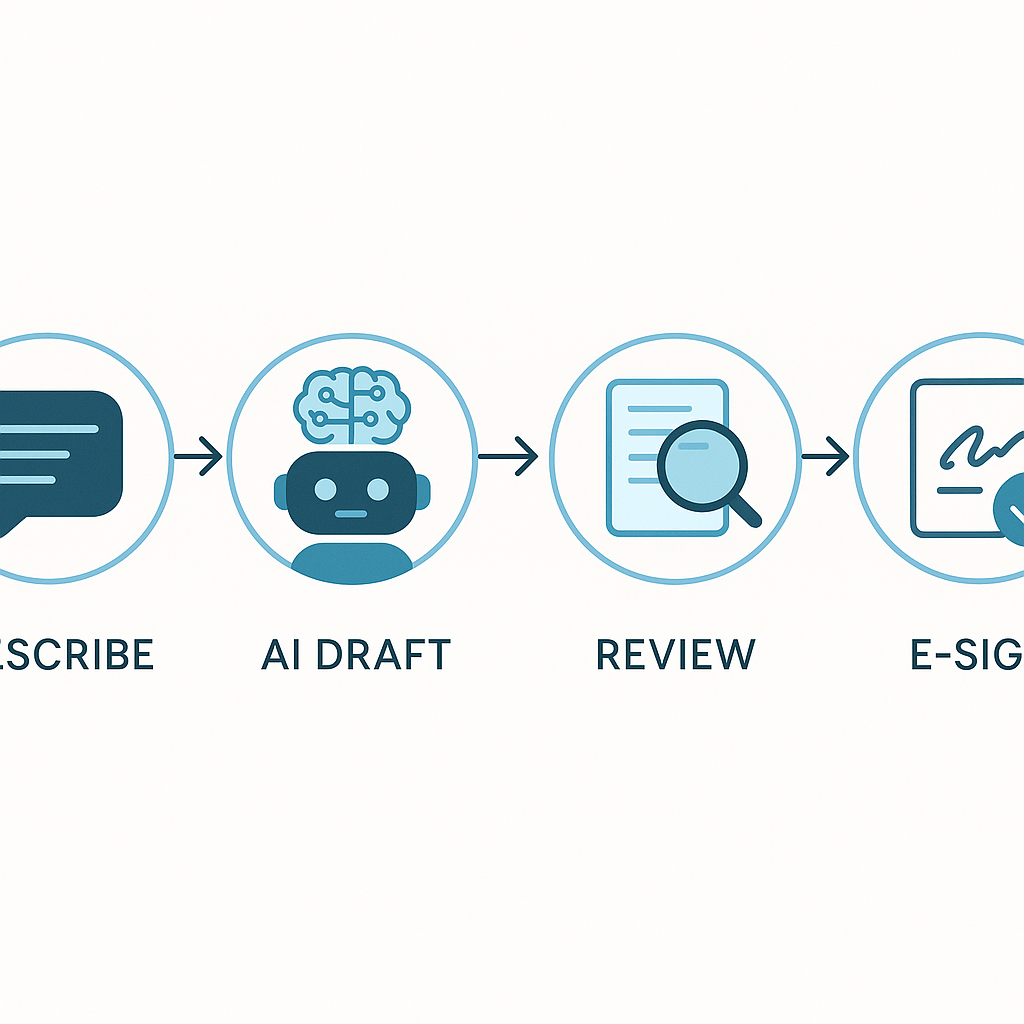
- Customize, review, and legally vet AI-generated contracts
- Add drag-and-drop signature fields and send for e-signature
- Track who has opened and signed your documents in real time
What You’ll Need
- A QuickSign account (you can start on the free tier at QuickSign.it)
- A clear idea of the contract type you need (e.g., NDA, service agreement, consulting contract, employment offer)
- Basic business details for both parties (names, roles, company names, jurisdictions, payment terms, dates)
- Access to a lawyer or legal advisor for final legal review, especially for high-value or high-risk agreements
Estimated time: With QuickSign, generating and sending a standard contract for signature typically takes under 60 seconds after you know your key terms.
Important Note on Legal Safety When Using AI
Legal and industry experts consistently warn that AI-generated content can “hallucinate”—create plausible but incorrect or fabricated information—especially in legal contexts. Courts have sanctioned lawyers for submitting briefs with fake citations created by AI, and professional bodies emphasize the need for human oversight and confidentiality safeguards.(cloudcontracts365.com)
Best practice: Always treat AI-generated contracts as drafts. Review every clause carefully, adapt them to your jurisdiction, and have a qualified legal professional review critical agreements.
Step 1: Create or Log Into Your QuickSign Account
To start generating contracts with AI, head to QuickSign.it in your browser.
- Click “Sign Up” or “Get Started Free” on the homepage.
- Enter your business email and create a secure password.
- Confirm your email if prompted (check your inbox and spam folder).
- Log in and you’ll land on the QuickSign dashboard.
QuickSign’s generous free tier lets you generate 2 documents and send 1 document to unlimited recipients—ideal for testing AI contract generation end-to-end without any commitment.
Step 2: Plan Your Contract Before You Ask AI
Even the best AI tools need clear instructions. Spend a few minutes outlining what you need so QuickSign’s AI generator can produce a high-quality first draft.
Decide Your Contract Type and Purpose
On a notepad or document, answer these questions:
- What type of contract is this? (NDA, consulting agreement, SaaS subscription, contractor agreement, employment contract, partnership agreement, etc.)
- Who are the parties? Include legal names and roles (e.g., “Acme, Inc., a Delaware corporation” and “John Smith, independent contractor”).
- What’s the main goal? For example, “protect confidential information,” “define scope of marketing services,” “govern software licensing,” etc.
Gather the Key Business Terms
Next, collect the essential details AI needs to tailor the contract:
- Effective date and contract duration
- Scope of work or services
- Payment terms (amounts, schedule, currency, late fees)
- Termination rights (notice periods, cause/no cause)
- Confidentiality and IP ownership positions
- Governing law and jurisdiction
Pro tip: The clearer your instructions, the better the AI output. Think of your prompt to QuickSign as your “brief” to a junior lawyer: specific, structured, and complete.
Step 3: Use QuickSign’s AI to Generate a Contract from Scratch
This is where QuickSign differentiates itself from traditional e-signature tools: you don’t need an existing template or PDF. QuickSign’s AI Document Generation lets you draft full contracts from a plain-language description.
Access the AI Document Generator
- From the QuickSign dashboard, click the “Generate Document” button.
- In the dialog that opens, choose “Contract / Agreement” as the document type (if available) or select the option closest to your use case.
- You’ll see a prompt box where you can describe the contract you need.
Write a Strong Prompt for Your Contract
In the prompt box, describe your contract in complete sentences. For example:
“Draft a one-year independent contractor agreement between Acme, Inc., a Delaware corporation, and John Smith, an independent marketing consultant based in California. The contractor will provide content marketing services (blog posts, email campaigns, social media copy) up to 40 hours per month. Monthly retainer is $3,000, paid within 15 days of invoice. Include confidentiality, IP assignment of deliverables to Acme, non-solicitation of Acme clients for 12 months after termination, and standard limitation of liability. Governing law: California.”
Then:
- Paste or type your description into the prompt box.
- Optionally select a tone (e.g., “formal,” “plain English”) if QuickSign offers this setting.
- Click “Generate” or “Create Contract”.
Within a few seconds, QuickSign will produce a full contract draft with sections, clauses, and defined terms tailored to your prompt.
Use Video Resources to Improve Your Prompts
If you’re new to prompting AI for contracts, watching a quick video walkthrough can help you see real examples of what to include or avoid.
This kind of step-by-step breakdown pairs nicely with QuickSign’s interface: you can watch on one side of your screen and build your prompts in QuickSign on the other.
Step 4: Review and Edit Your AI-Generated Contract
Once the draft appears in QuickSign’s editor, treat it as a strong starting point—not the final word.
Use QuickSign’s Editor to Fine-Tune the Draft
- Scroll through the contract in the document viewer/editor.
- Click into any clause you want to modify (e.g., payment terms, IP ownership, liability caps).
- Use the formatting toolbar (bold, numbering, headings) to keep the document clean and readable.
- Insert additional clauses specific to your industry or compliance needs.
Experts emphasize that AI tools lack human legal judgment and may omit jurisdiction-specific protections or create ambiguous language if left unreviewed.(wardblawg.com)
Run a Legal Sanity Check
Before you send the contract out:
- Check business details: Legal names, addresses, and entity types.
- Verify numbers: Fees, dates, renewal periods, notice periods, and liability caps.
- Align with your policies: Data processing, confidentiality, IP, and security obligations in line with your internal standards and regulators’ expectations.(www2.deloitte.com)
- Consult your lawyer: For complex or high-value agreements, share the QuickSign draft with legal counsel for review and jurisdictional adjustments.
Pro tip: Use QuickSign’s AI to handle the first 80% of the work, then invest your human and legal time on the remaining 20% where nuance and risk are highest.
Step 5: Add Signature and Form Fields with Drag-and-Drop
With your content finalized, the next step is making it signable. QuickSign’s drag-and-drop field placement makes this simple for both AI-generated documents and uploaded PDFs.
Switch to Field Placement Mode
- From the editing screen, click “Prepare for Signing” or the “Add Fields” tab.
- You’ll see a panel on the side with field types like Signature, Initials, Date, and Text.
Drag-and-Drop the Fields
- Drag a Signature field from the side panel onto the signature line for Party A.
- Assign that field to the correct signer (e.g., “Client” or “Contractor”).
- Repeat for Party B on their signature line.
- Add Date fields next to each signature if desired.
- Use Text fields for items signers should fill in, such as PO numbers or titles.
This visual workflow ensures nothing is missed and that signers know exactly where to click—no PDF editing expertise required.
Step 6: Add Recipients and Send for E-Signature
Once your contract is set up with fields, you’re ready to send it out. Here’s where QuickSign’s seamless sending and flat-rate pricing shine for growing teams.
Configure Recipients
- Click “Next” or the “Recipients” tab.
- Enter each signer’s name and email address.
- Optionally set the signing order (e.g., Client signs first, then Internal Approver).
- Add CC recipients (e.g., your legal or finance team) who should receive a copy.
Customize the Email Message
- In the email subject field, write something clear like “Acme – Marketing Services Agreement for Signature.”
- In the message body, briefly explain what the document is and any deadlines.
Then click “Send for Signature”. With QuickSign’s streamlined flow, you can go from draft to sent in under a minute—without leaving the platform.
Cost advantage: Unlike traditional per-seat solutions, QuickSign offers flat-rate pricing at $15/month for the whole team, plus a free tier that lets you test AI generation and signing with real recipients.
Step 7: Track Opens, Views, and Signatures in Real Time
One of the biggest pain points in contract workflows is not knowing where things stand. QuickSign solves this with real-time tracking.
Monitor Status from the Dashboard
- Return to your QuickSign dashboard.
- Find your contract under “Documents” or “In Progress.”
- Look at the status column for each signer: Sent, Viewed, or Signed.
QuickSign shows you exactly when recipients open and view your contract, so you can follow up at the right moment instead of guessing.
Automate Reminders and Follow-Ups
Depending on your QuickSign settings, you can:
- Enable automatic reminders for signers who haven’t taken action.
- Resend the invitation with one click if someone missed the original email.
- Download the final signed PDF and audit trail when everyone has signed.
Key benefit: Combining AI-generated contracts with QuickSign’s real-time tracking helps reduce deal cycle times and improve accountability across sales, HR, and legal workflows.
Example Workflows: How Businesses Use QuickSign + AI in Practice
Sales Teams: Faster NDAs and MSAs
Sales teams can use QuickSign to:
- Generate a mutual NDA via the AI Document Generation tool with a prompt describing both parties and the type of information exchanged.
- Review and customize governing law plus data protection clauses.
- Drag-and-drop signature fields, email the NDA to both sides, and track views and signatures.
This removes friction from the top of the funnel and gets prospects into deeper conversations faster.
HR & Talent: Offer Letters and Contractor Agreements
HR teams can:
- Generate employment offer letters or contractor agreements using QuickSign’s AI, tailored to role, location, and compensation.
- Standardize clauses like confidentiality, IP assignment, and code of conduct.
- Send offers for e-signature, track when candidates view them, and accelerate start dates.
Legal & Operations: Repetitive but Critical Contracts
In-house counsel and operations teams can use QuickSign as a controlled drafting environment:
- Build standard templates with AI assistance and then lock key clauses.
- Allow business users to generate variants via prompts (e.g., different jurisdictions or payment schedules) while maintaining consistent boilerplate.
- Centralize all signatures and audit trails in one system.
Advanced Tip: Understanding AI Agents and Automation Potential
As AI evolves, businesses are beginning to explore “AI agents” that can handle multi-step tasks: drafting, routing for approval, and even kicking off downstream processes like onboarding or provisioning.
While your immediate focus may be simply generating better contracts faster, understanding this direction can help you design workflows in QuickSign that are ready for deeper automation in the future—such as integrating contract signing with CRM updates or HRIS onboarding.
Quick Summary: How to Generate Contracts with AI in QuickSign
- Plan your contract: Decide on type, parties, key terms, and jurisdiction before you open QuickSign.
- Generate with AI: Log into QuickSign, click “Generate Document,” and provide a detailed prompt describing the agreement you need.
- Review and edit: Use QuickSign’s editor to refine clauses and align the contract with your legal and business requirements.
- Prepare for signing: Enter field placement mode and drag-and-drop signature, date, and text fields onto the document.
- Send seamlessly: Add recipients, customize the email, and send for e-signature in seconds.
- Track in real time: Use QuickSign’s dashboard to see who has opened, viewed, and signed your contracts, and download fully executed copies with audit trails.
Ready to simplify your document signing? Try QuickSign for free - generate 2 documents and send 1 document to unlimited recipients at no cost. No credit card required.