How to Get Signatures on Contracts Fast: A Step‑by‑Step Guide Using QuickSign
Get signatures on contracts fast with this step‑by‑step QuickSign guide. Learn simple tactics to close deals quicker and streamline your contract workflow.

How to Get Signatures on Contracts Fast: A Step‑by‑Step Guide Using QuickSign
Why Fast Contract Signatures Matter (and Where QuickSign Fits In)
Slow signatures stall revenue, delay projects, and frustrate everyone involved. Traditional paper-based signing routinely adds days or even weeks to contract turnaround, while modern e-signatures can cut that down to hours or less by eliminating printing, scanning, mailing, and in-person meetings. Studies show that organizations using e-signatures can reduce contract cycle times by 30–90%, with many agreements completed in under 24 hours instead of weeks.(zignt.com)
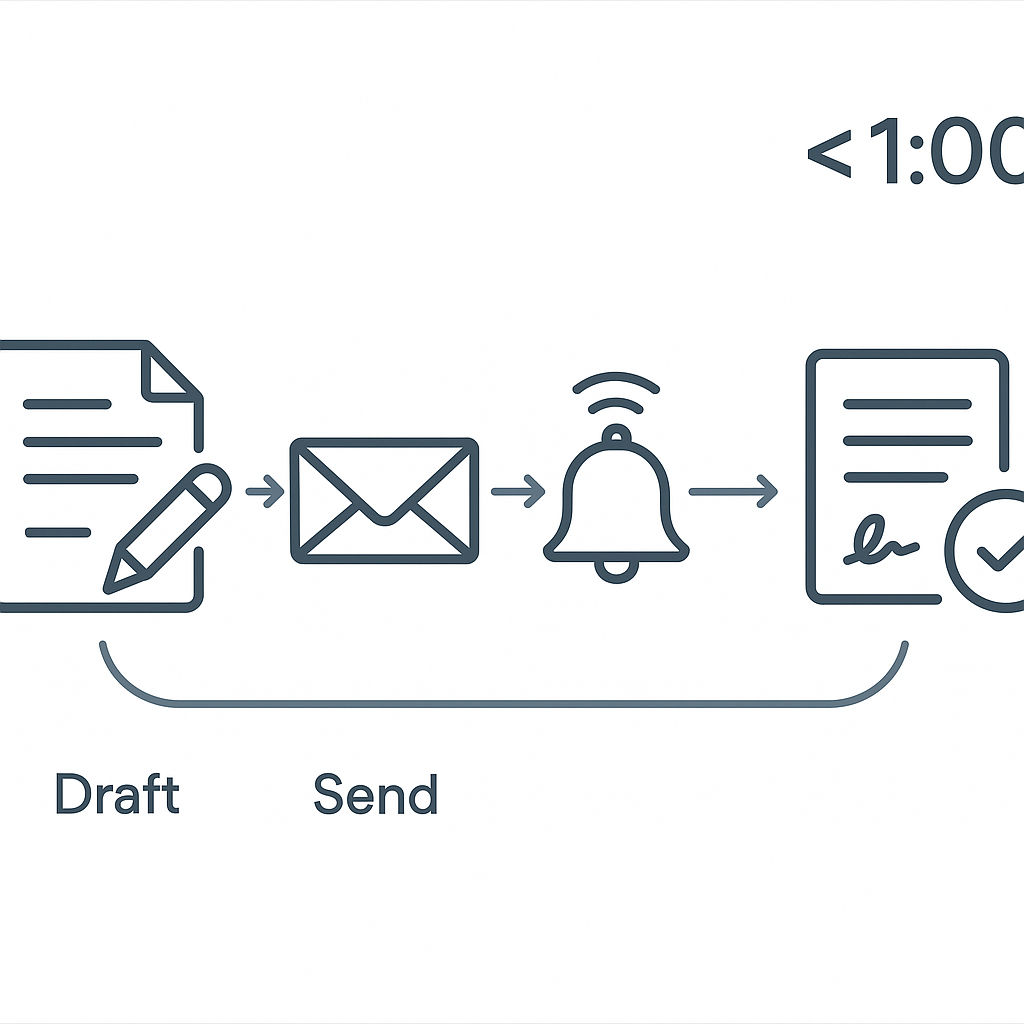
QuickSign is built specifically to help you move from “we’ve sent the contract” to “it’s signed and live” in minutes, not days. With AI document generation, drag-and-drop fields, seamless sending, and real-time tracking, your entire workflow—from drafting to final signature—can take under 60 seconds for standard agreements.
Key idea: The fastest way to get signatures on contracts is to remove every point of friction—from drafting the document to reminding signers. QuickSign is designed around exactly that principle.
What You’ll Need
Before we dive into the step-by-step tutorial, here’s what you’ll need to get signatures on contracts fast using QuickSign:
- A free or paid QuickSign account (sign up in seconds, no credit card required)
- Your contract details:
- Parties’ names and contact info
- Key terms (scope, price, dates, termination, etc.)
- EITHER:
- An existing contract file (PDF, Word, etc.), OR
- A description of the agreement you want QuickSign’s AI to generate
 i>Email addresses for all signers (clients, vendors, internal approvers)
Estimated time to get a standard contract drafted and sent for signature with QuickSign: under 60 seconds once you know the steps.
Step 1: Create or Log Into Your QuickSign Account
First, you need access to the platform where everything happens.
- Go to https://quicksign.it in your browser.
- Click the “Sign up for free” or “Get started free” button.
- Enter your name, work email, and a secure password (or sign in with your existing credentials if you already have an account).
- Confirm your email if prompted.
QuickSign offers a generous free tier—2 AI document generations and 1 document send to unlimited recipients—so you can test a full end-to-end signing flow without paying a cent.
Pro tip: If you expect to send contracts regularly, consider the flat-rate plan (starting around $15/month for your whole team). Unlike traditional per-seat solutions, QuickSign lets everyone in your business send unlimited documents without worrying about extra user fees.
Step 2: Generate a Contract Instantly with QuickSign AI (Fastest Option)
Most businesses lose time waiting on legal or manually editing old Word files. Contract automation tools have shown that template-based and automated generation can cut contract creation from 30–45 minutes down to just a few minutes.(zignt.com) With QuickSign, you don’t even need a template—the AI can draft from a plain-language description.
Using AI Document Generation
- From your QuickSign dashboard, click the “Generate Document” or “Generate with AI” button.
- In the AI prompt box, describe the document you need, for example:
- “A one-page services agreement between my marketing agency and a US-based client, monthly retainer of $3,000, 30-day termination notice, basic confidentiality, and no work-for-hire.”
- “A mutual NDA for a potential software partnership, 2-year term, Delaware law, electronic signatures allowed.”
- Click “Generate”.
- Review the AI-generated contract:
- Use the side panel to skim key clauses (payment, term, IP, confidentiality).
- Edit any clause directly in the on-screen editor.
- Click “Save & Continue” when you’re satisfied.
This AI-first approach drastically reduces drafting time and helps you standardize language, which research shows is key for faster approvals and less friction.(juro.com)
Pro tip: Save frequently used contracts (like your standard sales agreement or NDA) as templates inside QuickSign. That way, your next contract is just a couple of clicks away instead of a full redraft.
Step 3: Upload an Existing Contract and Prepare It for Fast Signing
If you already have a contract in PDF or Word format, you can still get signatures fast by using QuickSign’s drag-and-drop tools.
Uploading the Document
- In your QuickSign dashboard, click “Upload document” or “Upload to sign”.
- Drag and drop your file (PDF, Word, PNG, JPEG) into the upload area, or click “Browse files” and select it from your computer.
- Wait a moment while the document preview loads.
Using Drag-and-Drop Field Placement
To avoid confusion and delays, it’s critical that signers see exactly where to sign and what information to fill out. QuickSign’s drag-and-drop fields make this instant:
- On the right-hand side, locate the fields panel (Signature, Initials, Text, Date, Checkbox, etc.).
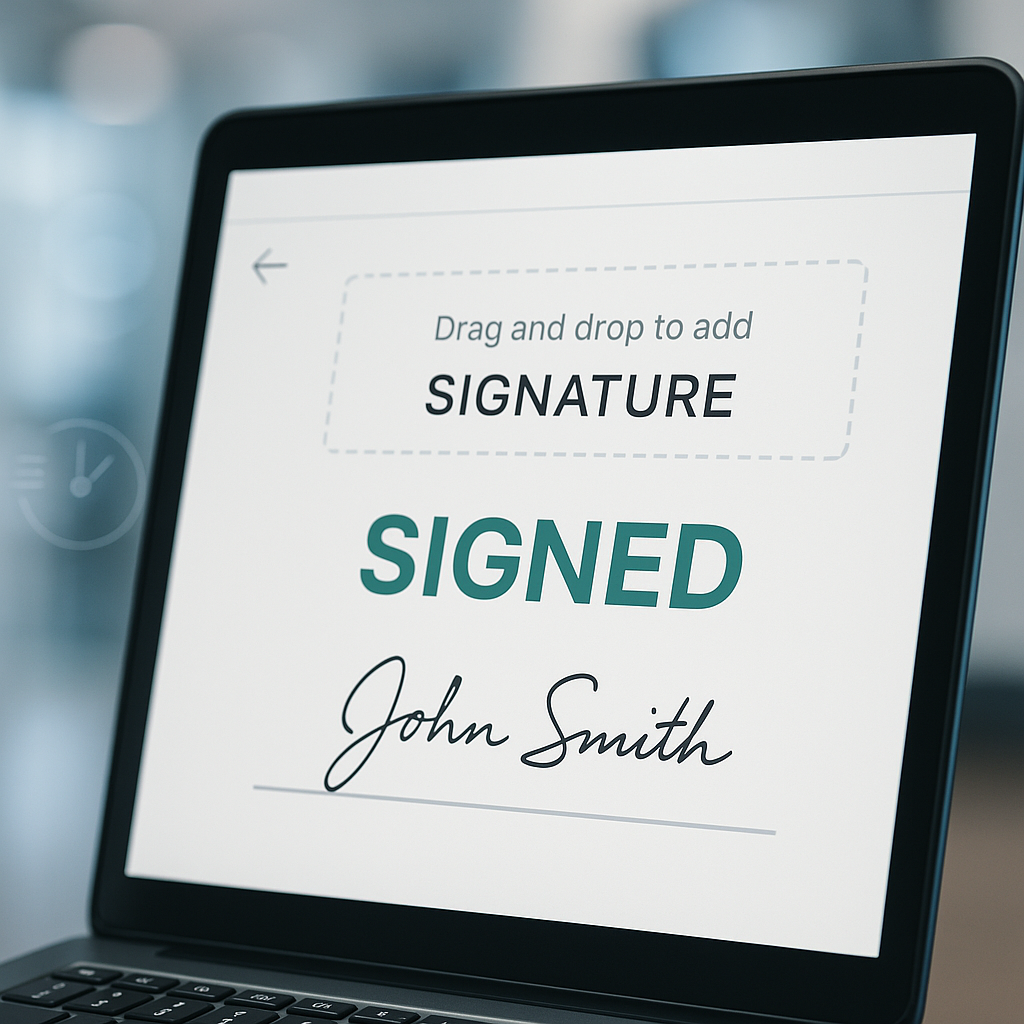
- Drag a Signature field to the correct line on the document (e.g., under “Client Signature”).
- Drag a Date field next to the signature line so the signer doesn’t forget to date the contract.
- Use Text fields for any data you need from the signer (job title, company name, PO number, etc.).
- If multiple signers are involved, assign each field to the correct signer using the “Assigned to” dropdown next to each field.
- Scroll through the entire document and repeat as needed for each signature block and initial line.
Pro tip: Incomplete fields are a major cause of delays. Use required fields in QuickSign (e.g., required text fields or required signatures) so a signer can’t finish without filling in everything you need.
Step 4: Add Recipients and Configure Signing Order
Now that the contract is ready, it’s time to add the people who need to sign and decide in what order.
Adding Signers
- Click the “Recipients” or “Add Signers” tab above the document preview.
- Click “Add recipient”.
- Enter:
- Name (e.g., “Sarah Johnson”)
- Email (e.g., “sarah@clientcompany.com”)
- Optional: Role (Client, Vendor, Internal Approver, Witness, etc.)
- Repeat for all parties who must sign or receive a copy.
Setting the Signing Order
Research shows that removing uncertainty from the process (who signs first, who approves next) leads to faster overall turnaround and fewer bottlenecks.(concord.app)
- Toggle “Set signing order” on.
- Drag recipients into the correct order (e.g., Sales Manager → Client → Internal Finance).
- For parallel signing (everyone can sign at the same time), turn off ordered signing so all recipients receive the link immediately.
Pro tip: For most sales contracts, send to the decision-maker first, then route internally for countersignature. That keeps momentum on the client side and often results in same-day completion.
Step 5: Write a Clear, Action-Oriented Message
The email that accompanies your contract has a big impact on how fast people sign. Clear instructions and context can turn a “I’ll get to this later” into a “I’ll sign now.”
- In the “Message” section, add:
- Subject line: “Action needed: Please sign our Services Agreement by [Date]”
- Message body: Briefly explain what the contract is, the deadline, and what happens after signing.
- Include a line like:
- “This contract can be reviewed and signed entirely online in a few clicks via QuickSign, no account or download required for you.”
Pro tip: Set expectations. Mention how long it will take (“less than 2 minutes”) and when you’d like it back (“by end of day today”). People are far more likely to prioritize a small, time-bound task.
Step 6: Send the Contract for Signature in Seconds
Once everything is set, you’re one click away from launching the process.
- Review:
- All fields properly placed and assigned
- All recipients added
- Subject and message are clear
- Click the “Send for Signature” or “Send” button.
- QuickSign automatically emails each recipient a secure link to view and sign the document.
Because the entire interaction is web-based and mobile-friendly, signers can complete the process from anywhere, which aligns with industry findings that mobile-optimized signing dramatically reduces delays.(adobe.com)
Step 7: Track Opens, Views, and Signatures in Real Time
A major benefit of modern e-signature platforms is visibility. Real-time status tracking tells you exactly where each contract stands so you can follow up with precision instead of guesswork.(thanksroger.com)
Using QuickSign’s Real-Time Tracking
- From the “Documents” or “Contracts” tab in your dashboard, select your contract.
- View the live status timeline, which typically includes:
- Sent – the email went out successfully
- Viewed – recipient opened the document
- Signed – signature completed
- Check which signers have completed their steps and who’s still pending.
Pro tip: Time your follow-ups based on real behavior. If the client hasn’t opened the contract after 24–48 hours, send a polite nudge. If they’ve opened it multiple times but not signed, offer a quick call to answer questions.
Step 8: Automate Reminders to Eliminate Chasing
Manual chasing is one of the biggest drains on sales and operations teams. Automatic reminders have been shown to significantly reduce contract turnaround times by keeping agreements top-of-mind without extra effort.(adobe.com)
Setting Up Smart Reminders in QuickSign
- Open your contract in the Documents view.
- Click “Reminders” or “Automation” (name may vary slightly depending on your account).
- Choose:
- Frequency: e.g., every 2 days until signed or until a specific date.
- Recipients: only pending signers.
- Customize the reminder message:
- “Friendly reminder: your electronic signature is needed on our agreement. It takes less than 2 minutes via QuickSign.”
- Enable reminders and save.
Pro tip: Use a mix of email and a quick personal note (Slack, SMS, or LinkedIn message) referencing that the contract is in their inbox from QuickSign. The combination often gets same-day signatures.
Step 9: Close the Loop and Store Signed Contracts Securely
Once all parties have signed, QuickSign automatically seals the document, logs a complete audit trail with timestamps, and stores the final version securely. This aligns with broader industry best practices around digital signature auditability and legal defensibility.(contractworks.com)
Accessing the Final, Signed Version
- In the Documents section, look for the status “Signed” or “Completed”.
- Click the document name to open the final version.
- Download it as a PDF, or:
- Share a secure link with internal stakeholders
- Store it in your DMS, CRM, or folder structure
- Review the audit trail for:
- Who signed
- When they signed
- IP and other metadata (where applicable)
Pro tip: Tag or name your contracts consistently in QuickSign (e.g., “ClientName – MSA – 2025-01-03”). You’ll save hours when it’s time for renewals, upsells, or audits.
Real-World Example: Getting Verbal “Yes” to Signed Contract in Under an Hour
Consider a sales rep who just wrapped a successful virtual meeting and received a verbal yes. Best practice in modern sales is to immediately move from verbal commitment to a signed agreement while motivation is high—many real estate and B2B sales trainers emphasize this exact pattern in their videos and workshops.(zignt.com)
Here’s how this workflow looks using QuickSign:
- Immediately after the call, the rep opens QuickSign.
- Clicks “Generate Document” and asks AI to create a tailored services agreement with the terms just agreed.
- Reviews and adjusts any specific clauses, then clicks “Save & Continue”.
- Adds the client as a signer and sets the signing order (Client → Sales Manager).
- Writes a short, clear message:
- “Great talking just now! Here’s the agreement reflecting everything we discussed. It takes less than 2 minutes to sign.”
- Clicks “Send for Signature”.
- Within minutes, the client receives the QuickSign email, opens on their phone, and signs.
- The rep gets a real-time notification that it’s signed, countersigns, and updates the CRM—deal officially closed.
This kind of rapid, end-to-end flow is exactly how teams are shrinking contract cycle times from days or weeks to under an hour.
Relevant YouTube Resources
While not specific to QuickSign, some YouTube content reinforces the importance of getting quick commitments and removing friction from the signing process.
Staying in Control of the Commitment
A popular video on virtual real estate wholesaling explains techniques to secure a seller’s commitment and move quickly to a signed contract—ideas that translate well to any deal where timing matters.
You can pair those communication techniques (clear deadlines, restating value, addressing objections live) with QuickSign’s fast signing workflow to close the loop digitally instead of waiting on paper.
Quick Summary: How to Get Signatures on Contracts Fast with QuickSign
- Set up your account: Create a free QuickSign account (no credit card required).
- Draft instantly with AI: Use AI Document Generation to create contracts from simple prompts, or upload your existing files.
- Place fields visually: Drag-and-drop signature, date, and text fields where you need them so signers never get confused.
- Add recipients and order: Add all signers, configure signing order, and clearly explain what’s being signed and by when.
- Send in seconds: Launch the workflow with a single click—signers can review and sign on any device.
- Track in real time: Use QuickSign’s real-time tracking and automated reminders to nudge pending signers without manual chasing.
- Store securely: Keep signed contracts and complete audit trails in one place for renewals, compliance, and reporting.
Ready to simplify your document signing? Try QuickSign for free - generate 2 documents and send 1 document to unlimited recipients at no cost. No credit card required.