How to Send a Document for Signature: A Step‑by‑Step Guide for Busy Professionals
Learn how to send a document for signature quickly and securely. This step‑by‑step guide for busy professionals streamlines approvals and saves time.

How to Send a Document for Signature: A Step‑by‑Step Guide for Busy Professionals
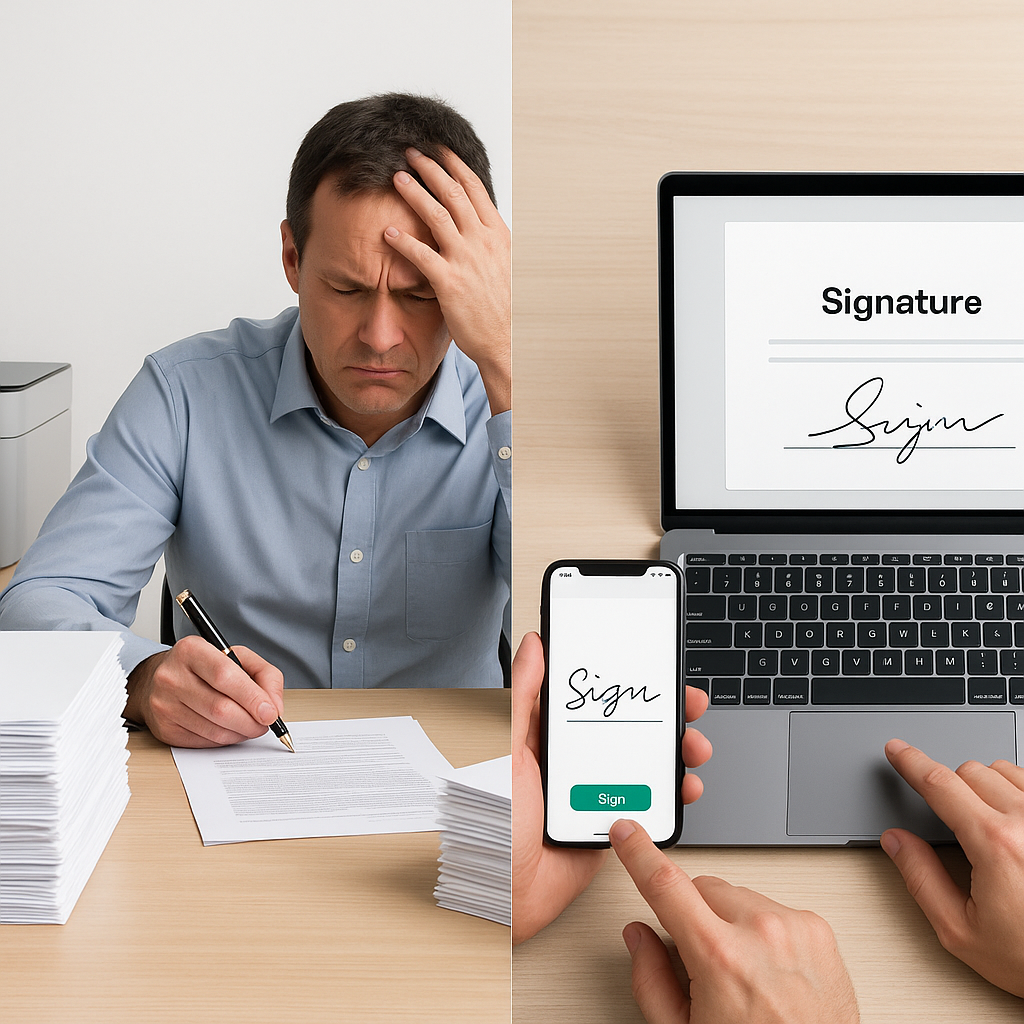
Chasing signatures is one of the most avoidable sources of friction in modern business. Printing, scanning, mailing, or hand-delivering contracts wastes time, delays deals, and introduces unnecessary risk. The good news: with today’s e-signature tools, sending a document for signature can take minutes—not days—while still meeting legal and compliance requirements.
This guide walks you through exactly how to send a document for signature, compares common workflows (desktop, mobile, and integrations), and shares practical tips from leading tools like Adobe Acrobat Sign and DocuSign. We’ll also highlight how solutions like QuickSign streamline the process for growing teams.
Key takeaway: A modern e‑signature workflow lets you upload a file, define recipients and fields, and send a secure, trackable agreement in just a few clicks—no printers, no scanners, no delays.
Are Electronic Signatures Legally Valid?
Before you overhaul your signing process, it’s natural to ask whether e-signatures are “official.” In the United States, electronic signatures are broadly recognized under the ESIGN Act and UETA, which establish that electronic signatures and records can carry the same legal weight as paper signatures when basic conditions are met (intent to sign, consent to do business electronically, and an auditable record).(helpx.adobe.com)
Reputable e-signature platforms help you meet these requirements by:
- Providing clear consent language and click‑to‑sign workflows
- Capturing an audit trail (IP, timestamps, signer identity steps)
- Locking the signed document against tampering
Always consult your legal team for regulated scenarios (e.g., certain real estate, finance, or healthcare documents), but for most business agreements—NDAs, SOWs, sales contracts, HR documents—e-signatures are widely accepted.

The Core Steps to Send a Document for E‑Signature
While each platform has its own UI, the process is remarkably consistent across tools like Adobe Acrobat Sign and DocuSign.(helpx.adobe.com)
1. Prepare your document
Start by creating or finalizing your document in Word, Google Docs, PowerPoint, a PDF editor, or another authoring tool. Most e-signature platforms support a wide range of formats including DOC/DOCX, PDF, Excel, and image files.(helpx.adobe.com)
- Clean layout: Make sure your contract or form is clearly structured, with labeled signature blocks.
- Remove placeholders: Delete “SIGN HERE” images or manual lines; you’ll add official signature fields later.
- Check for sensitive data: Redact anything that shouldn’t be shared or stored electronically.
2. Upload the file to your e‑signature tool
Log in to your e-signature platform and look for options like “Request e‑signatures” or “Send for signature”. In Adobe Acrobat on desktop, for example, you click E‑Sign > Request e‑signatures and then select or drag‑and‑drop your file.(helpx.adobe.com)
- Upload from your computer or network drive
- Or pull from cloud storage (SharePoint, OneDrive, Google Drive, Dropbox, etc., depending on the integration)(experienceleague.adobe.com)
- Combine multiple files into a single agreement if needed (e.g., contract + annexes)(helpx.adobe.com)
3. Add recipients and define their roles
Next, specify who needs to receive the document and what they should do:
- Signers: People who must sign (e.g., client, internal approver). This is the default role in most tools.(adobe.com)
- Approvers / reviewers: People who review but don’t sign, or who must approve before it goes to signers.(adobe.com)
- CC recipients: People who just receive a copy of the completed agreement.
In DocuSign, you add recipients and assign each a role (e.g., “Needs to sign” vs. “Receives a copy”), and can set a signing order so the document flows sequentially.(solusign.com) Similarly, Adobe Acrobat Sign lets you set whether recipients sign in order and drag to rearrange.(helpx.adobe.com)
Pro tip: Define a clear signing order for multi‑party deals (e.g., internal legal → customer signer → finance). This avoids confusion and keeps your pipeline moving.
4. Customize email subject and message
The email invite is often the first thing your signer sees. Most tools let you edit:
- Subject line (e.g., “Please review and sign: Master Services Agreement”)
- Message body (context, deadlines, who to contact with questions)(solusign.com)
Use this space to reduce hesitation and support faster signing:
- Explain what the document is and why it’s important
- Note any deadlines or dependencies
- Reassure them about the security and legitimacy of e-signing
5. Add signature and form fields
Now you’ll place the interactive fields directly onto your document:
- Signature fields
- Initials
- Dates (auto-populated “date signed” fields)
- Text fields (job title, company, address, etc.)
- Optional checkboxes, dropdowns, and calculated fields for complex forms(helpx.adobe.com)
In tools like Acrobat Sign and DocuSign, you can drag and drop these fields, assign each field to a specific recipient, and mark them as required or optional.(helpx.adobe.com)
Pro tip: Always preview your document as if you were each signer. Missing a required field usually means voiding and resending the agreement—which slows everything down.
6. Configure reminders, deadlines, and security options
Most modern e-signature solutions include workflow controls that help you keep deals on track and protect sensitive information:
- Reminders: Automatic reminder emails (e.g., every 3 days until signed).(experienceleague.adobe.com)
- Expiration dates: Set a date after which the link is no longer valid and must be resent.
- Authentication: Add extra verification (SMS codes, knowledge-based questions, or ID methods) for high‑value documents.(experienceleague.adobe.com)
- Password protection or access codes: Require a code for opening the document.
- Language settings: Choose recipient language for email notifications and signing UI.(experienceleague.adobe.com)
7. Send the document and track status
Once everything looks good, hit Send. The platform will email each recipient a secure link to review and sign. From your dashboard, you’ll typically see real‑time statuses such as:
- Sent
- Viewed
- Signed
- Declined / Voided
- Expired
 >
>
Adobe Acrobat Sign, for example, lets you track the agreement, send reminders, and even save commonly used configurations as templates for reuse.(adobe.com)
How the Recipient Experience Works
The signer workflow is intentionally simple so there’s minimal friction on their side:
- They receive an email with a secure link to the document.
- They click the link, review the content in their browser (no account needed on most platforms).(experienceleague.adobe.com)
- Guided prompts move them to each required field—signatures, initials, text inputs, etc.
- They sign by typing, drawing, or uploading a signature image, depending on the platform and your configuration.(experienceleague.adobe.com)
- They click Finish or Submit, and the final signed PDF, plus an audit trail, is automatically emailed to all parties.
This streamlined experience works smoothly on both desktop and mobile browsers, and many vendors also provide dedicated mobile apps for frequent signers.(adobe.com)
Sending a Document for Signature with Popular Tools (Video Examples)
If you prefer to learn visually, there are excellent video walkthroughs across the major platforms.
Adobe Acrobat Sign: Send a document for e‑signature
Adobe provides guided tutorials explaining how to upload a file, add recipients, place fields, and send agreements for signature—both on web and desktop.(helpx.adobe.com)
DocuSign Rooms: Sending documents for signature
DocuSign’s CLM and Rooms capabilities let you send documents manually or automatically as part of a broader workflow. A trainer‑led walkthrough demonstrates uploading contracts, adding recipients, dragging and dropping fields, and tracking the signing status end‑to‑end.(community.docusign.com)
Sending documents for signature from your phone
Need to send or sign on the go? Many solutions offer mobile‑friendly workflows and apps. Adobe Acrobat Sign for iOS, for instance, lets you log in, tap “Send for Signature,” pick documents from your device or cloud storage, and configure recipients and fields in a touch-optimized interface.(adobe.com)
Pro tip: For field teams or executives who travel frequently, choose an e-signature solution with a robust mobile app and offline support so deals don’t stall when Wi‑Fi does.
Real‑World Use Cases for Sending Documents for Signature
Electronic signatures are now embedded in almost every part of the business lifecycle.
Sales and revenue operations
- Proposals and quotes: Quickly send sales proposals and secure approvals before competitors do.
- Contracts and MSAs: Use templates for frequently used agreements to reduce legal review overhead.
- Renewals and upsells: Send renewal agreements with pre‑filled customer data for a frictionless renewal process.
HR and people operations
- Offer letters and employment contracts
- Policy acknowledgements (handbooks, confidentiality, code of conduct)
- Onboarding paperwork (tax forms, direct deposit, benefits enrollments)
Operations, finance, and legal
- Vendor and partner agreements
- Purchase orders and SOWs
- Compliance attestations and internal approvals
In all of these scenarios, using a guided e-signature workflow reduces errors, ensures all required fields are completed, and maintains a central, searchable record of signed documents.
Choosing the Right E‑Signature Workflow for Your Team
Not every business needs a full contract lifecycle platform on day one. The best approach is to match your workflow to your current maturity level and volume.
Occasional senders: Simple, template‑driven workflows
If you send only a handful of documents a month (e.g., small agency or boutique consultancy), look for:
- Easy document upload and drag‑and‑drop fields
- Basic templating for common contracts
- Simple status tracking and reminders
Solutions like QuickSign are designed to keep this experience straightforward while still giving you professional‑grade, trackable signatures.
Growing teams: Integrated, automated workflows
As volume increases, manual processes break down. Growing teams benefit from:
- Integrations with CRM, ERP, HRIS, and productivity tools (e.g., sending for signature directly from Outlook, Salesforce, or your contract repository).(experienceleague.adobe.com)
- Conditional routing (e.g., value‑based approvals, legal vs. business sign‑off)
- Advanced authentication for high‑risk agreements
- Reporting and analytics around cycle times and bottlenecks
Enterprise and regulated industries: Governance and control
For enterprises or regulated sectors, additional requirements often include:
- Centralized policy controls for send options and authentication methods(experienceleague.adobe.com)
- Role‑based access control and SSO integration
- Configurable retention policies and export options
- Compliance certifications (SOC 2, ISO 27001, etc.; check each vendor’s documentation)
Best Practices to Get Faster, More Reliable Signatures
1. Minimize friction for the signer
- Only ask for information you truly need.
- Use required fields strategically so nothing critical is missed.
- Test the workflow on different devices and browsers.
2. Standardize templates for repeatable documents
Most platforms let you save fielded PDFs as reusable templates.(helpx.adobe.com) Doing this for your NDAs, MSAs, SOWs, and offer letters:
- Speeds up preparation
- Reduces legal risk from version drift
- Makes training new team members easier
3. Use reminders and expiration dates thoughtfully
- Set gentle reminders for lower‑priority documents.
- Use shorter expiration windows for time‑sensitive deals to create urgency.
- Monitor non‑responses and escalate when needed (e.g., sales manager follow‑up).
4. Protect sensitive data
- Use access codes or multi‑factor authentication for high‑value contracts.(experienceleague.adobe.com)
- Limit who can send certain templates (e.g., legal team only).
- Educate staff on phishing and safe handling of signed documents.
Pro tip: Treat your e-signature platform as a system of record. Ensure documents are properly tagged, stored, and accessible for audits, renewals, and cross‑sell opportunities.
Where QuickSign Fits Into Your Document Signing Strategy
While market leaders like Adobe Acrobat Sign and DocuSign are powerful and feature‑rich, many organizations—especially small to mid‑size teams—want a lean, focused solution for everyday agreements.
QuickSign is an example of a modern e-signature solution that focuses on:
- Straightforward document upload and field placement
- Simple recipient management and notifications
- Clear, trackable workflows for teams that don’t need a full CLM system
This makes it a strong fit for agencies, consultancies, and SaaS startups looking to professionalize their signing process without overwhelming their teams with complexity.
Conclusion: Modernize How You Send Documents for Signature
Sending a document for signature no longer needs to be a manual, paper-heavy process. With a modern e-signature tool, you can:
- Upload any common file format and configure it in minutes(helpx.adobe.com)
- Route agreements to the right people in the right order
- Capture legally enforceable signatures with a complete audit trail(helpx.adobe.com)
- Monitor status, send reminders, and automate renewals
If you’re ready to move away from printers and scanners and toward a faster, more reliable way of closing deals and completing approvals, the next step is to try a solution in your own workflow.
Call to action: Try QuickSign for free - generate 2 documents and send 1 document to unlimited recipients at no cost. Start your streamlined e-signature workflow today with QuickSign.