How to Send Documents for Signature Quickly: A Practical Guide with QuickSign
Send documents for signature quickly with QuickSign using this practical guide—streamline approvals, cut delays, and simplify your entire signing workflow.

How to Send Documents for Signature Quickly: A Practical Guide with QuickSign
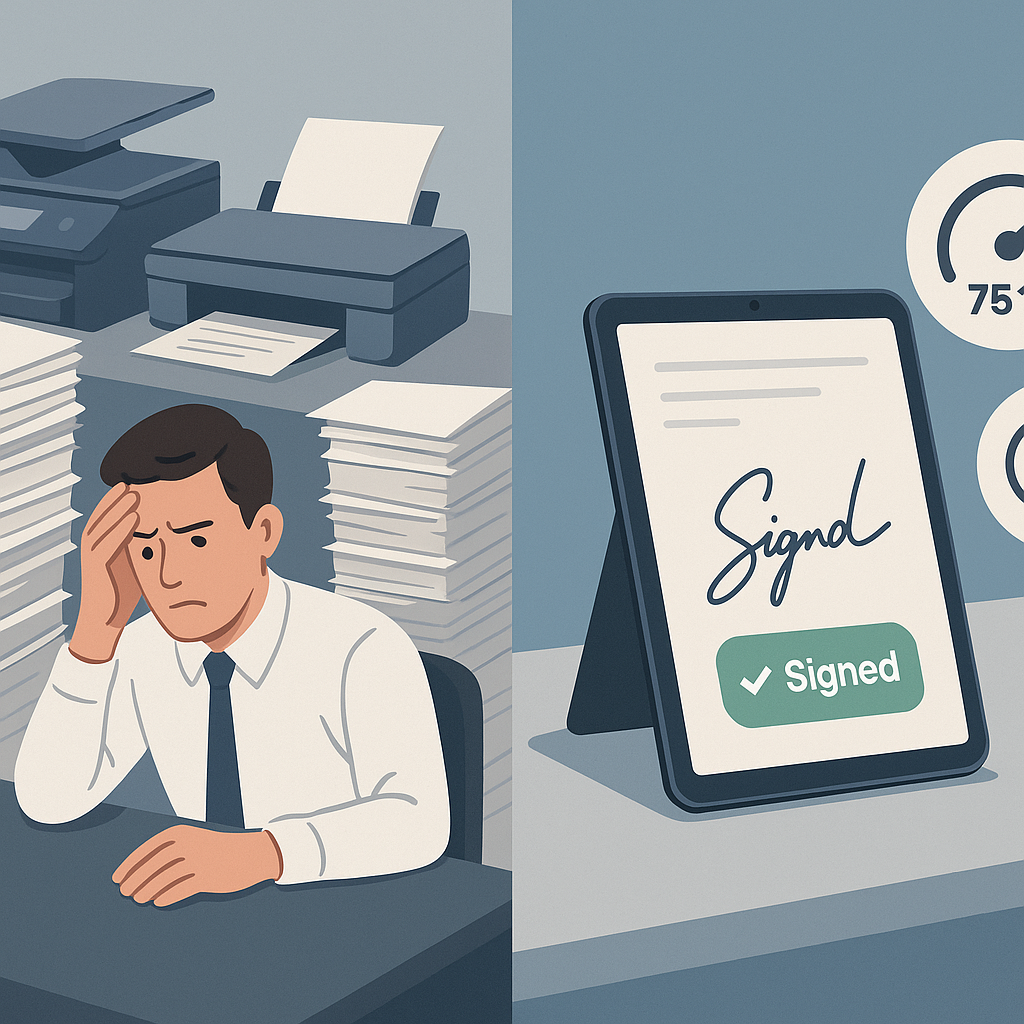
If your sales, HR, or legal workflows still rely on printing, scanning, or chasing signatures over email, you’re losing hours every week—and potentially delaying revenue. Modern e-signature tools can cut contract turnaround times by more than 75%, with nearly 80% of agreements signed within 24 hours when handled electronically.(certinal.com) That’s exactly the speed advantage platforms like QuickSign are built to deliver—without the complexity or cost of legacy systems.
This guide walks you step-by-step through how to send documents for signature quickly using QuickSign, explains the legal basics, and shows how to build a repeatable, fast signing workflow for your business.
Key takeaway: With QuickSign, you can generate a contract with AI, place signature fields, and send it for signing in under 60 seconds—no templates or legal team required.
Why Speed Matters in Document Signing
Slow signing isn’t just annoying—it’s expensive. Research shows that companies can save up to $28 per document by using e-signatures instead of paper, and reduce shipping costs by up to 80%.(certinal.com) At the same time, employees save hundreds of hours per month as document workflows become automated.(certinal.com)
Faster signatures mean:
- Shorter sales cycles – Deals close faster when your customer can sign from any device in seconds.
- Fewer errors – Digital forms reduce missing initials, dates, or signatures, which in paper workflows can cause 90% of request errors.(fujifilm.com)
- Better visibility – Real-time tracking helps you nudge the right person at the right time.
QuickSign is designed to maximize these benefits—combining fast sending with AI-powered document generation and real-time tracking so your team spends less time on admin and more time on high-value work.
Are Electronic Signatures Legally Valid?
For U.S. businesses, electronic signatures are well-established in law. The federal ESIGN Act and the Uniform Electronic Transactions Act (UETA) both state that a contract or signature cannot be denied legal effect solely because it is in electronic form.(en.wikipedia.org) Courts and regulators generally treat e-signatures as equivalent to handwritten ones, as long as certain requirements are met, such as intent to sign, consent to electronic records, and proper record retention.(findlaw.com)
In practice, that means that when you use a modern e-signature tool like QuickSign, your electronically signed agreements are typically as enforceable as if they were signed with pen and paper—except faster and easier to track.
Pro tip: Include a simple clause in
your contracts confirming that all parties agree to use electronic signatures. This helps reinforce legal enforceability and consent under ESIGN and UETA.(concord.app)
Core Steps to Sending Documents for Signature Quickly
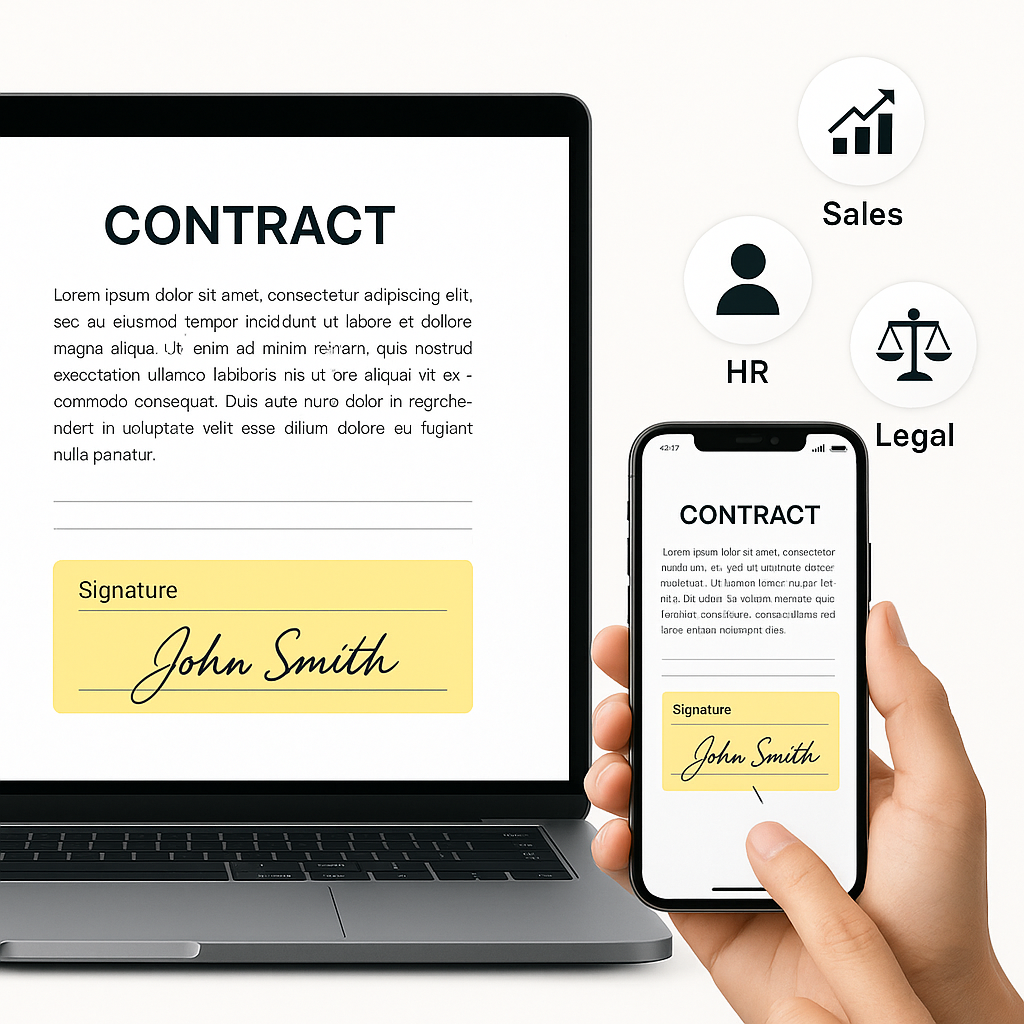
Most modern platforms (including the ones shown in YouTube tutorials for tools like Adobe Sign or document room systems) use a similar flow: upload a document, place fields, add recipients, and send. With QuickSign, this flow is streamlined and enhanced by AI so you can go from idea to signed document even faster.
Step 1: Start with a Legally Sound Document
The first bottleneck in many organizations isn’t the signing itself—it’s getting a clean, legally coherent contract ready to send.
- Traditional approach: Manually edit Word templates, copy/paste clauses, and email back and forth with legal.
- QuickSign approach: Use AI Document Generation to draft your agreement from a simple prompt.
With QuickSign’s AI Document Generation, you can type something like:
“Create a one-page mutual NDA between a U.S. SaaS company and an enterprise client, 2-year term, New York law, includes confidentiality, non-disclosure, and data protection clauses.”
QuickSign’s AI will generate a complete, structured NDA you can review and customize. This is a major difference versus most e-signature tools, which assume you already have a perfect document ready to upload.
Pro tip: Use QuickSign’s free tier to generate up to 2 documents and refine your standard contract templates before rolling them out to your whole team.
Step 2: Upload or Generate the Document
You have two fast options in QuickSign:
- Upload an existing PDF or DOCX – Ideal if your legal team already vetted templates.
- Generate from AI – Ideal for quickly creating contracts, NDAs, consulting agreements, or basic employment documents.
Because document creation is built into QuickSign, you eliminate time spent jumping between apps or hunting for the latest file version.
Step 3: Place Signature Fields with Drag-and-Drop
Once your document is in the system, you need to indicate where each party signs, initials, or fills in details.
QuickSign’s drag-and-drop field placement makes this simple:
- Open your document inside QuickSign.
- Drag a signature field to the appropriate line.
- Add text fields for names, titles, or payment terms if they need to be filled in at signing time.
- Place date fields to enforce consistent date formatting.
- Use initial fields on key clauses (e.g., termination, non-compete, data use) where you want extra acknowledgment.
This mirrors the workflows you might see in tutorials for more complex tools—but QuickSign keeps the interface streamlined so business users can confidently set up fields without training.
Step 4: Add Recipients and Define Signing Order
The next step is deciding who signs and in what sequence.
In QuickSign, you can:
- Add one or many recipients by name and email.
- Assign fields to specific signers so each person only sees what they need to complete.
- Optionally set a signing order (e.g., client signs first, then internal approver).
Unlike traditional per-seat solutions, QuickSign lets you send a single document to unlimited recipients, even on the free tier. That’s especially valuable for HR use cases (policy acknowledgments, consent forms) or multi-party approvals.
Step 5: Send Seamlessly—Often in Under 60 Seconds
With fields placed and recipients added, you’re ready to send.
QuickSign focuses on seamless sending:
- Trigger sending with a single click from within the document view.
- Optionally customize the email subject and message so signers know what they’re receiving.
- Leverage reusable settings (e.g., default reminders, expiration) to avoid reconfiguring each time.
Because the platform is intentionally lightweight, many teams find they can go from “need a contract” to “contract sent” in less than a minute—especially when using AI Document Generation plus preconfigured recipient roles.
Step 6: Track Opens, Views, and Signatures in Real Time
Once a document is sent, your priority shifts from preparation to follow-up. E-signature statistics show that visibility and tracking of signature status improve by about 39% with digital tools.(certinal.com) That transparency is critical when you want to keep deals and approvals moving.
QuickSign offers real-time tracking so you can see:
- When each recipient opens the email.
- When they view the document.
- When they complete their signature.
That event history acts as an audit trail, supporting legal enforceability by documenting who signed, when, and through what process.(concord.app) It also gives your sales or operations team a concrete signal for when to follow up.
Pro tip: If a recipient opens but doesn’t sign within 24–48 hours, use QuickSign’s activity log as a cue to send a personalized reminder or follow-up call.
Embedding Fast Signing into Your Daily Workflows
Knowing how to send a single document is only half the story. To truly “send documents for signature quickly” at scale, you need a repeatable workflow your entire team can follow.
Use AI Templates for Common Agreements
Instead of starting from scratch each time, build a library of AI-powered templates in QuickSign for your most common use cases:
- Sales: Master service agreements, order forms, renewals.
- HR: Offer letters, NDAs, policy acknowledgments.
- Operations: Vendor contracts, SOWs, maintenance agreements.
AI Document Generation in QuickSign lets you standardize these documents while preserving flexibility—your team can adjust term lengths, pricing, or jurisdiction with a short natural-language prompt.
Standardize Field Placement and Signer Roles
To remove guesswork and avoid errors:
- Define standard signer roles (e.g., “Client”, “Internal approver”, “HR Rep”) in QuickSign.
- Use consistent field placement patterns across similar documents so users always know where to sign.
- For multi-signer flows, standardize your signing order (client first, then internal operations, then finance, etc.).
This mirrors the best practices you’ll see in tutorial videos for other platforms, but QuickSign makes it easy to maintain consistency without complex admin setup.
Leverage Flat-Rate Pricing for Team-Wide Adoption
Speed depends on adoption. If only one or two people in your company have access to an e-signature tool, documents still get bottlenecked.
QuickSign solves this with affordable flat-rate pricing—starting at just $15/month for your whole team, with no per-seat fees. That means you can:
- Enable every salesperson to send contracts directly.
- Let HR, finance, and operations handle their own agreements without waiting for “the one person with the e-sign account.”
- Scale signing volume without incrementally increasing license costs.
Because cost doesn’t scale linearly with users, QuickSign is particularly attractive for small and midsize businesses expanding fast or operating multiple departments that all need signing capabilities.
Real-World QuickSign Workflows That Speed Up Signing
Sales Team Closing Deals Faster
A B2B SaaS sales rep needs a customer to sign a 12-month subscription agreement before the end of the month to count the deal.
- The rep opens QuickSign and uses an AI-generated “SaaS subscription agreement” template.
- They adjust key variables: term, seat count, and pricing via a short prompt.
- They drag-and-drop signature and initial fields for both their company and the customer.
- They add the customer’s email and their internal approver as a second signer.
- They hit “Send.” The entire process takes under 60 seconds.
- With real-time tracking, the rep sees when the customer opens the contract and follows up shortly after with a call while interest is high.
Result: The agreement is signed the same day, instead of dragging out over a week of back-and-forth emails and attachments.
HR Onboarding New Hires Remotely
An HR manager onboarding multiple remote hires needs them to sign offers, NDAs, and policy acknowledgments before their start dates.
- Using QuickSign, HR creates a standard offer letter and NDA via AI Document Generation, then saves them as templates.
- For each new hire, HR duplicates the templates and quickly edits role, salary, and start date.
- They place fields once, assigning them to the “Employee” role across all docs.
- HR adds the employee’s email and sends the bundle in a single flow.
- Real-time tracking lets HR confirm who has viewed and signed; automatic reminders go out to those who haven’t.
Result: HR can handle significantly more onboardings without extra staff, and new hires enjoy a smooth, modern experience on any device.
Operations and Legal Managing Vendor Agreements
Operations managers often juggle vendor contracts, renewals, and service agreements.
- They use QuickSign to store standard SOW and MSA templates.
- For small changes (like adjusting scope or SLA terms), they prompt the AI to update specific clauses, instead of rewriting from scratch.
- They send agreements to vendors with clear signature, date, and initial fields, reducing back-and-forth over missing information.
- Audit trails and real-time tracking give legal and finance visibility into what’s outstanding.
Result: Vendor agreements are signed faster and with fewer errors, while still giving legal the oversight and documentation they need.
Learning from Popular E-Signature Tutorials (and Doing It Faster with QuickSign)
YouTube is full of tutorials showing how to send documents for signature using various platforms, like step-by-step guides to sending PDFs for signing or managing documents inside specialized “rooms.” These videos highlight a few universal patterns:
- The need to upload and prepare documents before sending.
- The importance of accurate field placement so signers don’t miss required sections.
- Workflow steps for adding recipients, setting order, and sending.
QuickSign follows this same intuitive logic, but streamlines it with AI Document Generation and a simplified interface. Where other tools often assume a fully prepared document, QuickSign helps you generate, configure, and send—all in one place—so your overall workflow is much faster end-to-end.
Key takeaway: If you’ve ever watched a tutorial on how to send documents for signature in another platform, you already understand 90% of QuickSign’s workflow—the difference is that QuickSign adds AI and flat-rate pricing to make that workflow faster and more affordable.
Best Practices for Sending Documents for Signature Quickly and Safely
Speed is important, but you can’t compromise on accuracy or compliance. Here are some best practices to follow in QuickSign or any e-signature system:
1. Capture Intent and Consent Clearly
Ensure your signing process demonstrates:
- Intent to sign – The signer actively clicks to sign, type their name, or otherwise affirm acceptance.(findlaw.com)
- Consent to electronic format – Include a clause stating that all parties agree to use electronic records and signatures.(lawsoup.org)
QuickSign’s workflow naturally supports these elements by requiring explicit actions and logging a detailed audit trail for each signing event.
2. Use Reminders and Deadlines
Documents sit in inboxes. To keep things moving:
- Set automatic reminders for pending signatures.
- Use expiration dates for time-sensitive offers or compliance documents.
- Monitor QuickSign’s real-time tracking to time your follow-ups more intelligently.
3. Centralize and Retain Records
Under ESIGN and UETA, electronic records must be retainable and reproducible.(burr.com) Make sure:
- All signed documents stay stored in QuickSign or your document management system.
- Your team knows how to export and share copies with clients or regulators on demand.
- Audit trails are preserved alongside the documents for additional protection.
4. Standardize Across Teams
To move fast without introducing risk:
- Agree on approved templates and store them centrally in QuickSign.
- Train your team on a single, unified process for sending and tracking signatures.
- Review and refresh templates periodically with legal input.
Because QuickSign’s pricing is flat-rate—starting at $15/month for your entire team—you can roll this standardized process out widely without worrying about incremental user costs.
Ready to simplify your document signing? Try QuickSign for free - generate 2 documents and send 1 document to unlimited recipients at no cost. No credit card required.