Signature Tracking: How to See Who Signed What (and When) In Your Business
Track every approval with ease. Learn signature tracking to see who signed what and when, boost accountability, and protect your business records.
Signature Tracking: How to See Who Signed What (and When) In Your Business
Waiting on a critical contract with no visibility into where it’s stuck is more than frustrating—it’s bad for business. Deals stall, projects slip, and your team wastes hours chasing signatures via email and phone. That’s where signature tracking comes in.
Modern e-signature platforms give you real-time visibility into every document’s status—who has opened it, who has signed, who’s holding things up, and what happens next. Combined with automation and audit trails, signature tracking turns chaotic document workflows into predictable, measurable processes.
In this guide, you’ll learn what signature tracking is, why it matters, how it works in practice, and how a modern solution like QuickSign can help your team send, sign, and track documents in under a minute.
What Is Signature Tracking?
Signature tracking is the ability to monitor the full lifecycle of a document that needs to be signed— from sending, to viewing, to completion—inside a digital or e-signature system. Instead of manually asking “Did you see my email?” or “Have you signed that contract yet?”, you can see status updates in real time.
Leading e-signature tools provide:
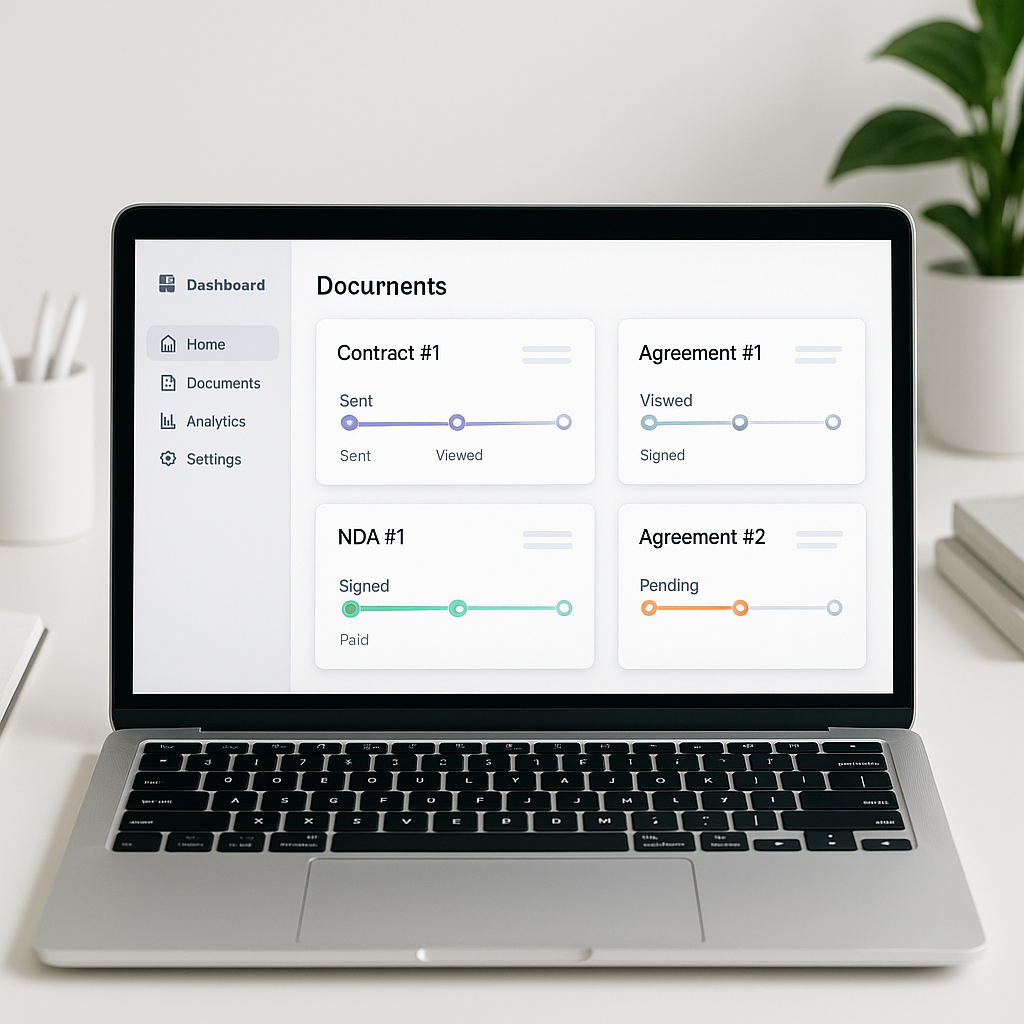
- Status indicators (sent, viewed, partially signed, completed, declined, expired)
- Notifications when recipients open, sign, or comment on a document
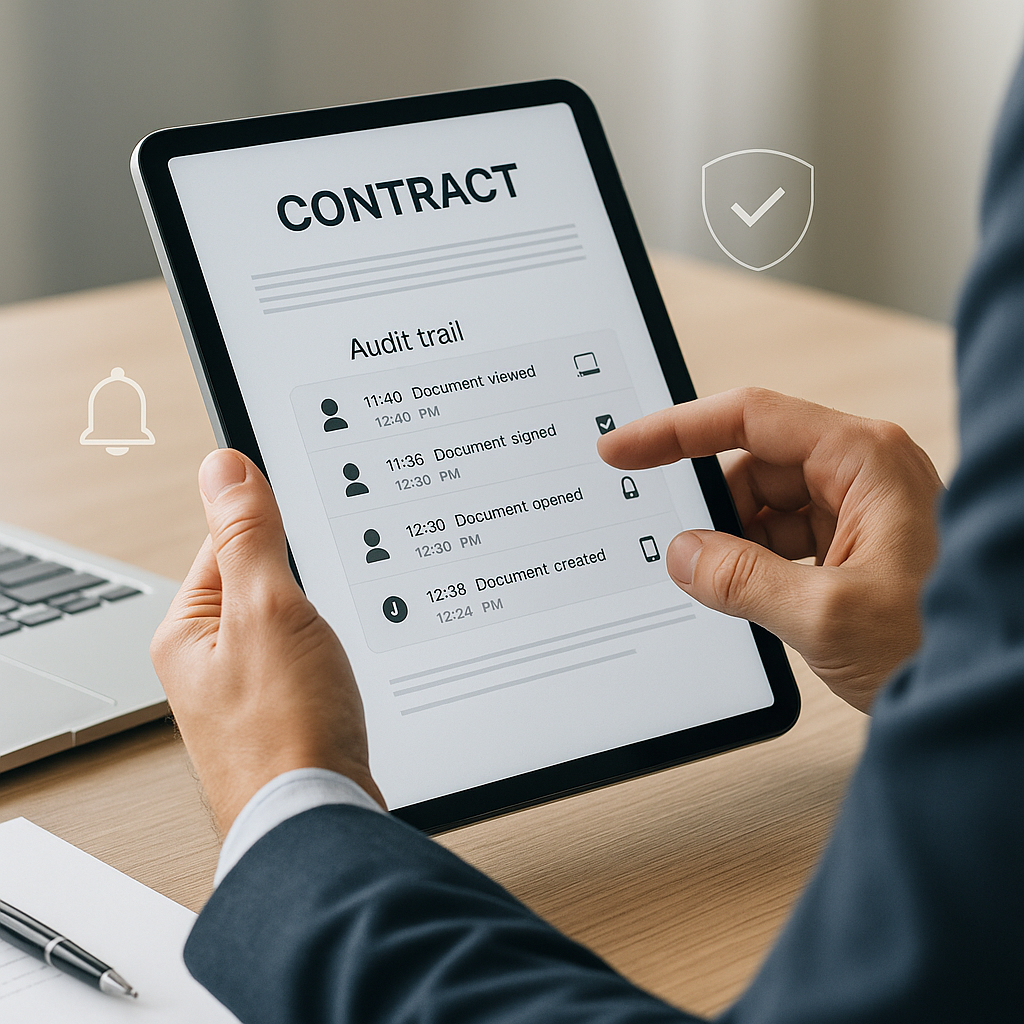
- Audit trails that log who did what, when, and from which IP or device (dropboxsign.com)
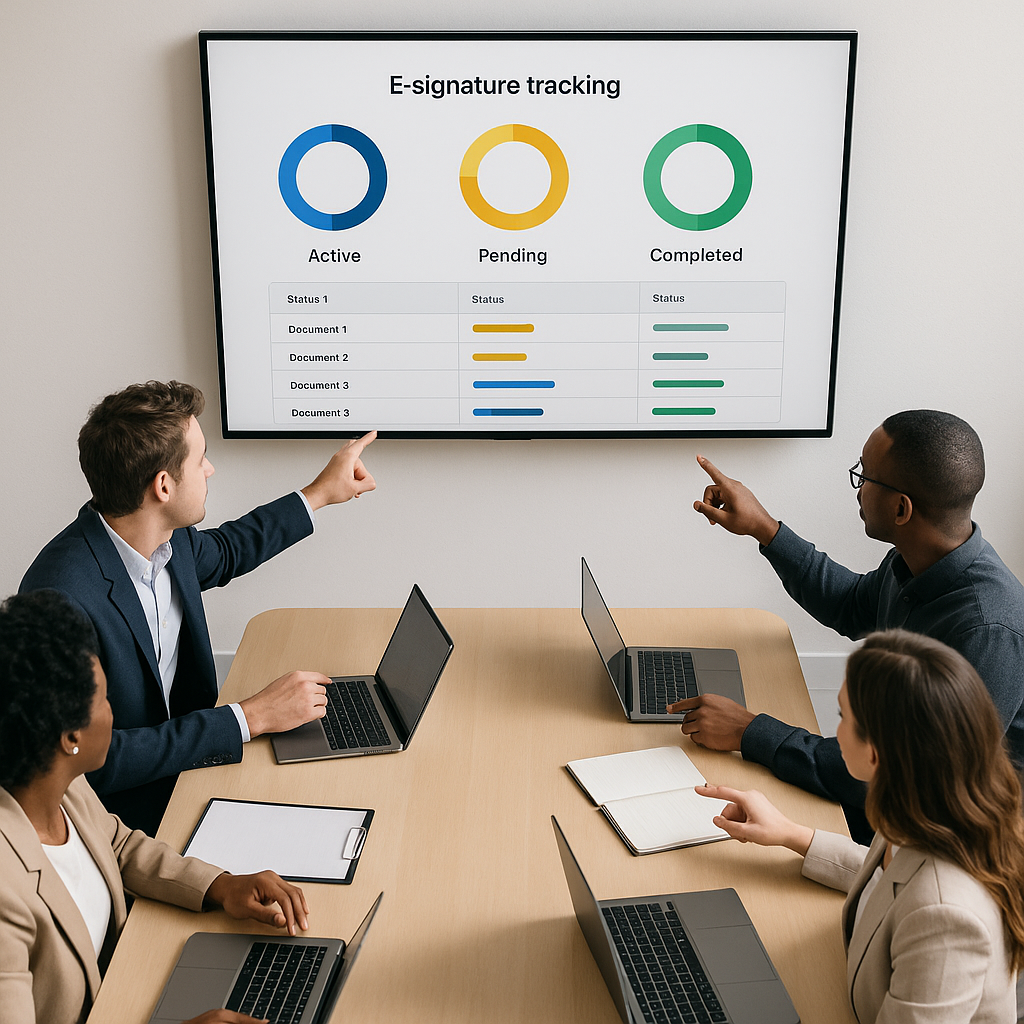
- Central dashboards showing all active, pending, and completed agreements in one place (sign.dropbox.com)
Key takeaway: Signature tracking replaces guesswork with clear, time-stamped visibility into every step of the signing process.
Why Signature Tracking Matters for Modern Businesses
1. Faster Deal Cycles and Approvals
Documents signed electronically are often completed dramatically faster than paper-based agreements because signers can review and sign from anywhere, on any device. Dropbox Sign (formerly HelloSign), for example, reports that eSigned documents can be returned up to 80% faster than traditional contracts, thanks largely to streamlined workflows and better visibility. (blog.dropbox.com)
Signature tracking amplifies this speed by:
- Showing who’s opened a document but hasn’t signed yet
- Highlighting bottlenecks (e.g., a manager who hasn’t approved yet)
- Triggering targeted reminders instead of generic follow-ups
2. Better Accountability and Compliance
For contracts, NDAs, HR documents, and regulated industries, you need a defensible record of what happened. Signature tracking provides:
- A tamper-evident audit trail of each action on the document (viewed, signed, forwarded) (dropboxsign.com)
- Clear proof of who signed, when they signed, and from where
- Logs that can support internal audits or legal inquiries
This is far more reliable than managing scattered email threads and scanned PDFs.
3. Less Admin Work and Manual Chasing
Without a tracking system, your team wastes hours:
- Searching inboxes for “Final_contract_v7_signed_REALLYFINAL.pdf”
- Updating spreadsheets to reflect who has signed
- Chasing stakeholders who “never saw” the document
With proper signature tracking, you get a centralized view of every document’s status—and automation handles reminders and routing.
4. Better Experience for Clients and Employees
Clients, partners, and employees want a frictionless signing experience. Tools that combine e-signatures with real-time tracking, templates, and integrations (e.g., CRM, cloud storage) speed up l
That smoother experience reflects directly on your brand and can be a quiet but powerful competitive edge.
How Signature Tracking Works in E‑Signature Platforms
Most modern e-signature systems follow a similar pattern. Here’s what happens behind the scenes when you send a document for signature.
Step 1: Prepare the Document
You start by uploading a document (PDF, DOCX, etc.) and placing the required fields:
- Signature fields
- Initials
- Dates
- Text fields (names, titles, amounts)
Platforms like Dropbox Sign and others support drag-and-drop field placement for this step, making it easy for non-technical users to prepare forms. (faq.hellosign.com)
QuickSign takes this further with a drag-and-drop field placement interface that lets you drop signature, text, and date fields exactly where you need them on any uploaded PDF—no layout headaches.
Step 2: Add Recipients and Signing Order
Next, you assign who needs to sign and in what order (if there’s a workflow). Many tools let you:
- Set sequential or parallel signing
- Include CC recipients
- Collect attachments (e.g., IDs, certificates) (faq.hellosign.com)
With QuickSign, you can add recipients and send in seconds, then rely on the system to manage notifications and routing.
Step 3: Send and Start Tracking
Once the document is sent, the tracking engine kicks in. A typical system records:
- Time the email was delivered
- When each recipient opened the document
- When each field was completed and signed
- Whether the document was declined, expired, or completed
Many platforms surface this via a dashboard with filters such as “Waiting for others”, “Completed”, and “Needs my signature” so you can quickly prioritize. (sign.dropbox.com)
QuickSign includes real-time tracking so you can see exactly when recipients open, view, and sign your documents, without refreshing or hunting through inboxes.
Step 4: Notifications and Reminders
To keep momentum, signature tracking is often paired with smart notifications:
- Email alerts when documents are viewed or signed
- Automatic reminders to signers after a set number of days
- Slack or CRM notifications via integrations in some platforms (sign.dropbox.com)
This reduces the need for manual follow-up and ensures you don’t miss key milestones.
Step 5: Completion, Storage, and Audit Trails
When all required signatures are collected, the system marks the document as completed, often:
- Saving copies automatically to cloud storage or your CRM (sign.dropbox.com)
- Generating a detailed, court-admissible audit trail with timestamps and IP addresses (blog.dropbox.com)
- Locking the document to prevent further changes
This permanent record is invaluable for compliance, dispute resolution, and internal reporting.
Real‑World Use Cases for Signature Tracking
Sales Teams: Keep Deals Moving
Sales organizations rely heavily on contracts, order forms, and renewals. Signature tracking helps them:
- Identify which deals are stuck waiting on signatures
- Send timely nudges to specific stakeholders
- Forecast revenue more accurately based on document status
When integrated with CRMs (like HubSpot or Salesforce), tools such as Dropbox Sign even allow reps to send and track signature requests directly from the CRM and view status updates in one place. (faq.hellosign.com)
HR and People Ops: Smooth Onboarding and Compliance
HR teams manage offer letters, NDAs, handbooks, and policy acknowledgments. Signature tracking allows them to:
- See which new hires haven’t signed required paperwork
- Ensure compliance forms are completed by deadlines
- Maintain a clear record of who agreed to what
Instead of chasing via email, they can rely on dashboards and automated reminders.
Legal and Procurement: Stronger Audit Trails
For legal and procurement teams, traceability is non-negotiable. Signature tracking provides:
- Evidence that signers received and had the opportunity to review documents
- Proof that signatures weren’t forged or modified post-signing
- Logs that support internal controls and external audits
This is particularly important in regulated sectors like finance, healthcare, and government contractors.
Small Businesses and Solo Entrepreneurs: Less Chaos, More Clarity
Smaller organizations often lack dedicated operations staff, making efficient signature tracking even more critical. They need:
- Simple dashboards that show “what’s pending right now”
- Affordable tools that don’t charge per user
- Fast setup with minimal training
QuickSign is built for exactly this audience: solo entrepreneurs, agencies, and small teams who want a modern, intuitive interface without enterprise-grade complexity or pricing.
Designing Better Signatures vs. Tracking Them
When people hear “signature”, they sometimes think about the visual design of their name rather than the workflow around it. That’s a related but different topic.
On the design side, you’ll find tutorials on creating unique handwritten or digital signatures—for example, YouTube videos on how to develop a personal signature style or tag:
Those are great if you’re interested in the aesthetics of your signature or building a recognizable personal mark. But for business workflows, the real leverage comes from how you distribute, track, and archive signatures at scale—not just what the signature looks like.
Key Features to Look For in Signature Tracking Software
Not all e-signature tools handle tracking the same way. When evaluating solutions, consider the following capabilities.
1. Real‑Time Status Updates
Your team should be able to see, at a glance:
- Has the recipient opened the document?
- Which pages or sections have been completed?
- Are there any errors or declined signatures?
QuickSign offers real-time tracking so you’re never guessing about document status—ideal for time-sensitive agreements.
2. Clear, Detailed Audit Trails
Look for platforms that generate a robust, exportable audit log for each document, including:
- Timestamps of all actions (sent, viewed, signed)
- Signer identities and email addresses
- IP addresses or device fingerprints
Top providers emphasize this as a core security feature and note that such audit trails are generally admissible in court, supporting enforceability. (blog.dropbox.com)
3. Ease of Document Preparation
Tracking only helps if documents are set up correctly. Prioritize tools with:
- Simple drag-and-drop fields for signatures, initials, and dates
- Reusable templates for frequently used agreements (NDAs, SOWs, offer letters) (sign.dropbox.com)
- Validation rules (required fields, formatting) to reduce errors
QuickSign makes this process straightforward with its drag-and-drop field placement and template-friendly workflows.
4. Automation and Smart Variables
As volume grows, manual data entry becomes risky and slow. Advanced systems let you:
- Auto-fill recipient data into documents
- Re-use templates with dynamic placeholders
- Trigger reminders and follow-ups automatically
QuickSign offers AI-powered document variables that auto-fill recipient information, cutting down repetitive typing and reducing errors across contracts.
5. Integrations and Centralization
Signature tracking is most effective when tied to the apps you already use—like cloud storage, CRM, or collaboration tools. That’s why many providers offer integrations with platforms like Dropbox, Google Drive, HubSpot, Salesforce, Slack, and others, so you can send and track agreements without constantly switching tabs. (dropbox.com)
6. Pricing That Scales Without Surprises
Some popular tools (like DocuSign or Dropbox Sign/HelloSign) often charge per user and may limit the number of documents you can send on lower-tier plans. (dropboxsign.com) This can quickly get expensive as your team grows, especially if multiple people need to send or track documents.
By contrast, QuickSign offers:
- A generous free tier: generate 2 documents and send 1 document to unlimited recipients at no cost
- Flat-rate pricing starting at just $15/month for the whole team—no per-seat fees
- No hidden charges or long-term enterprise contracts
While platforms like DocuSign and HelloSign charge per user and can quickly become expensive, QuickSign.it offers flat-rate pricing starting at just $15/month with unlimited team members—ideal for growing teams that want predictable costs.
How QuickSign Simplifies Signature Tracking End-to-End
Most legacy e-signature tools focus heavily on the signing step itself. QuickSign is designed to streamline the entire lifecycle—from creating the document to tracking it through completion.
AI Document Generation to Kickstart Workflows
Instead of uploading a pre-written contract, you can use AI document generation in QuickSign to draft common agreements from scratch. Just describe what you need (e.g., “simple social media management contract for a small business client in the US”) and let the AI produce a first draft you can refine.
That means signature tracking doesn’t start with a blank page—it starts with a ready-to-send, legally structured document.
Drag‑and‑Drop Preparation and Seamless Sending
Once your document is ready, you can:
- Upload it as a PDF or use the AI-generated version
- Drag and drop signature, text, and date fields exactly where they belong
- Add one or many recipients and configure the signing order
- Send the document for signature in under 60 seconds
This workflow is designed for speed, especially for small teams that don’t have time to wrestle with complex settings.
Real‑Time Tracking and Clear Dashboards
After sending, QuickSign gives you real-time visibility into each document’s journey:
- See when recipients open and view the document
- Monitor which signers have completed their part
- Spot bottlenecks and follow up with the right person
No more digging through email for “just checking in” threads. Everything you need is in a clean, modern interface that’s easy for non-technical users to navigate.
Pro tip: Use QuickSign’s dashboards as a lightweight “pipeline view” for contracts—filter by status (sent, viewed, signed) to prioritize your follow-ups each morning.
Best Practices for Using Signature Tracking in Your Business
1. Standardize Your Common Documents
Identify your highest-volume agreements—NDAs, SOWs, order forms, onboarding packets—and turn them into standardized templates. Then, use an AI tool like QuickSign to generate or refine these documents and keep them version-controlled.
Standardization makes tracking more meaningful, because you can compare status and cycle time across similar document types.
2. Define Ownership and SLAs
For each document type, decide:
- Who is responsible for sending it?
- What’s the expected turnaround time?
- At what point should someone escalate (e.g., if a document is “viewed but unsigned” for 5 days)?
Then use your tracking dashboard to monitor adherence and continuously improve.
3. Use Tracking Data to Improve Processes
Signature tracking isn’t just operational—it’s analytical. Over time, look for patterns such as:
- Which steps or clauses cause signers to delay?
- Which teams have the slowest turnaround?
- How long it takes from “sent” to “signed” for each document type?
Use those insights to simplify language, adjust approval flows, or introduce reminders at the right times.
4. Educate Your Team and Stakeholders
Even the best tracking system fails if people don’t use it. Train your team to:
- Check the tracking dashboard instead of asking for manual status updates
- Rely on automated reminders rather than ad-hoc emails
- Store and retrieve signed documents through the system, not personal inboxes
This helps create a single source of truth for all agreements.
Signature Tracking as a Strategic Advantage
In a world where contracts and approvals touch nearly every part of your organization, signature tracking is more than a “nice-to-have” feature. It’s a strategic capability that:
- Accelerates revenue and hiring
- Reduces legal and compliance risk
- Eliminates administrative busywork
- Improves visibility across teams and leadership
Legacy tools can deliver some of this, but they’re often complex, expensive, and built for large enterprises. Modern alternatives like QuickSign.it bring powerful signature tracking, AI document generation, and flat-rate pricing to solo professionals and small businesses.
Ready to simplify your document signing? Try QuickSign for free - generate 2 documents and send 1 document to unlimited recipients at no cost. No credit card required.