Digitally Signed Emails: digitally signed emails and how they secure your data
Discover how digitally signed emails work, why they boost security, and how to set them up to protect your business communications.
Think of a digitally signed email as the modern-day equivalent of a letter sealed with a custom wax stamp.That seal does two very important things: it proves the sender is who they claim to be (authenticity) and it guarantees the message hasn't been tampered with along the way (integrity). In an era filled with sophisticated phishing scams, this isn't just a nice-to-have; it's a critical tool for secure business communication.
What Are Digitally Signed Emails
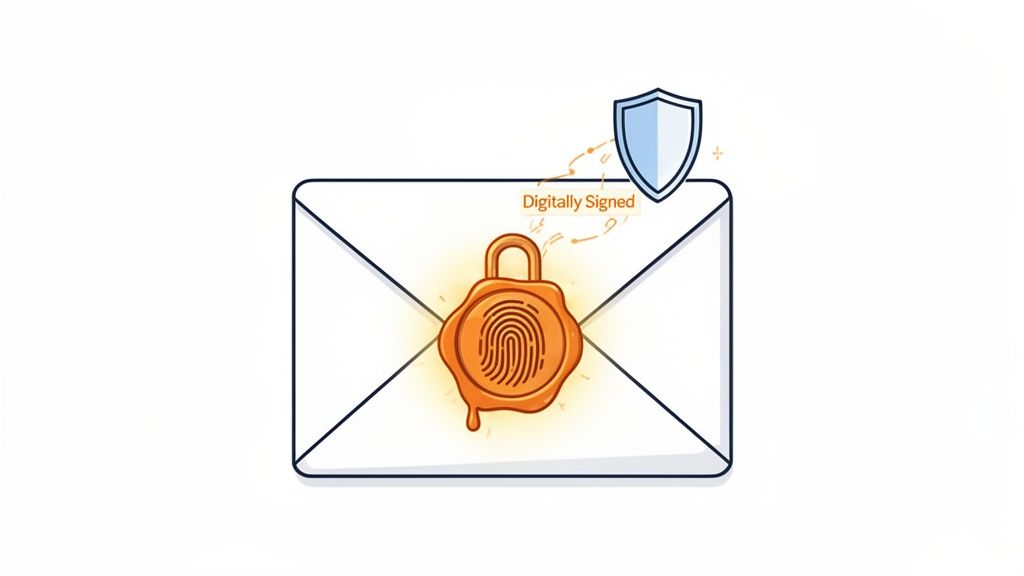
Your average, everyday email is more like a postcard than a sealed letter. Anyone who gets their hands on it during its journey can read it, or worse, alter it before it ever reaches its destination. For businesses, freelancers, and operational teams dealing with sensitive information, that's a massive vulnerability.
Digitally signed emails close that security gap. They work by attaching a unique cryptographic signature to the message itself. This isn't just your name typed at the bottom; it's a complex, encrypted code generated by a digital certificate that belongs only to you.
When your email lands in the recipient's inbox, their email client immediately checks this signature. If everything matches up, they can be certain of two things:
- Authenticity: The email is genuinely from you, not an imposter trying to spoof your address.
- Integrity: The message content and any attachments are exactly as you sent them, with zero modifications.
The Business Case for Digital Signatures
Using digital signatures isn't just a tech upgrade—it's just good business. With daily email traffic expected to reach a staggering 392 billion messages by the end of the year, failing to secure your communications can have real consequences. In regulated industries, non-compliance fines can average $20,000 for a single violation.
This kind of verification builds a bedrock of trust. It reassures a client that the invoice you sent is legitimate, confirms to your team that a directive is authentic, and protects your entire operation from expensive fraud. The whole process starts with establishing a unique digital identity, and you can learn exactly how to create a digital signature in our detailed guide.
A digitally signed email provides non-repudiation. In simple terms, this means the sender can't later deny sending the message. It creates a verifiable, legally admissible record—essential for contracts, formal agreements, and official instructions.
Here’s a quick breakdown of what this technology brings to the table for any business.
Digital Signature Benefits At a Glance
| Benefit | What It Means for Your Business |
|---|---|
| Identity Verification | Protects your brand and clients from phishing and email spoofing. |
| Message Integrity | Ensures that contracts, invoices, and instructions are not altered in transit. |
| Legal Admissibility | Provides a strong, auditable trail for legal and compliance purposes. |
| Enhanced Trust | Builds confidence with partners and customers, showing a commitment to security. |
Ultimately, adopting digital signatures shows your partners, clients, and internal teams that you take security seriously, strengthening your professional relationships across the board.
How Digital Signatures Actually Work
Let's pull back the curtain on how digitally signed emails work, without getting lost in the technical weeds. The whole system is built on a clever concept called public key cryptography, which is best understood with a simple analogy: a unique lock and key pair.
Imagine you have two keys that are mathematically tied together.
- A Private Key: This one is yours and yours alone. You have to protect it fiercely because it’s what you use to create your unique digital signature. Think of it as your personal, impossible-to-forge wax seal.
- A Public Key: You can share this key with anyone and everyone. It acts as the specific mold that can perfectly match your wax seal, proving it came from you and only you.
So, when you send a digitally signed email, your email client takes your private key and uses it to generate a secure, encrypted hash of your message. This hash—a unique digital fingerprint—is your digital signature.
The Verification Process Explained
When your email lands in someone's inbox, their email client automatically kicks into gear. It grabs your publicly available key and uses it to "unlock" the signature. If the key fits perfectly and confirms the message content is exactly as you sent it, the email client gives it a green light, marking it as authentic.
This all happens in a split second behind the scenes, creating a seamless layer of trust. The cryptographic standards holding this all together are incredibly strong, but it's still vital to understand where things can go wrong. For a deeper look at this, our article on critical XML crypto flaws shows how even tiny weaknesses can be exploited.
The Technologies Behind the Scenes
While the lock-and-key idea is universal, a few different technologies put it into practice. They mainly fall into two camps: signatures that verify an individual person, and those that verify an entire domain. The foundation for this was laid with S/MIME (Secure/Multipurpose Internet Mail Extensions) standards back in the late 1990s.
But it wasn't until after 2014, with the EU's eIDAS regulation, that things really took off. That regulation alone boosted the use of legally binding digital email signatures by 40% in major European markets. You can discover more insights about email signature trends to see just how much this space has grown.
S/MIME and PGP provide what's known as end-to-end security. That means the signature is applied right on your device and verified on the recipient's. This is totally different from server-level checks like DKIM, which happen automatically in the background.
To make sense of it all, let's break down the most common standards you'll encounter.
Comparing Email Security Technologies
This table breaks down the key differences between the user-level digital signatures most people think of (S/MIME and PGP) and the domain-level authentication (DKIM) that works behind the scenes.
| Technology | Primary Purpose | Who Manages It | Best For |
|---|---|---|---|
| S/MIME | Signs and encrypts individual emails. | The user, via a digital certificate from a Certificate Authority (CA). | Corporate environments (Outlook, Apple Mail) needing high-trust, user-specific verification. |
| PGP | Signs and encrypts individual emails. | The user, often through a self-managed "web of trust" model. | Individuals and technical users who need strong security without relying on a central authority. |
| DKIM | Authenticates the sending domain, not the individual sender. | The email server administrator. | Preventing domain spoofing and improving email deliverability for all outgoing mail from a domain. |
Knowing the difference here is crucial. When people talk about digitally signed emails, they are almost always talking about S/MIME or PGP because these technologies verify the individual. DKIM, on the other hand, is a broader tool that verifies the organization sending the email.
A Practical Walkthrough for Setting Up Signed Emails
Okay, the theory is great, but let's get down to business. Putting digital signatures into practice is where you actually start protecting your communications. This guide will walk you through the real steps for setting up S/MIME on two of the biggest platforms out there: Microsoft Outlook and Gmail.
Don’t worry, this isn't just for the super technical. The process is pretty straightforward and always starts with one essential ingredient: a digital certificate.
This flow shows how a digital signature gets created, attached to your email, and then checked by the person who receives it.

As you can see, the whole system hinges on the sender's private key and the recipient's ability to verify that signature using the matching public key.
Step 1: Get Your Digital Certificate
Before you can sign a single email, you need a digital certificate. You might also hear this called a digital ID or an S/MIME certificate. It’s basically your official online passport, issued by a trusted third party known as a Certificate Authority (CA). Think of a CA like the DMV or a passport agency—it verifies who you are before handing you an official ID that others can trust.
You can get these certificates from many different CAs. Some offer free versions perfect for personal use, while businesses often opt for paid certificates that involve a more rigorous identity check. Once you pick a provider and they confirm you are who you say you are, they’ll send you a certificate file, usually with a .pfx or .p12 extension.
Key Takeaway: Your digital certificate is the bedrock of your online identity. Guard the private key that comes with it like you would your house keys or a signed blank check. If someone else gets it, they can impersonate you.
Step 2: Install the Certificate and Tell Your Email Client About It
Once you have that certificate file, the next step is to install it on your computer and connect it to your email program. The exact clicks vary a bit from one app to another, but the core idea is always the same.
For Microsoft Outlook:
- Import Your Certificate: First, just double-click the certificate file you received. This will launch a Certificate Import Wizard that walks you through installing it into your computer's personal certificate library.
- Head to the Trust Center: In Outlook, go to File > Options > Trust Center > Trust Center Settings. This is where Outlook keeps all its security controls.
- Set Up Email Security: From there, click on the Email Security tab. Find the "Encrypted email" section and click the Settings button. You'll give your security profile a name and then choose the signing certificate you just installed from a dropdown list.
- Turn It On by Default: To make things easy, you can check the box that says "Add digital signature to outgoing messages." Now, Outlook will automatically sign every email you send.
For Gmail and Other Webmail:
Things are a bit different with web-based email. While native S/MIME is a built-in feature for paid Google Workspace accounts, standard free Gmail users need a little help. This usually comes in the form of a browser extension or a third-party plugin.
These tools work by integrating with your web browser to manage the certificate and apply the signature as you’re writing an email. The principle is identical: you install your certificate and then configure the extension to use it for signing.
This whole process is actually very similar to how you’d secure other kinds of files. If you want to see it in a different context, take a look at our guide on how to digitally sign a PDF, which uses the same core idea of applying a verifiable signature to a document.
How to Verify a Signature and Understand Trust
Sending a digitally signed email is just one side of the coin. As a recipient, knowing how to recognize and verify one is just as important. The good news is that your email client does most of the heavy lifting, acting like a bouncer at a club, instantly checking the sender's ID. The process is automatic, but understanding what’s happening behind the scenes helps you trust the right messages and spot the fakes.
Look for the visual cues. Most modern email clients—Outlook, Gmail, Apple Mail—give you a clear sign when an email's signature is valid. It's usually a small, reassuring icon next to the sender's name, like a red ribbon, a blue checkmark, or a tiny padlock. Think of this symbol as a green light, confirming the email is genuinely from the sender and hasn't been messed with in transit.
The Chain of Trust Explained
So, how does your email client know who to trust? It all comes down to something called the "chain of trust."
Imagine it like a professional reference check. The sender's digital certificate wasn't just created out of thin air; it was issued by a globally recognized Certificate Authority (CA). Your email client comes with a pre-installed list of these reputable CAs. It already knows who the trustworthy authorities are.
When a signed email lands in your inbox, your client quickly runs a background check by asking a few key questions:
- Who issued this certificate? It looks to see if the CA is on its trusted list.
- Is this certificate still valid? It checks to make sure the certificate hasn't expired or been revoked.
- Does the signature match the message? It confirms that not a single character in the email has been altered since it was signed.
If the answer to all three is a solid "yes," you see that little trust icon pop up. It’s a simple, elegant system that creates a reliable foundation for verification. For a deeper dive into this process, check out our guide on the verification of a signature.
What Happens When Verification Fails
If that verification check doesn't pass, you won't see a friendly icon. Instead, your email client will throw up a big red flag—a prominent warning telling you something is wrong.
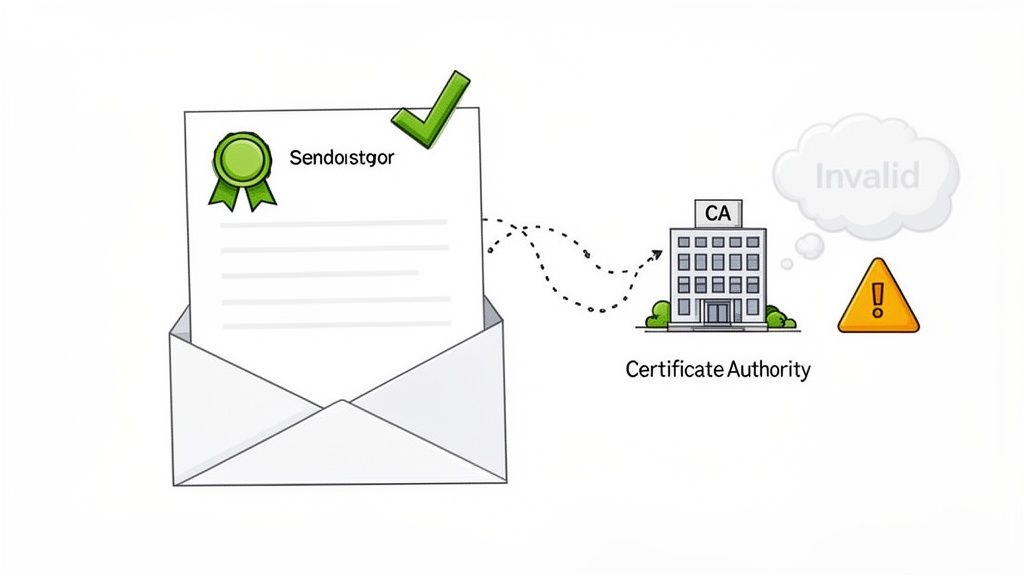
This alert is a clear signal: don't trust the email. The failure could be for a simple reason, like an expired certificate. But it could also be for a much more sinister one, like the message being intercepted and altered after it was sent.
This verification process is your first line of defense against sophisticated phishing and fraud. In fact, using verifiable digital signatures can slash forgery risks by an incredible 92%. Paying attention to these warnings is a simple but powerful habit that keeps you safe.
Digital Signatures vs. Electronic Signatures
One of the most common mix-ups in the security world is using "digital signature" and "electronic signature" as if they mean the same thing. They're often thrown around interchangeably, but they are two completely different technologies built for different jobs. Getting this right is fundamental to building a solid security and compliance framework.
Here’s a simple way to think about it: a digitally signed email is like sending a contract inside a tamper-proof, certified courier envelope. The digital signature is that unbroken wax seal on the envelope, proving who sent it and that no one messed with it along the way. Its main job is to secure the communication channel itself.
An electronic signature, like one from QuickSign, is the legally binding signature you put on the contract inside that secure envelope. It’s all about showing formal agreement and intent on a specific document.
The Envelope vs. The Signature Inside
A digitally signed email leverages a certificate-based digital ID to authenticate the sender and guarantee the integrity of the entire message. It confidently answers two critical questions: "Did this email really come from you?" and "Has anything in this email—including all its attachments—been altered?"
An electronic signature, on the other hand, is primarily a legal concept. It's an electronic symbol or process attached to a record, carried out by a person who intends to sign.
Key Takeaway: A digital signature secures the container (the email), while an electronic signature validates the intent on the content inside (the document). They aren't competing technologies; they're partners that complement each other.
How They Work Together for Full Security
The most robust and secure workflows actually use both. Imagine you use an electronic signature platform to get a sales agreement signed. Once that's done, you send the legally executed document to your client inside a digitally signed email.
This layered approach creates true end-to-end trust.
- The electronic signature on the PDF proves the client formally agreed to the terms.
- The digital signature on the email proves that the message delivering that signed PDF is authentic and hasn't been tampered with in transit.
This distinction gained serious legal weight after the U.S. passed the Electronic Signatures in Global and National Commerce Act (E-SIGN) way back in 1999. This law gave legal standing to digital signatures, which paved the way for their standardization in email protocols like PGP and S/MIME.
To really get into the weeds, it helps to understand the specific technical and legal details that separate them. You can learn more about the real difference between electronic and digital signatures in our deep-dive guide. Knowing which one to use, and when, is the key to protecting both your communications and your critical business agreements.
Frequently Asked Questions About Digitally Signed Emails
Even when you've got a good handle on the basics, some practical questions always pop up when you start using digitally signed emails. Let's tackle the most common ones. Think of this as your go-to guide for those "what if" moments that can trip you up.
Do I Need to Sign Every Single Email?
Technically, no. You probably don't need to sign that email about picking up lunch. But getting into the habit of signing everything is a really smart move. The best practice is to sign all your professional emails, especially if they involve sensitive info, attachments, invoices, or any kind of instruction.
Why? It creates a pattern of trust. When your contacts get used to seeing that little verification badge on your emails, an unsigned message claiming to be from you will immediately look suspicious. It's a simple, powerful way to help them spot phishing attempts a mile away.
Can a Digitally Signed Email Be Forwarded?
Absolutely. You can forward a signed email just like any other. But here's the crucial part: the digital signature is tied only to the original sender and the original message.
If the person forwarding the email changes anything—adds a comment, removes a line—the recipient’s email client will likely flag it. A warning will pop up explaining that the message was modified after it was signed. This isn't a glitch; it's a core feature that protects the integrity of the original communication and prevents anyone from putting words in your mouth.
The Bottom Line: The signature is like a cryptographic "wax seal" on the email at the exact moment you hit send. Any change breaks that seal, and email clients are built to notice and report it. This is what gives the original message its non-repudiation—no one can deny what was originally written.
What Is the Cost of a Digital Certificate?
The price tag for a digital certificate can be all over the map. For personal use, you can often find free or very cheap certificates from some Certificate Authorities (CAs). These are perfect for just getting your feet wet.
For businesses, it's a different story. You'll want a more robust, business-grade certificate. These require a deeper validation of your organization and typically run anywhere from $20 to several hundred dollars per year. The cost really depends on the CA you choose, how thoroughly they vet your identity, and any extra security features they bundle in.
How Does This Work with High Email Volume?
This is where digital signatures really shine. Think about it: 30.2% of professionals send 11-25 business emails a day, and another 9.4% send over 50. Manually checking every single one for authenticity is just not feasible. Digital signatures automate that entire trust process.
In fact, for things like agreements and approvals, a single digitally signed email can slash disputes by as much as 70%. That’s because the signature provides a timestamped, tamper-proof audit trail. It lets high-volume teams operate with confidence, knowing every important message is automatically secured. You can dig into more of the numbers in these email signature statistics.
Ready to take the next step and secure your entire agreement process? QuickSign makes it easy to get documents signed in minutes on a secure, user-friendly platform. You can create contracts with AI, watch the signing process in real-time, and rest easy knowing every agreement is legally binding. Start for free at QuickSign and see for yourself.