How to Create Digital Signature: Simple Guide (how to create digital signature)
Learn how to create a digital signature securely with top tools, legal tips, and quick steps for PDFs and cloud platforms.
When you create a digital signature, you're not just scribbling your name on a screen. You're using a special, certificate-based digital ID to embed a unique, encrypted "fingerprint" onto a document. This is typically done through a secure platform like QuickSign or dedicated desktop software, which handles the complex process of verifying your identity and cryptographically locking it to the document.
The result? A signature that guarantees both the document's integrity and your authenticity as the signer.
What a Digital Signature Really Means
Before we jump into the "how-to," we need to clear up a common and critical point of confusion. People throw around "electronic signature" and "digital signature" like they're the same thing. They're not. Understanding the difference is fundamental to knowing which one to use and when.
An electronic signature (or e-signature) is really a catch-all term. It can be anything from typing your name in an email, clicking an "I Agree" button, or even drawing your signature on a courier's tablet. It’s about showing intent to sign, but the security behind it can be quite basic.
A digital signature, however, is a very specific and far more secure type of electronic signature. It isn't just an image of your signature; it's a cryptographic seal of approval.
Let's quickly compare the two.
Digital Signature vs Electronic Signature at a Glance
This table breaks down the core distinctions between a standard e-signature and a true digital signature. It's a quick reference for understanding the security and legal weight each one carries.
| Feature | Electronic Signature (E-Signature) | Digital Signature |
|---|---|---|
| Verification Method | Simple verification like email, IP address, or typed name. | Uses a unique, certificate-based digital ID from a trusted Certificate Authority (CA). |
| Security | Basic level; demonstrates intent but can be easier to forge or dispute. | High-level cryptographic security using Public Key Infrastructure (PKI). |
| Integrity | Document integrity is not inherently guaranteed. | Tamper-evident. Any change to the document after signing invalidates the signature. |
| Legal Standing | Legally binding in many cases, but authenticity can sometimes be challenged. | Strongest legal evidence of authenticity and non-repudiation. |
| Example Use Case | Signing for a package, accepting terms of service, internal leave requests. | High-value contracts, legal filings, government documents, real estate deals. |
As you can see, while both have their place, their underlying technology and the assurance they provide are worlds apart.
The Technology Behind the Trust
So, what gives a digital signature its power? The magic is in something called Public Key Infrastructure (PKI). It sounds intimidating, but the concept is actually quite elegant.
When you're ready to sign a document, two things happen behind the scenes:
- Hashing: First, the document is put through a special algorithm that generates a unique code, a digital fingerprint known as a "hash." Change even a comma in the document, and this hash changes completely.
- Encryption: Next, your private key—a unique digital key that only you control—is used to encrypt that hash. This encrypted hash is your digital signature.
Anyone who receives the document can then use your corresponding public key to unlock the signature. Their software automatically checks if the decrypted hash matches a newly generated hash of the document. If they match perfectly, they know two things for sure: it was you who signed it, and the document hasn't been touched since.
Why This Distinction Matters in the Real World
Context is everything. For an internal PTO request, a simple e-signature is perfectly fine. The risk is low, and all you really need is a record of who approved it.
But when the stakes are high—think a multi-million dollar merger agreement, a legally binding real estate contract, or sensitive intellectual property filings—a basic e-signature just won't cut it. These situations demand the robust, verifiable security of a true digital signature to guard against fraud and ensure legal non-repudiation (meaning the signer can't later deny having signed it).
The global market for this technology is exploding, with projections estimating its value between USD 5.2 billion and USD 13.46 billion by 2025. This incredible growth has spurred the creation of user-friendly platforms that handle all the complex cryptography for you.
This security framework is precisely what gives regulations like the EU's eIDAS their teeth. As you learn how to create your own digital signature, understanding the technical rules for advanced electronic signatures under eIDAS is essential for ensuring your signatures are fully compliant and legally sound.
Picking the Right Digital Signature Tool for You
Figuring out the best way to create a digital signature isn't a one-size-fits-all situation. The truth is, it boils down entirely to what you need to accomplish. Choosing the right tool is probably the most critical decision you'll make, as it directly impacts your workflow, security, and even your budget.
Your path forward will really depend on a few key things: the legal weight your documents need to carry, how comfortable you are with the tech side of things, and what you're willing to spend.
This decision tree gives you a quick visual on that first big choice: do you need a simple e-signature, or something with the cryptographic security of a true digital signature?
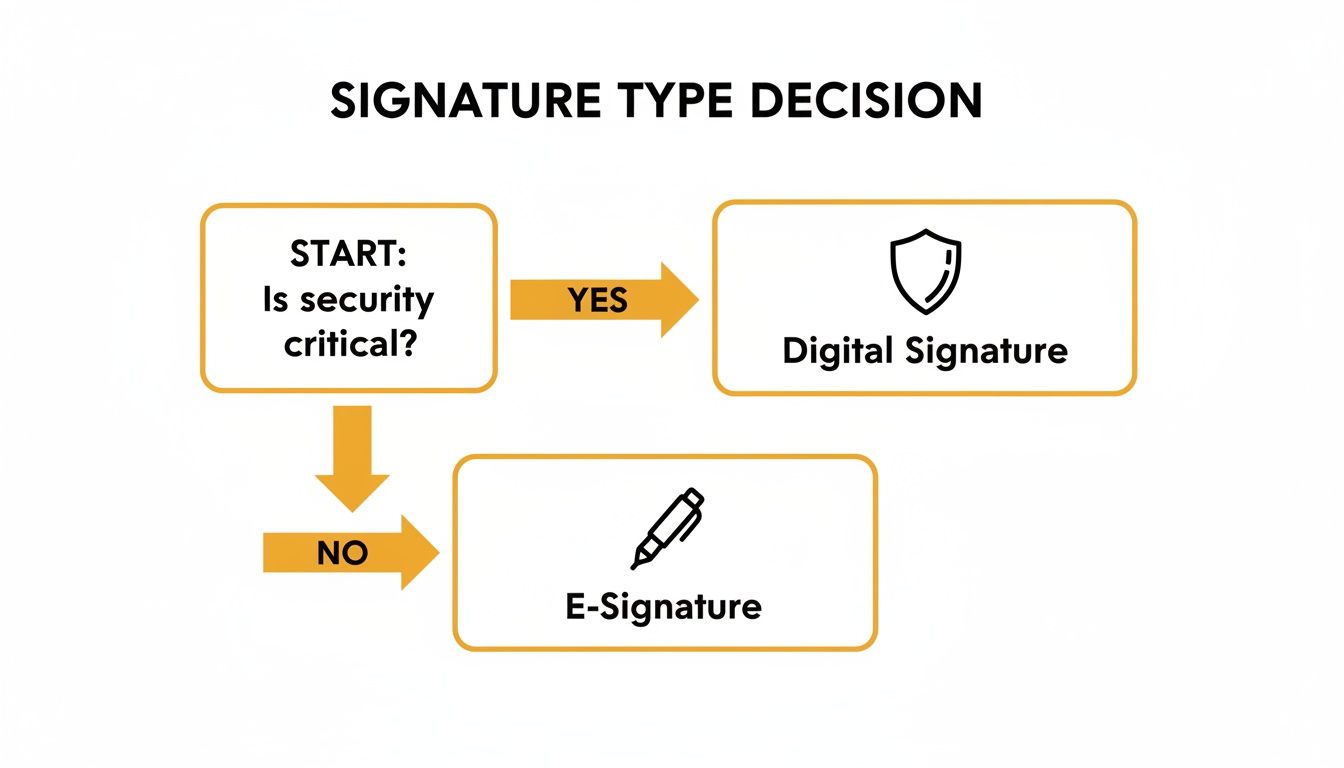
As you can see, the first question is always about security. For any high-stakes agreement, you’re going to be pushed toward a digital signature. Let's break down the three main ways you can go about creating one.
Cloud E-Signature Platforms
For most of us—freelancers and businesses alike—a user-friendly cloud platform is the path of least resistance. Services like QuickSign, DocuSign, or Adobe Sign handle all the complicated crypto stuff in the background. This frees you up to focus on what matters: getting documents signed quickly and securely.
These platforms are a perfect fit for everyday business situations.
- A freelance designer needs a client to sign a contract. They want a simple, legally sound way for both of them to sign it online without any fuss.
- A small business is bringing on a new hire. They need an offer letter and NDA signed, complete with a clean audit trail showing exactly when the documents were opened and signed.
- An operations team has to get vendor agreements out the door. Speed and tracking are everything to keep their projects from stalling.
They basically walk you through the process, which is why they're so great for workflows that involve multiple signers. If you’re keeping an eye on your budget, our guide on how to choose the right free e-signature tools in 2025 is a great place to start comparing the top contenders.
Dedicated Desktop Software
Another route is using dedicated desktop software, and the big player here is Adobe Acrobat Pro. This approach gives you more direct, hands-on control. You're creating and managing your digital ID right there on your own machine.
I see this approach favored by professionals who deal with sensitive documents all day long. A small law firm, for example, might use Acrobat to apply self-signed digital signatures for internal verification before sharing files securely with clients. It gives you incredible control, but it does ask for a bit more technical know-how.
Signatures from a Certificate Authority
When you need the absolute highest level of assurance, you go straight to the source: a trusted Certificate Authority (CA). This is the gold standard for high-value transactions where identity verification is non-negotiable. Getting a certificate this way involves a pretty rigorous vetting process to prove you are who you say you are before the CA issues your digital credentials.
This is the go-to for corporate finance teams executing multi-million dollar agreements or government contractors submitting official bids. In these cases, the identity of the signer has to be completely indisputable.
This massive shift to digital-first work really brings home how important these tools are. In 2024–2025, around 66% of large companies were already calling themselves "digital-first," a trend that lines up perfectly with the wide adoption of hosted e-signature platforms. You can dig into more of the digital signature market trends on futuremarketinsights.com. It’s a clear signal that picking a tool that actually fits your security and operational needs is more critical than ever.
Get Your Signature Ready in Minutes with a Cloud Platform
For most of us, whether you're a freelancer or part of a large company, the quickest and most straightforward way to handle digital signatures is by using a cloud-based service. Platforms like our own QuickSign, or others you might have heard of like DocuSign, do all the heavy lifting—the complex cryptography—behind the scenes. This lets you focus on getting your work done, not on becoming a security expert.
This approach is all about making secure document signing accessible. You don't need to know the first thing about Public Key Infrastructure or how to manage your own cryptographic keys. The platform guides you through a few simple clicks, taking you from uploading a document to getting it signed in a secure, compliant way.
Your First Signing Workflow
Getting started is refreshingly simple. After creating an account, you just upload the document you need signed. It could be anything—a new client contract, an NDA for a potential partner, or even an internal expense report.
Once the document is uploaded, you’ll see an intuitive editor where you can prep it for signing. This is where you place all the necessary signature and information fields for everyone involved.
You can drag and drop common fields right onto the document:
- Signature Field: The main event—where each person applies their unique signature.
- Date Signed: This field automatically fills in the date the signature is applied, leaving no doubt about the timing.
- Initials: Great for longer contracts where you need someone to acknowledge specific clauses on multiple pages.
- Text Boxes: Lets signers fill in their printed name, address, or any other details you require.
This visual process is a lifesaver. It makes it nearly impossible to miss a required field, which cuts out that frustrating back-and-forth you get with incomplete paperwork.
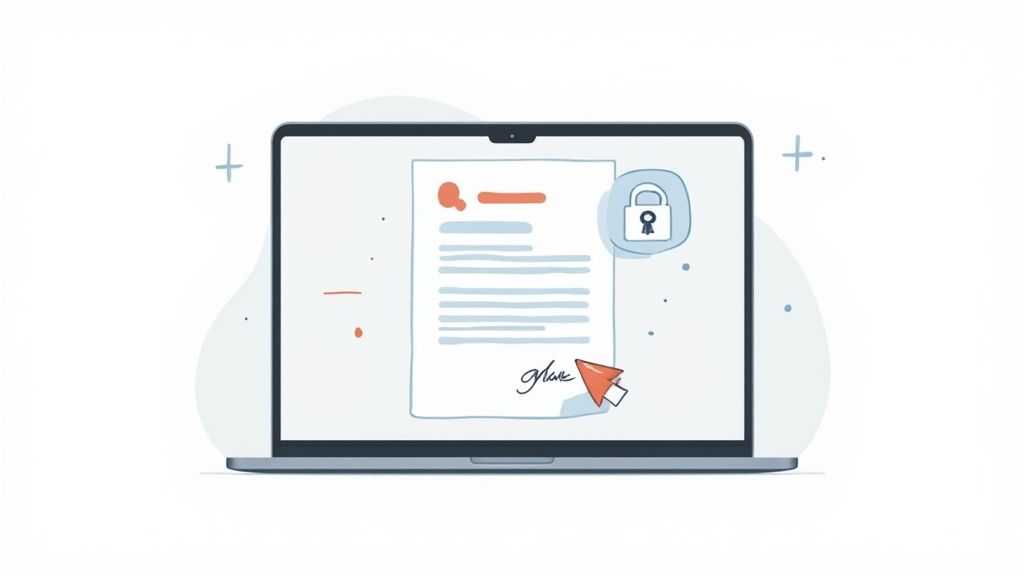
What Will Your Signature Look Like?
When it's your turn to sign, the platform will prompt you to create the visual part of your signature. It's a common point of confusion, but remember: this image is just for show. The real security comes from the digital certificate the platform attaches to it in the background.
You typically get three choices for how your signature appears:
- Draw it. Use your mouse, trackpad, or even your finger on a touchscreen to draw your signature by hand.
- Type it. Just type out your name, and the system will generate it in a few different script-style fonts.
- Upload an image. If you already have a scanned image of your handwritten signature, you can upload that file to use across all your documents.
No matter which option you pick, the platform securely binds that visual mark to your identity and the document's content. This creates a tamper-evident and legally binding record that is easy for anyone to verify later.
The platform is the one managing the digital certificate for you. When you "adopt" a signature, you're just telling the service to apply its secure, cryptographically-backed signature technology to the document on your behalf.
Managing Signatures for a Whole Team
One of the biggest wins with a cloud platform is orchestrating workflows with multiple people. Forget emailing a document from one person to the next and just crossing your fingers. Now you can control the entire process from a single dashboard. It’s a huge boost to efficiency.
You can set a specific signing order, ensuring Person A signs before the document ever gets to Person B. This is critical for processes with a clear chain of command, like a manager approving an expense report or a legal team reviewing a contract. Platforms like QuickSign have powerful features to keep these multi-signer workflows moving. To see this in action, check out our guide on how to streamline approvals with remote document signing without slowing everything down.
Better yet, you can put reminders on autopilot. If someone hasn't signed after a few days, the system sends them a friendly nudge for you. This one feature alone can slash the time it takes to get agreements finalized, so you can move projects forward without having to chase people down. Once everyone has signed, they all get an email with the final, executed document and a complete audit trail.
While cloud-based platforms are great for getting things signed quickly, sometimes you need to keep your signing credentials closer to home. This is where a robust desktop tool like Adobe Acrobat Pro really comes into its own. By creating a digital ID directly within Acrobat, you’re essentially creating your own self-signed certificate. It gives you a reusable, password-protected identity for signing documents right on your own machine.
This approach is a favorite among professionals who handle a steady stream of sensitive PDFs and want to keep their signing credentials completely self-contained. Think of lawyers, architects, or accountants who need to repeatedly apply a secure, verifiable signature to their work before sending it out.
First, Find the Certificates Tool
Your digital ID is managed through Acrobat's "Certificates" tool. It's not always front and center, so you might have to look for it. The easiest way is to search for "Certificates" in the main Tools center. Once you open it, a new toolbar will pop up at the top of your document, giving you options like "Digitally Sign" and "Time Stamp."
This little toolbar is your command center for everything related to certificate-based signing. From here, you can whip up new IDs, manage the ones you already have, and check the validity of signatures on documents you receive. If you sign things often, I'd recommend adding this tool to your shortcuts for easy access.
Configuring a New Digital ID
To get started, click "Digitally Sign." Acrobat will ask you to draw a box on the document where you want the signature to go. If this is your first time, the app will see you don't have a digital ID set up and will kick off the configuration process. You’ll see a prompt to "Configure New Digital ID."
This is your first big decision point. You can use a physical signing device (like a smart card), import an existing digital ID from a file, or create a totally new one. For most people just starting out, creating a new digital ID is the way to go.
This screenshot from Adobe's own help files shows the main choices you'll be faced with.
As you can see, you can generate a new ID from scratch, use one you already have saved in a file, or link to a piece of hardware. This gives you a good bit of flexibility depending on your security requirements.
Next, you need to decide where to store this new ID. The two main options are:
- New PKCS#12 digital ID file: This is the most common choice. It saves your digital ID as a password-protected
.pfxfile right on your computer. The best part is that this file is portable—you can back it up or move it to a new machine if you need to. - Windows Certificate Store: This option tucks the ID away securely within your Windows user account. It's tied directly to your login, which makes it convenient for other apps on that computer to use, but it’s not as easy to move around.
For most individual users, saving it as a .pfx file strikes the perfect balance between security and flexibility.
Entering Your Identity Details
Now it's time to fill out the form with your personal information. These are the details that will appear in your signature's certificate, so be accurate and professional. This is what people will see when they click on your signature to verify it.
You’ll need to provide:
- Name: Your full professional name.
- Organizational Unit: Your department, like "Marketing" or "Legal."
- Organization Name: The name of your company.
- Email Address: Your work email.
- Country/Region: Your location.
You'll also get to pick a key algorithm. For years, 2048-bit RSA has been a solid standard, but it’s always a good practice to select the highest level of encryption available. This helps future-proof your digital signature's security. The very last step is creating a strong password.
This password is all that stands between your private key and the outside world. Treat it like your bank password. Without it, your digital ID is useless; with it, it’s your legally binding signature.
Applying and Customizing Your Signature
With your digital ID created, you're ready for the final step. Just click "Sign," and your signature will appear in the box you drew. Before you finalize it, you can tweak how it looks. You can have it display your typed name, the date, a company logo, or even an uploaded image of your actual handwritten signature. This visual flair is just the top layer, of course—the real work is being done by the powerful cryptographic signature underneath.
Once you hit save, the document is locked down. Any attempt to change the PDF after you've signed it will invalidate your signature, providing a crystal-clear, built-in warning to anyone who opens the file. To get a better handle on the whole process, from signing to verification, check out our complete guide on how to digitally sign a PDF.
Verifying Signatures and Staying Legally Compliant
A digital signature is only as good as the trust it creates. After all, if the person receiving your document can't easily verify its authenticity, what's the point?
Fortunately, checking a signature's validity isn't some complex cryptographic puzzle. It's a simple process built right into the software you already use, like Adobe Acrobat Reader.
When you open a signed PDF, you'll usually see a banner or a "Signature Panel." Think of this as the signature's digital passport—it contains everything you need to confirm the signer's identity and ensure the document hasn't been secretly altered.
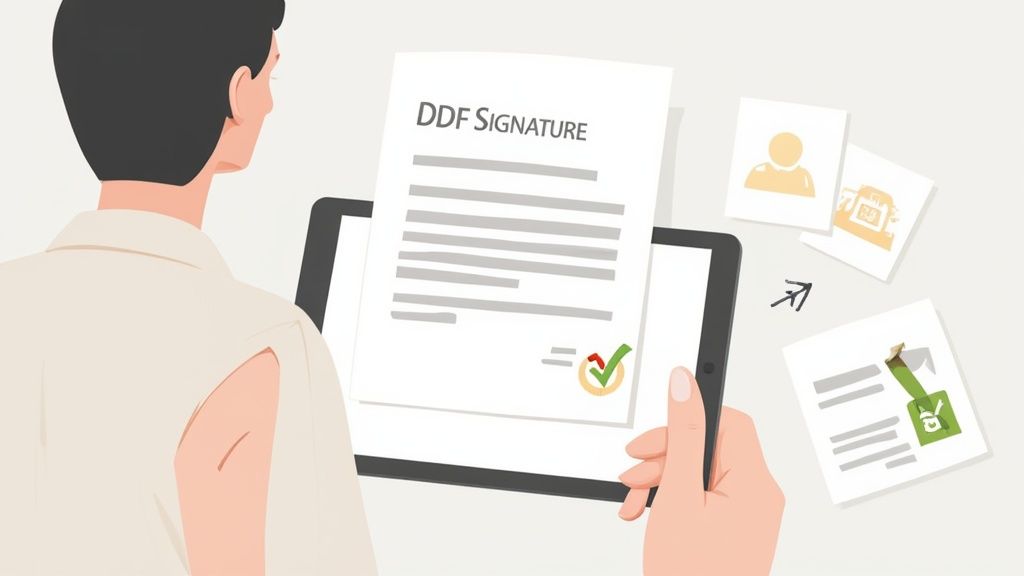
What To Look For In The Signature Panel
Once you open that panel, you're looking for a few key details that form a digital chain of trust. A quick scan of these elements tells you everything you need to know.
- Signature Validity: First and foremost, you should see a clear "Signature is valid" message, often accompanied by a green checkmark.
- Signer Identity: The panel will show the name of the person who signed the document, pulled directly from their digital certificate.
- Document Integrity: This is the big one. It will confirm that the document has not been modified since it was signed. That’s the tamper-evident seal doing its job.
- Certificate Trust: The software also checks that the certificate came from a trusted Certificate Authority that your system recognizes.
Red Flag Warning: If you see any alerts like "The document has been altered" or "The signer's identity is unknown," stop immediately. This is a clear sign that something is wrong, and the document could be fraudulent or compromised.
Decoding The Legal Frameworks
Beyond the technical side, you need to understand the legal landscape to make sure your signatures are enforceable. Different parts of the world have their own rules that give digital signatures the same legal standing as their handwritten counterparts.
The two big ones you'll run into are the ESIGN Act in the United States and the eIDAS regulation in the European Union. Both lay the legal groundwork, but they have different standards for security and identity verification based on how critical the transaction is. You can get a much deeper understanding by reading up on the key electronic signature legal requirements businesses need to know.
Understanding eIDAS Signature Levels
The EU's eIDAS regulation is particularly important because it creates a tiered system for signatures. This is a big deal in global business, as it sets a clear standard for legal strength across all member states.
This tiered system clarifies the security backing each signature, helping you understand its legal weight. Here's a quick breakdown:
| Signature Level | Security & Identity Requirement | Common Use Case |
|---|---|---|
| Standard (SES) | Basic electronic process showing intent (e.g., ticking a box). | Accepting website terms, routine internal approvals. |
| Advanced (AdES) | Uniquely linked to and identifies the signer; created under their sole control. | High-value commercial contracts, employment agreements. |
| Qualified (QES) | Created with a qualified certificate from a trusted provider and a secure device. | Court filings, real estate transactions, public tenders. |
A Qualified Electronic Signature (QES) is the gold standard in the EU, carrying the same legal weight as a wet-ink signature by default. Because of this, we're seeing a major push in regulated industries for workflows that require signers to obtain these government-vetted certificates, a trend confirmed by numerous digital signature market reports. Knowing these differences helps you choose the right signature for the job and confidently assess the ones you receive.
Got Questions? We’ve Got Answers.
As you start working with digital signatures, a few questions are bound to pop up. It’s completely normal. Let's walk through some of the most common ones I hear from people making the switch.
Are Digital Signatures Actually Legally Binding?
Yes, absolutely. In most developed countries, digital signatures are on par with handwritten ones in the eyes of the law.
Here in the United States, the ESIGN Act gives them full legal standing. Over in Europe, the eIDAS regulation does the same. For your most important documents—think major contracts or legal filings—using a signature backed by a certificate from a trusted authority is the gold standard. It provides undeniable proof of who signed and when.
Can’t I Just Paste a Scanned Image of My Signature?
You can, but it's a completely different animal. Dropping a picture of your signature onto a document is considered a basic electronic signature. It shows you intended to sign, but that's about it.
It's not a digital signature. Why? Because it has none of the cryptographic security. An image can't prove who signed the document or, crucially, that the document hasn't been tampered with since. A scanned image is okay for casual agreements, but it's not the right tool for anything important.
What Happens If Someone Changes the Document After I Sign It?
This is where the magic of digital signatures really shines. If anyone tries to alter the document after it's been digitally signed—even just changing a comma or adding a space—the signature immediately breaks.
The next person to open that file will get a big, flashing warning sign telling them the document has been compromised. This tamper-evident seal is automatic and protects everyone involved from fraud or accidental changes.
Do Digital Signatures Expire?
The signature on the document itself is permanent—it's forever tied to that specific version of the file. However, the digital certificate used to create the signature usually expires every one to three years.
So, how do you make sure a signature is valid 10 years from now? Simple. The best practice is to include a trusted timestamp when you sign. This acts as definitive proof that your certificate was valid at the exact moment of signing, keeping the signature legally sound long after the original certificate has expired.
Ready to stop worrying and start signing? With a platform like QuickSign, you can create and manage secure, legally binding signatures in minutes, not hours. Try QuickSign for free today and see how easy it is to protect your documents.